As you might know, Microsoft will stop supporting the MSOnline and AzureAD Powershell Modules for managing Entra Identity and other Microsoft 365 related services in the near future. Where the current end of life date was set to previous month, this has now been postponed to March 30, 2024.
As a successor to the above mentioned modules, the new Microsoft Graph (MgGraph) API and accompanying powershell commandlets are available for download here. I would advise you to install both the v1.0 and the beta version of the SDK. Why will be made clear in this article.
In the remainder of this article, I will explain how to move from using the legacy modules to the Microsoft Graph API and accompanying Powershell Module. For demonstration purposes, we are going to turn off directory synchronization by using the MgGraph Powershell Module and API.
Setting up your environment
After installing the v1.0 and beta version of the SDK, there are a few things that come to mind. Where do I find the correct modules, what cmdlets are available to me? Let’s answer the last question first. In the following article at Microsoft Learn a list is shown including the “old” MSOnline and AzureAD cmdlets and their new Graph equivalent. This document provides you with a great place to start. In our example we’re going to use the “Update-MgOrganization” cmdlet as the new alternative for the previously available “Set-MsolDirSyncEnabled” cmdlet:

So, If we’d like to find out which permissions are required to execute the “Update-MgOrganization” cmdlet, we could do so using “Find-MgGraphCommand -Command Update-MgOrganization” or the Find-MgGraphPermission cmdlet:

- The Find-MgGraphCommand cmdlet
- The Find-MgGraphPermission cmdlet
Connect and show current organization details
So, with this figured out, we can now connect to the Microsoft Graph API with the correct permissions using the following cmdlet:

Connect-MgGraph -scopes “Organization.ReadWrite.All“When running the “get-MgOrganization” cmdlet, information of your organization is shown. Amongst others, the “Id” shows the Tenant ID of the organization.
Disabling the onpremise sync by updating the organization
Now, when looking at the Microsoft Learn article for “Update-MgOrganization”, we can see that every parameter needs to be wrapped in a hash-table before it can be sent to the Microsoft Graph API using Powershell:

A hash table containing the properties to disable onpremise sync can be constructed as follows:
$parameters = @{
onPremisesSyncEnabled = $False
}
Next, we’ll update “MgOrganization”:
Update-MgOrganization -OrganizationId -BodyParameter $parameters
Well that’s weird, the Graph API is telling us that the property ‘onPremisesSyncEnabled’ is read-only and cannot be set.
According to the documentation this is a writable property that can have the values “null”, “true” or “false”.
Running Beta Commands
Let’s close the current Powershell sessions (run disconnect-MgGraph first!) and start a new one, loading the Beta Module to try again by running “Import-Module Microsoft.Graph.Beta.Identity.DirectoryManagement” as can be seen in the next picture. Store the “onPremisesSyncEnabled” property in a hash table again:

And now, run the beta version of the command (Update-MgBetaOrganization):

Now there will be no error message and after running “Get-MgBetaOrganization” we can see that onpremisesSync is disabled:

This of course can also be seen from the portal:

Communicating directly with the Microsoft Graph API
A question that came to mind when fiddling around with all this was “how can I find all API endpoints and available properties?”. The answer to this question is actually quite simple. The Microsoft Graph API is a REST endpoint and as such can be queried using REST requests. This can be done by a couple of tools, where the most popular are:
- Graph Explorer: Graph Explorer | Try Microsoft Graph APIs – Microsoft Graph
- PostMan: Use Postman with the Microsoft Graph API – Microsoft Graph | Microsoft Learn
In this example we’ll use Microsoft’s Graph Explorer which is an online tool. First navigate to the Microsoft Graph Explorer website (Link above) and sign in, otherwise you’ll only be presented with sample data. Next we’re going to navigate to an endpoint. An endpoint holds certain properties that can be configured. These are also the properties that are changed using the powershell cmdlets we used above.
Using the Graph Explorer, we can set a method (for example “GET”), specify the version of the endpoint (which are “v1.0” or “beta” as we have already seen while using the Powershell cmdlets) and fill in the URL to the endpoint we want to use:

For example, we could start with the method “GET” to request information about the current Organization by specifying “GET” as the method, “V1.0” as the endpoint version and an endpoint of https://graph.microsoft.com/beta/organization/<enter organization ID here>. The endpoint can be found using autocomplete in the Graph Explorer or by taking a look at the following article: Microsoft Graph REST API v1.0 endpoint reference – Microsoft Graph v1.0 | Microsoft Learn
By clicking on the “modify permissions” tab, you can set the appropriate permissions for the request that you would like to make. For example here I’ve attached a screenshot of the permissions that can be set for the “onPremisesSynchronization” endpoint:

Now, let’s take a look at all the properties of the “organization” endpoint by using a method of “GET”, version of “v1.0” and endpoint https://graph.microsoft.com/beta/organization/. Then click run query and you are presented with all properties present in the current endpoint:
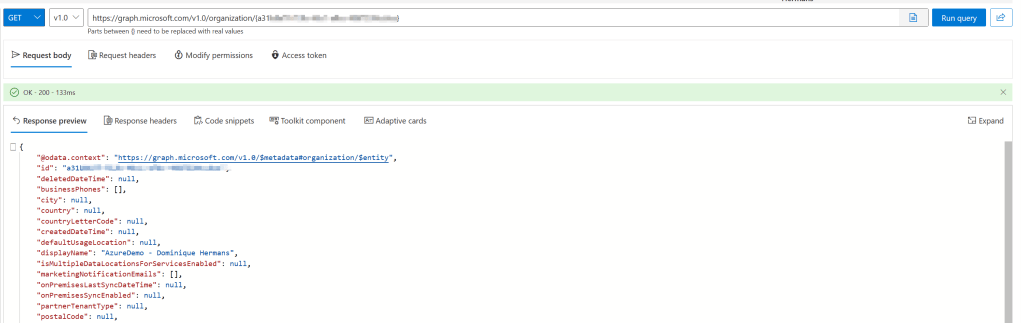
We could alter one of the properties of the “organization” endpoint such as the “onPremisesSyncEnabled” property we’ve set using powershell before using one of the following HTTP methods, as described on Use the Microsoft Graph API – Microsoft Graph | Microsoft Learn:
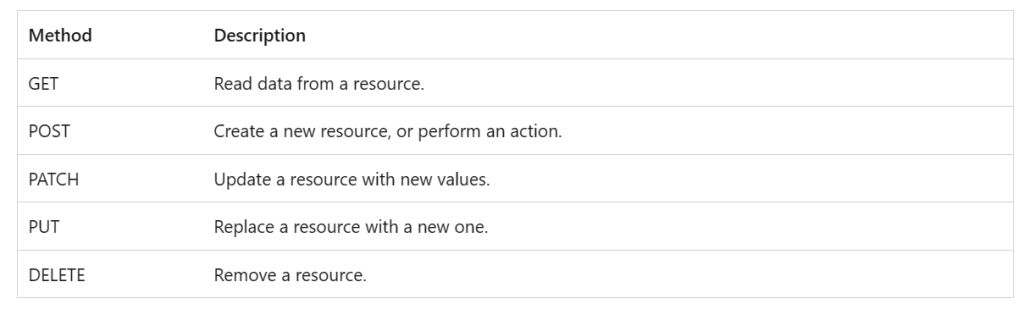
The method to use here is “patch”, since “patch” is a method of modifying a resource by sending only the data (or property) in the request body that has to be changed, whereas the “put” method would update the entire resource (or replace it with a new one as the table above states).
Now, by using the Graph Explorer we can adjust the “onPremisesSyncEnabled” property by using the “patch” method with the following request body:
{
"onPremisesSyncEnabled": true
}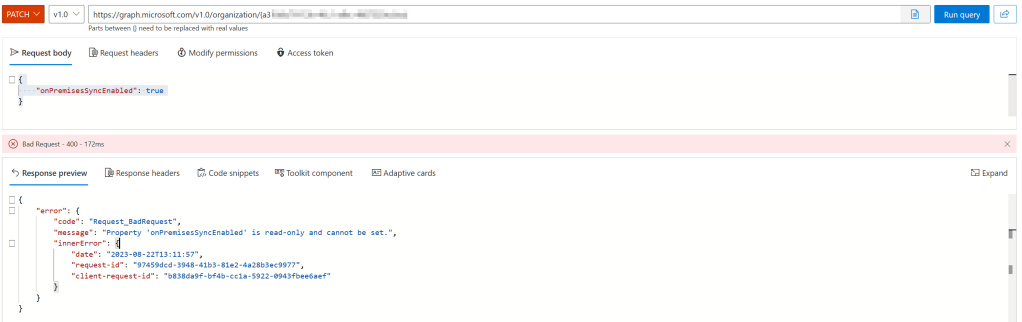
Next, press “run query” and right away we will see that using the v1.0 endpoint, it also says the property is read only. However, when using the beta endpoint, things seem to work out better for us as no error message is generated:
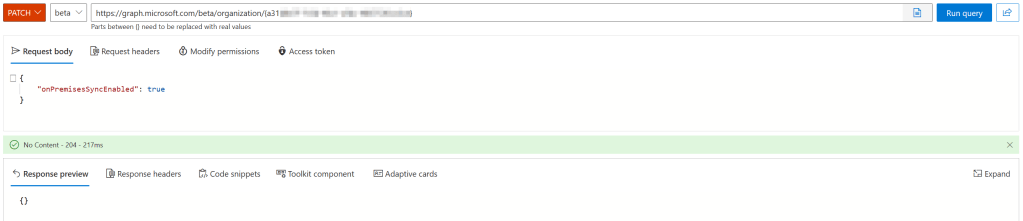
When using the get method next, we can see that the property is indeed changed.
I’ve doublechecked this behavior where the v1.0 does not seem to work with other properties such as “city” and also this property cannot be changed currently. To doublecheck the behavior with another endpoint, things work as advertised. For example, here I’ve used the v1.0 endpoint to alter the “groupWriteBackEnabled” property in the “onPremisesSynchronisation” endpoint to true:
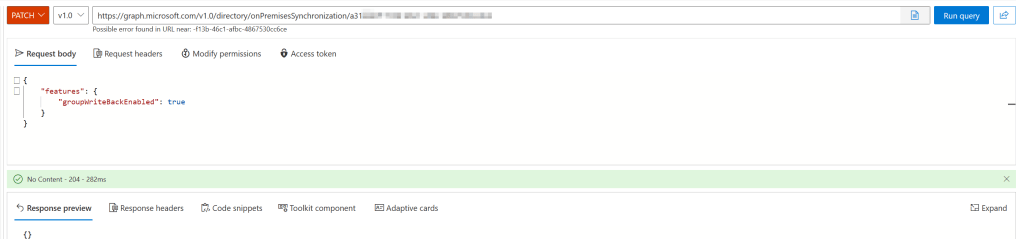
Using get it can be verified that it’s working correctly:

So, the “organization” v1.0 endpoint needs some work on Microsoft’s side.
Using “Invoke-MgGraphRequest” to communicate with the API
To tidy this up, above change can also be achieved using the “Invoke-MgGraphRequest” cmdlet. Using this cmdlet, all info that was sent earlier in the Microsoft Graph Explorer is fed to the cmdlet using a hashtable as body:
$uri = https://graph.microsoft.com/beta/organization/<organization ID>

$body = @'
>>     {
>>         "onPremisesSyncEnabled":'true'
>>     }
>> '@

Invoke-MgGraphRequest -uri $uri -body $body -Method PATCH
I just didn’t bother to try the V1.0 here as you can see. 😊

 DominiqueHermans.com
One thought on “Introduction to the Microsoft Graph (MgGraph) Powershell Module & API”