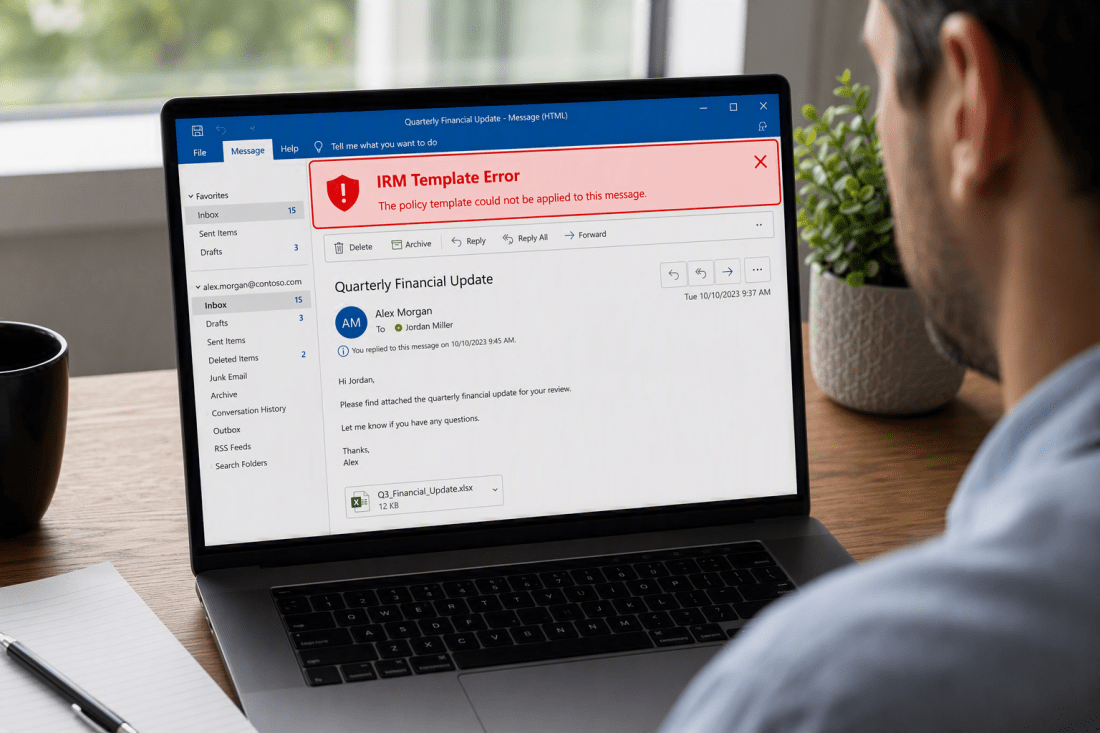
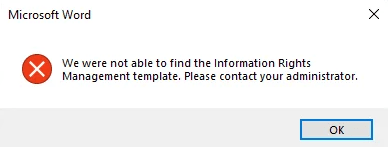
Rights Management Template errors are frustrating to come across when you are deploying sensitivity labels. The following errors are most common:
- We were not able to find the Information Rights Management template. Please contact your administrator.
- De Information Rights Management-sjabloon kan niet worden gevonden. Neem contact op met de beheer. (Dutch).
- Failed to get Information Rights Management Template
- Failed to acquire RMS templates
This article explains the role of the Rights Management Service in a sensitivity label deployment and outlines several methods for resolving related errors.
First, some terminology
Let’s start with Azure Rights Management Service (Azure RMS). Think of it as the engine behind encryption: it’s the underlying technology that protects information whenever a sensitivity label with encryption is applied.
Azure RMS handles the actual cryptographic work: encrypting content, issuing usage licenses, and enforcing the rights attached to protected content. In practice, this means it can stop recipients from forwarding or printing a document, or automatically expire access to it after a set period of time.
Azure Information Protection (AIP) was the client and management layer built on top of Azure RMS. The labeling client has since been folded into the Microsoft 365 (Office) apps, giving users a unified experience, so a separate AIP client is no longer necessary. The management layer has likewise been migrated into Microsoft 365 sensitivity labels. One holdout remains, though: the AIP PowerShell module is (unfortunately) still needed for troubleshooting, which we will see in the upcoming section.
Another term you might come across is Information Rights Management (IRM). IRM is largely legacy terminology for protection controls built into services like Exchange Online or SharePoint Online. This older technology dates back to the days of on-premises Active Directory Rights Management Services (AD RMS). Most environments today apply protection through Purview sensitivity labels instead of relying on IRM to contact the AIP (or AD RMS) service.
Since you’re now up to speed on terminology, let’s continue with troubleshooting!
Setting up our tools of the trade
We will troubleshoot using the ExchangeOnlineManagement and AIPService PowerShell Modules. Install them both using the following cmdlets. I recommend using at least PowerShell 7.5 to ensure everything is running smoothly:
Install-Module ExchangeOnlineManagement, AIPService
Do note that the ‘AIPService’ PowerShell Module does not work on ARM-based devices, so you will need to use a device that runs on the x86 architecture.
Troubleshooting Time
Continue reading “How to fix Rights Management template errors in Microsoft Office” →