
When talking about encryption in Microsoft Purview, for example when enabling ‘access control’ inside sensitivity labels, it’s actually the Azure Rights Management Service (Azure RMS) doing the heavy lifting. The Azure RMS service is part of Azure Information Protection and can be managed with the ‘AIPService‘ cmdlets.
The cmdlets can be used to perform actions like:
- Activate or deactivate the AIPService
- Perform tenant key management, for example to set up Bring Your Own Key (BYOK)
- Manage the super user account
- Manage (legacy) RMS Templates
- Manage delegated administration
- Perform logging and tracking
- Control which OS you support for consuming protected content
- Restrict protection to specific users/groups during a rollout
- Troubleshooting label encryption
ARM-based Windows clients
However, when you tried to import the ‘AIPService’ module on an ARM-based Windows client, you were in bad luck. Depending on the version of PowerShell you used, one of the following errors appeared:
Windows PowerShell (5.1.2600.8115):
Import-Module : Could not load file or assembly ‘file:///C:\Program Files\WindowsPowerShell\Modules\aipservice\3.0.0.1\AipService.dll’ or one of its dependencies. An attempt was made to load a program with an incorrect format.
PowerShell 7 (7.6.0, technically not supported for AIPService Module version 3.0.0.1, but it shows more information):
Import-Module: Could not load file or assembly ‘C:\Program Files\WindowsPowerShell\Modules\aipservice\3.0.0.1\AipService.dll’. The assembly architecture is not compatible with the current process architecture.
Why does this error appear?
The Microsoft Learn docs did not state explicitly that using ARM-based Windows clients were not supported for running the AIPService cmdlets. However, the error message PowerShell 7 produces made this pretty clear: ‘The assembly architecture is not compatible with the current process architecture’.
Digging a bit deeper, I got a helpful response from Microsoft. It boils down to this: AIPService was built on an older .NET Framework. The documentation stated that only Windows PowerShell was supported and made no explicit mention of PowerShell 7. That said, this didn’t mean ARM-based devices weren’t supported.
What I learned is that PowerShell 7, which is built on .NET Core, is required to run AIPService on ARM-based devices. That was the missing piece of support at the time this article was originally written.
Rome wasn’t built in a day, and neither was this fix
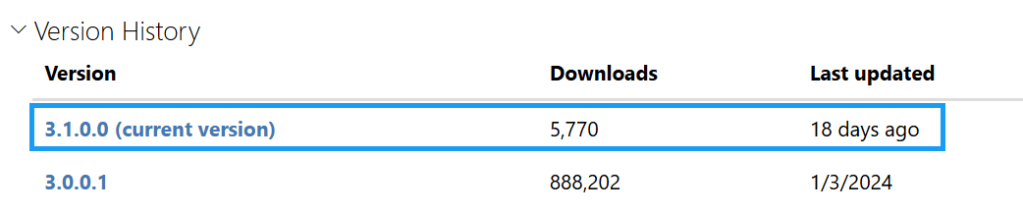
As it turns out, Microsoft released a new version of the AIPService module just 18 days before I planned to hit publish on this blog, roughly 2.5 years after the previous release. Naturally, that meant rewriting the blog. And this, in fact, changes everything.
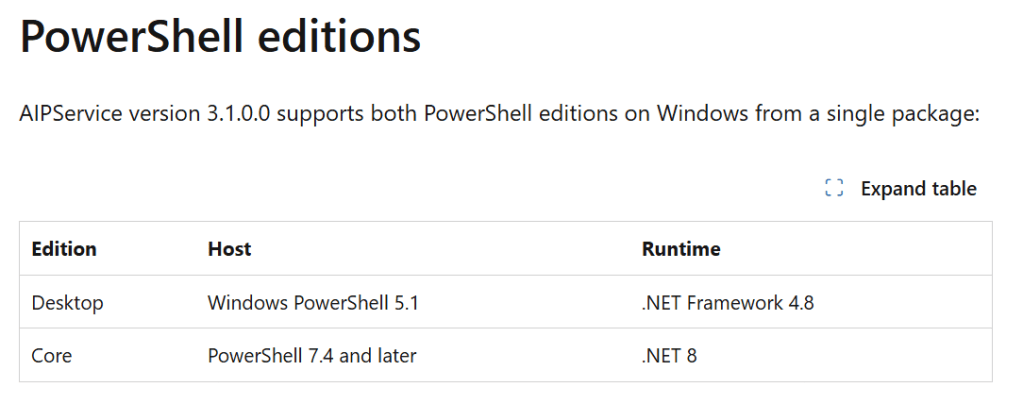
When looking at the above table on the modules Microsoft Learn page, it now shows that the module supports .NET 8, and thus PowerShell 7.4 and later!
Installing / Upgrading
If you do not have the AIPService currently installed, you can install the new version using the following cmdlet:
Install-Module -Name AIPService
This will pull the package straight from the PowerShell Gallery and install it on your machine.
If you got an older version of the AIPService currently installed, you can upgrade to the new version using the following cmdlet:
Update-Module -Name AIPService
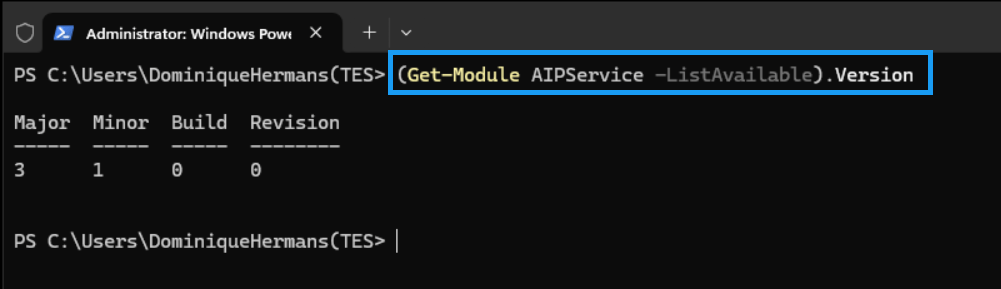
Check the installed version by running:
(Get-Module AIPService -ListAvailable).Version
It should now show version 3.1 is installed, and you’re good to go!



