In projects I’m part of there’s often this gap between the project manager and the project architect (or technical project lead if you will) in terms of planning and milestones that have to be reached. Where the project manager wants to retain a more “zoomed out” view of the situation, the project architect wants to keep track of the consultants work that has been completed, ideally enabling the consultant to update the status of the tasks at hand at a central place.
The tool of choice of the project manager in the Microsoft 365 ecosystem? Microsoft Project Online.
The tool of choice of the project architect in the Microsoft 365 ecosystem? Microsoft Planner.
Do the two platforms connect with each other at this time in a technical sense of the word connect? Unfortunately, no. Does this keep us from using the two platforms to achieve some serious team productivity? Of course not! Following a few simple rules and a little bit administrative effort, the two platforms work perfectly together providing all project members with the information they seek.
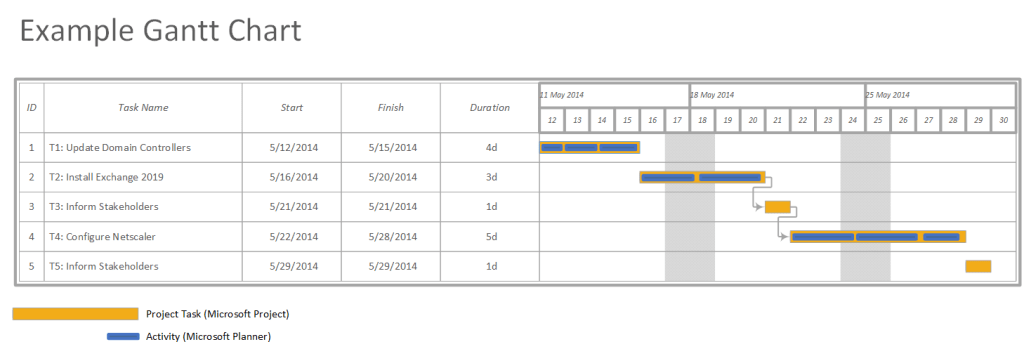
Take a look at the Gantt chart above, where I’ve created a (very small) fictional project to set us up with a (very primitive) Exchange environment just for demonstration purposes.
The project is divided into 5 project tasks (orange bars). These are the tasks the project manager is interested in. Task complete? Milestone achieved! ✅The only one who has to edit these tasks or overall project planning is the project manager himself. Other project members can take a look at it to gain insight.
The project architect however is tasked with dividing the project tasks into smaller chunks -or activities- for the consultant to work on. As stated earlier, in an ideal environment the consultant can be tasked with updating the various activities he/she works on after completion.
Got the picture? Let’s take a look at the project manager’s domain, Microsoft Project.
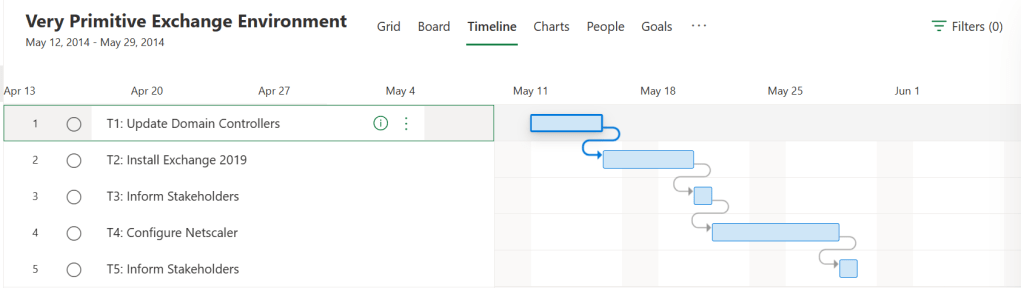
When looking at Microsoft Project, I’ve divided the project into the main 5 project tasks that were highlighted in orange in the Gantt chart above.
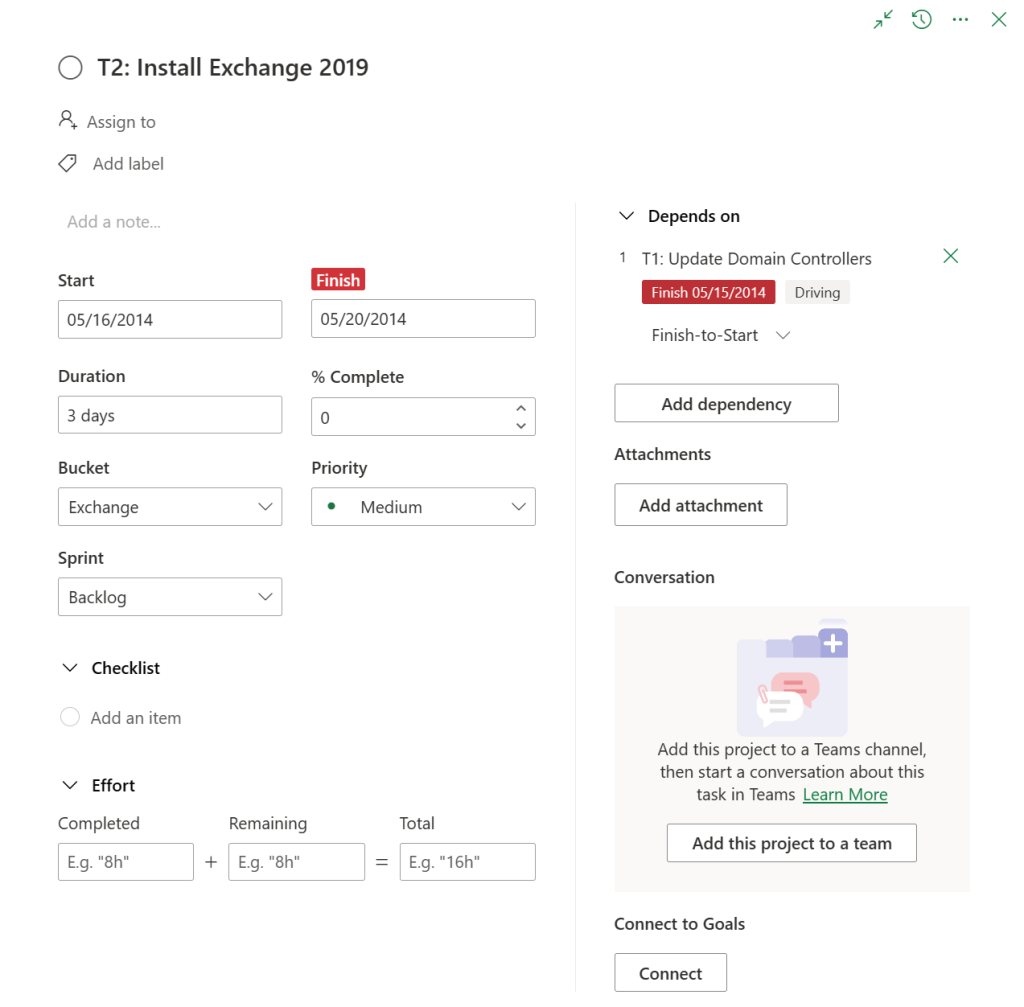
After opening one of the project tasks, it immediately becomes clear that there isn’t much detail to enter here. A start and finish date can be entered, duration, effort and dependencies are also present to name a few details. Project tasks can also be assigned to team members. All this is enough to maintain and manage that “zoomed out” view I’ve talked about earlier. What is most important to note according to me, is that there isn’t an option to let project members enter comments here (and to be honest, the “conversation in Teams” option does not provide a very clean overview).
Now on to the blue bars in the Gantt chart, enter Microsoft Planner. Here you can enter information with a little more detail (typically the work of an Project Architect or technical lead), allowing your consultants to see more information on the job at hand and provide you with updates on the progress they’re making.
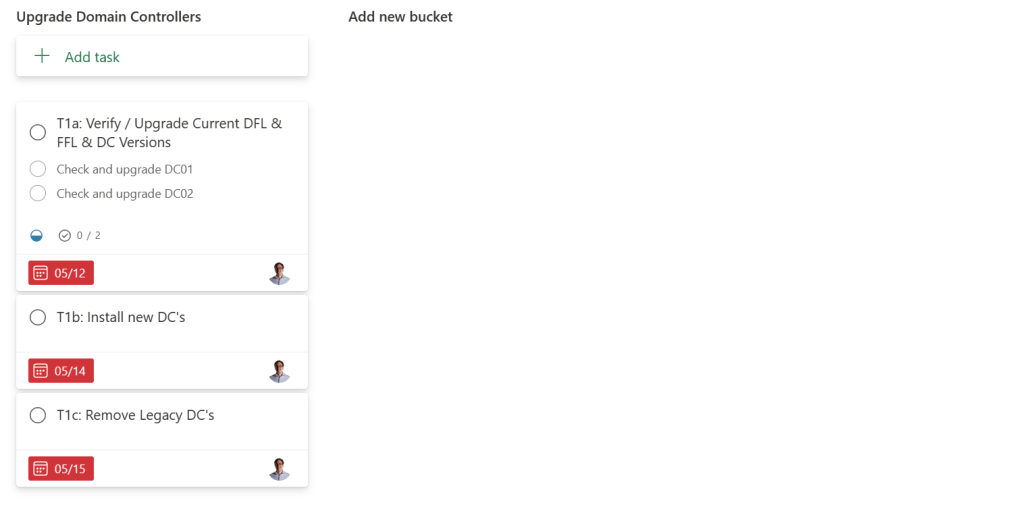
After creating a new planner board, most of the time I create a bucket for each project activity that was created earlier in Microsoft Project. In this example, I chose the project task “T1: Update domain controllers.” In Planner, we can further break down the work that has to be done. For the sake of this demonstration, I created 3 tasks. Note that the name of the project activity can be seen in the name of the task, which makes it easy to see which activity in Project they are part of.
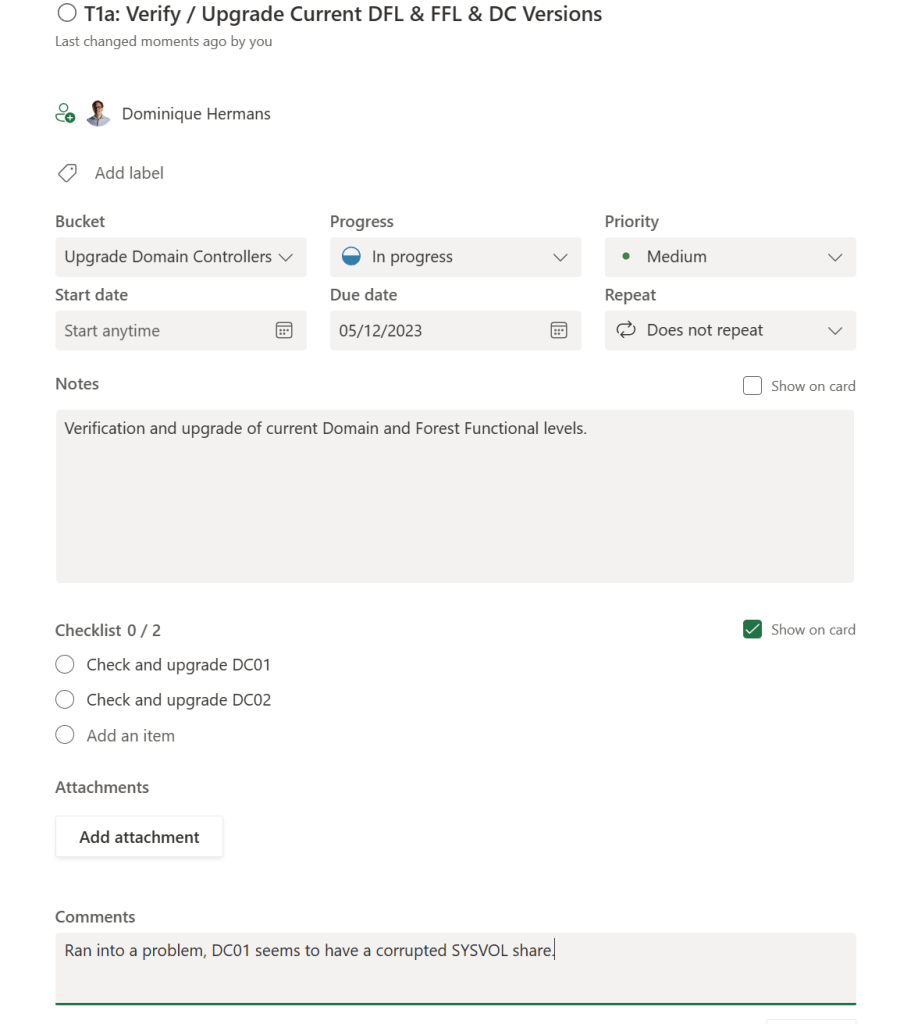
When looking at a task detail, the first thing that I like the most is the ability for someone to create comments on the task. Here, your various consultants could update you with the current status of their work, and for example, if they’re running into problems. All members of the task are sent an email containing the latest comment so they know the task has been updated.
A little check list can be found, notes can be added. And it’s easy to select whether a consultant has already started the tasks, or maybe has finished it already. It’s also possible to prioritize tasks.
When all tasks in a Project activity are done (or not), the project architect can update the project manager with this information, so he can update the project planning.
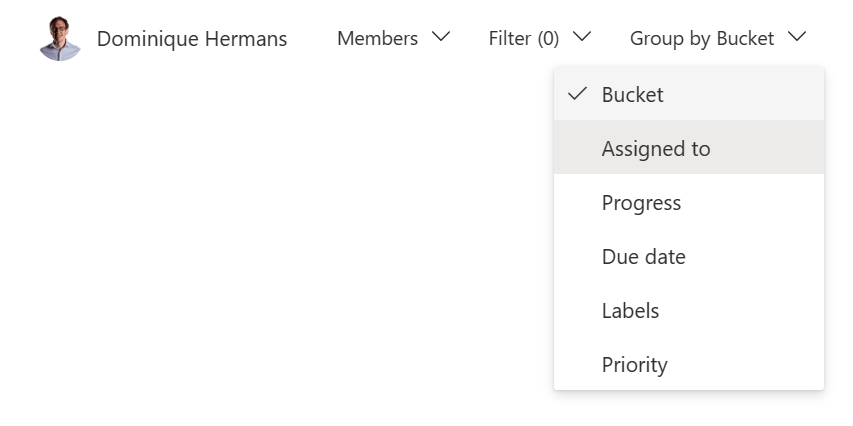
Tasks can also be filtered or grouped by assignment or due date for example.
License-wise, the following must be kept in mind:
A Microsoft 365 Project license needs to be bought separately, while a planner license is available in almost all commercially available Microsoft 365 licenses. This is also a factor that makes the workflow in this article beneficial in terms of costs.

 DominiqueHermans.com