With Microsoft Teams, you can share files with your coworkers, team(s) or your entire organization. It is even possible to share files with people outside your organization.
But where are these files stored?
Microsoft Teams has no file repository of it’s own, but uses SharePoint to store underlying files. The location in SharePoint differs however, depending whether you share it in a direct chat or in a team. Furthermore, the type of channel in a team also makes a difference.
Let’s start with chat. Where are these files stored?
In this example, I’ve started a 1-on-1 chat with Adele and a separate group chat with Adele and Megan:
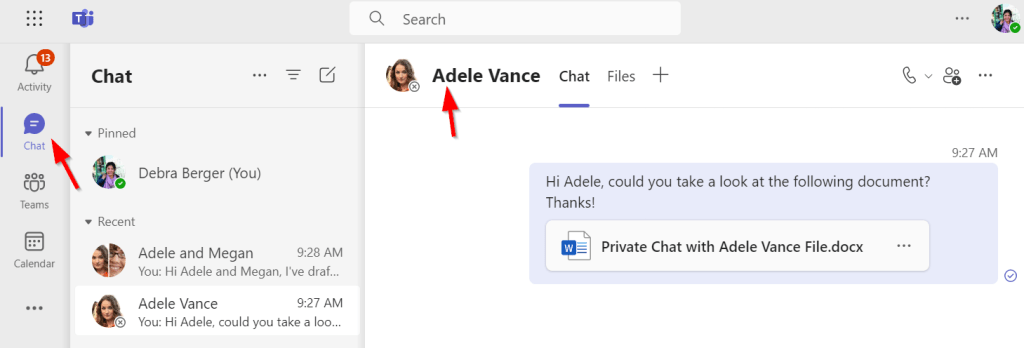

As said, files will be stored in SharePoint. With chat however, the storage location is OneDrive for Business (which in itself is basically also a private location on SharePoint), as these are private chats with people, and OneDrive for Business is your private storage solution in the Microsoft 365 cloud. It doesn’t matter if you’re sharing files in a 1-on-1 chat or in a group chat, files will all be stored in the “Microsoft Teams Chat Files” folder in OneDrive. As you can see in the picture below, each file is automatically shared with the people in the chat it is destined for:
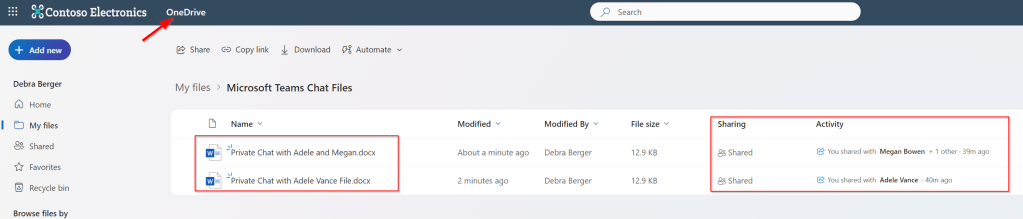
Note that the files in my examples are named after the location in which I saved them. Normally they will of course not hold the name of the chat or channel you saved them to 😊
Now, let’s continue with files in Teams!
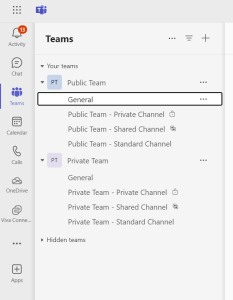
As you might know, there are 2 types of teams that can be created. A Public team or a Private team. A public team can be joined by everyone in your organization (or external people on invitation), where a private team can only be joined if you are invited for the team (and also external people on invitation).
Each team can contain various channels. These channels are the same for Private and Public teams:
- Standard channels – Open for everyone in the team.
- The general channel – The first standard channel that is created in a team. It cannot be deleted.
- Private channels – Accessible only for manually selected team-members of this team. A subset of people in the team if you will.
- Shared channels – A channel shared with internal or external members. External members can use their own company login to use this channel, whereas other channel types require a guest account in your company’s Microsoft 365 tenant.
Standard Channels
To figure out where files are stored in each type of channel, I’ve populated the channels in the above teams with a Word file containing the name of the team and the channel. Now, let’s find out where all your hard work is stored on Sharepoint. A sharepoint team folder is created for each team that you created in Teams. (How is that for number of occasions of the word “teams” in one sentence? 😁). This can be seen when we take a look at the SharePoint team site for the public team that was created:
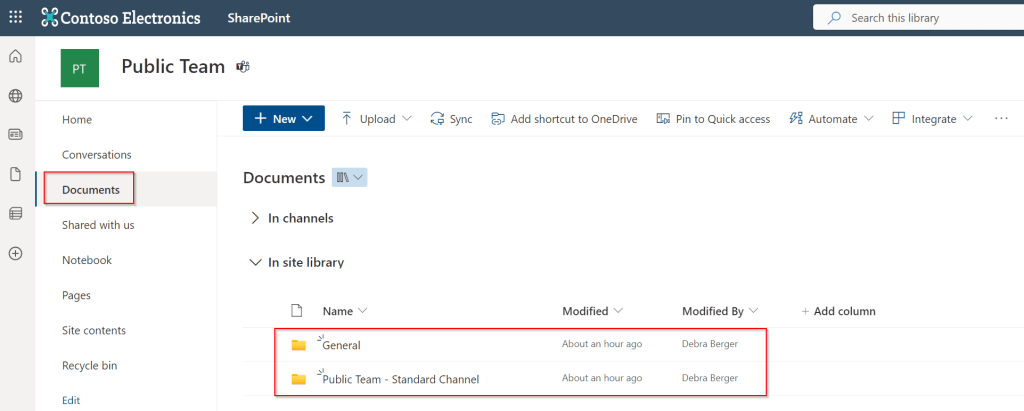

When taking a look at the documents in this teamsite, we can see 2 directories are created. Each corresponds with the name of all standard channels that are present in the team. Of course, each holding the files you shared in teams:

Private and Shared Channels
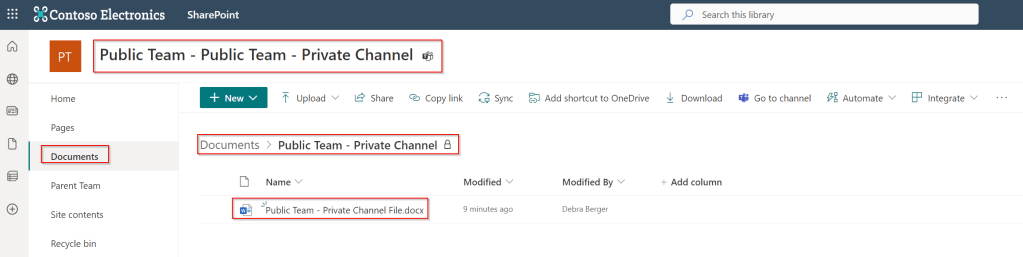
We seem to be missing something right? There are no directories present for Private or Shared Channels. Because of the nature of these “special” channels and the added options to include or exclude people in these channels as opposed to the entire team, Teams creates a separate team site in SharePoint for these channels, so permissions can be set accordingly. Let’s start with a file in the private channel we created earlier:

When we take a look at the SharePoint view of this file, the private channels file are in their own SharePoint team site. Here, the name of the team site is a combination of the team and channel name, and it does have a separate subdirectory (with the name of the channel) containing the files:
Now onto the last variation, the Shared channel:

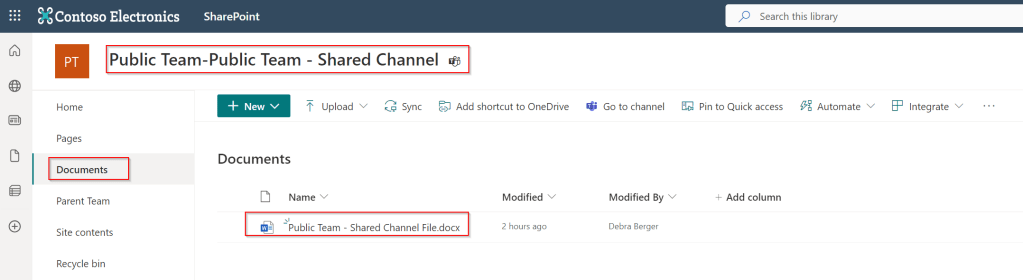
This turns out to be exactly the same within SharePoint as the private channel. Own SharePoint team site with the name being a combination of the team name and channel name but with 1 minor difference. There is no subdirectory created for the files. They are stored under the root of the team site.
Differences with private or public teams
All content above was created using a public team. As stated in the beginning of this article, also private teams can be created. However, this does not change the storage location of your files in SharePoint. Files in private teams are stored in exactly the same way as in a public team.
In a nutshell
So, to summarize:
| Team type | Channel Type | SharePoint Storage Location |
|---|---|---|
| Public | Standard | Team site for the team |
| Public | Private | Team site for just the channel |
| Public | Shared | Team site for just the channel |
| Private | Standard | Team site for the team |
| Private | Private | Team site for just the channel |
| Private | Shared | Team site for just the channel |
I hope you found this article useful!

 DominiqueHermans.com
One thought on “Where are Microsoft Teams files stored?”