Microsoft Purview has a pretty sweet feature called “Compliance Manager”. It can be used to assess your Microsoft 365 (and other non-Microsoft) environments based on various regulations like “ISO 27001” or you can create your own custom assessment that’s not based on a regulation. (Do note that at the time of writing this article, the creation of custom assessments is disabled due to an update of the process by Microsoft.)
Basics first, as always
Before we dive into the world of assessments and regulations, let’s start with the basic components of compliance manager:
- A control can be a technical setting in your Microsoft 365 environment or a procedure that has to be followed. Examples are “turn on MFA” or “create a document with rules that employees have to accept before they can access their new workspace”.
- An assessment is a group of controls.
- Assessments can be based on a regulation, which groups all the controls that are in the scope of a regulation in 1 assessment. When you comply to this assessment, it can be stated that you are compliant to the regulation it is based on.
These 3 components form the basics of your compliance solution. Other components include:
- A solution is a service within the Microsoft 365 or Azure ecosystem that can be checked based on a controls. For example “Exchange Online”.
- Assessments can be grouped together. A group of assessments can share the same improvement actions.
- An improvement action can be a change you make to improve your system, like “turn on MFA”.
Compliance Manager, here we come!
Now that’s out of the way let’s get our hands dirty and dive into Compliance Manager!
When you navigate to the Microsoft 365 Compliance center and make your way to the compliance manager, you are immediately greeted with the following page:
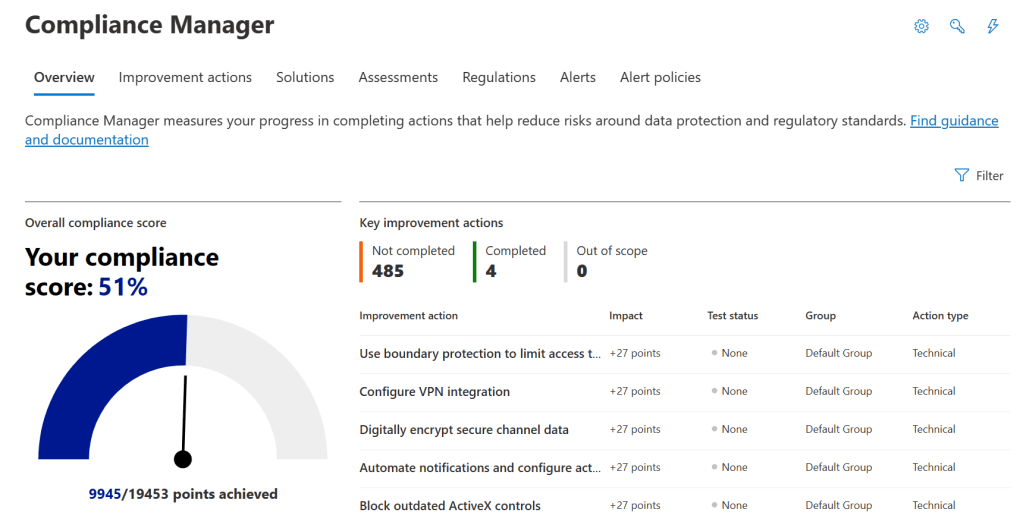
It shows a cool gauge that tells you your current compliance score. But wait. Compliance score? Based on what assessment? We didn’t even create an assessment! That’s right, but when we move forward to the “Assessments” tab, we can see that it is set up with a predefined assessment:

It also shows that it is based on the “Data Protection Baseline” regulation and that’s currently scanning our environment (progress at 51% in the screenshot above) to check all the controls in the assessment. This assessment checks your environment on a set of controls for key regulations and standards for data protection and general data governance. You should check out this Microsoft Learn article if you would like to know more about the Data Protection Baseline assessment.
How to create an assessment based on a regulation
If you want, start by glancing at the “Regulations” tab on the top of the page, it will show you a dazzling number (376 at the time of writing) of regulations that you can base your assessment on. Now let’s move forward by creating an assessment of our own.

- Click the “Assessments” tab and click the “Add Assessment” button next. You will be presented by a nice wizard. Click “Select Regulation” to select a regulation to base your assessment on.
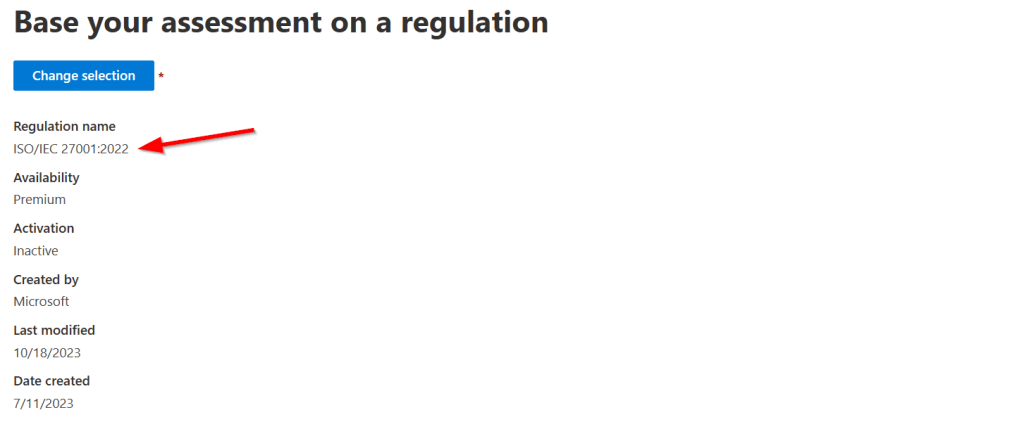
- I chose the “ISO 27001 version 2022” regulation since that’s a well known regulation in the Netherlands. Click next.
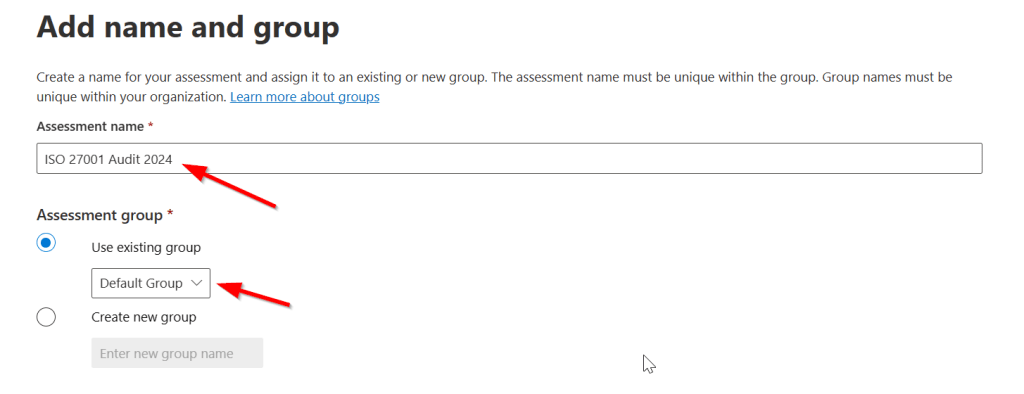
- Give your assessment a name. Remember that assessments can be grouped together? Here the wizard provides you with this possibility. I choose to go with the default group for this demonstration. Click next.
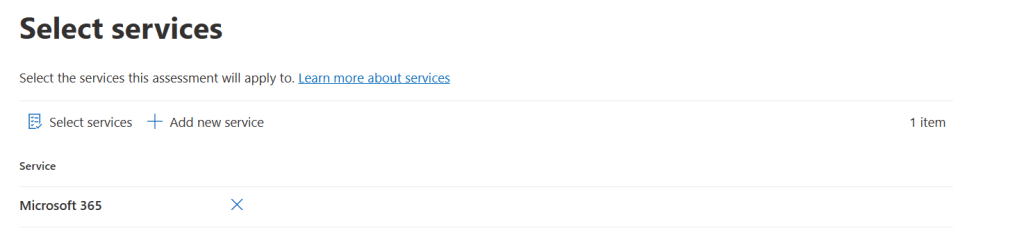
- By default, you can use your assessment to assess your Microsoft 365 environment. However, it is possible to extend this to Zoom or Salesforce if you want. Click next and review your selections. Click “Create Assessment” when you’re done.
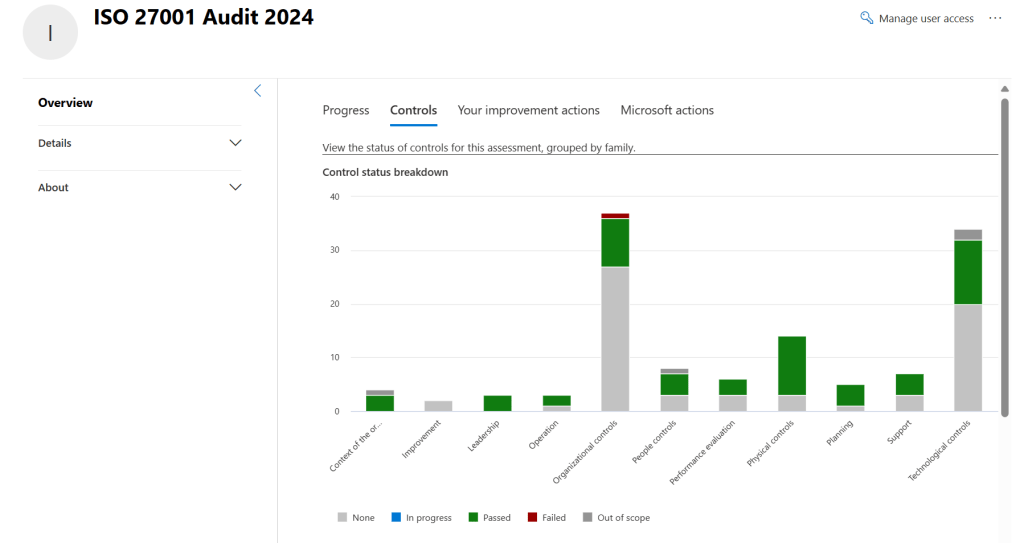
When your assessment is saved it starts checking your environment based on the controls I mentioned earlier. When you take a look at the “Controls” tab, you can see exactly what controls are being checked and what controls don’t match (or fail if you will) with the properties of the regulation you selected.
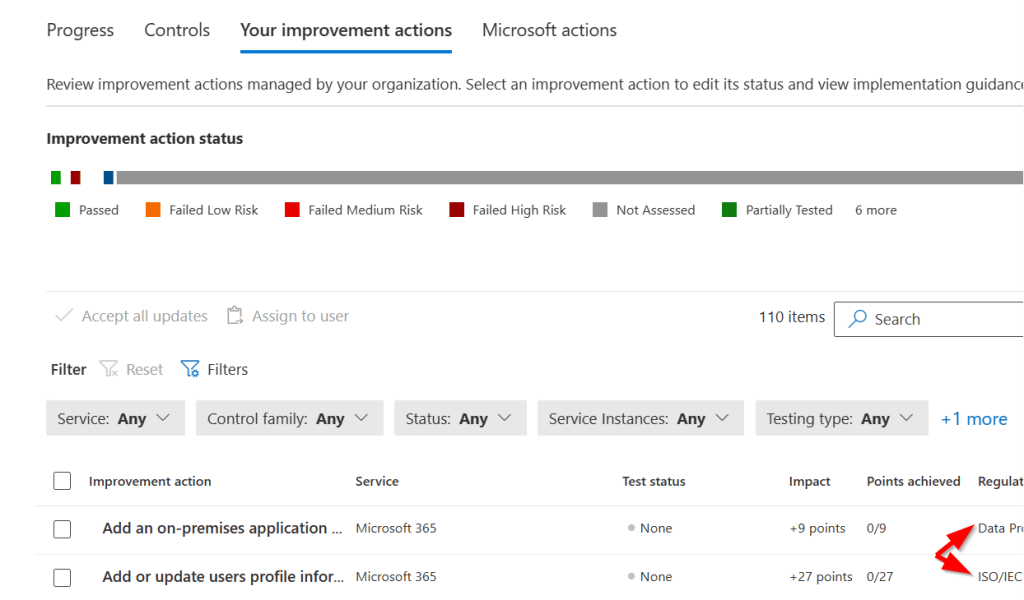
Remember that grouped assessments can share the same improvement actions? Also remember that I choose to put my ISO 27001 in the default group? Well, as you can see in the screenshot above, the Data Protection Baseline is also in this group and so the improvement actions are also shared in one view. So when you click the “Your Improvement Actions” tab, it’ll show you the controls you have to change to comply with the regulation you selected.
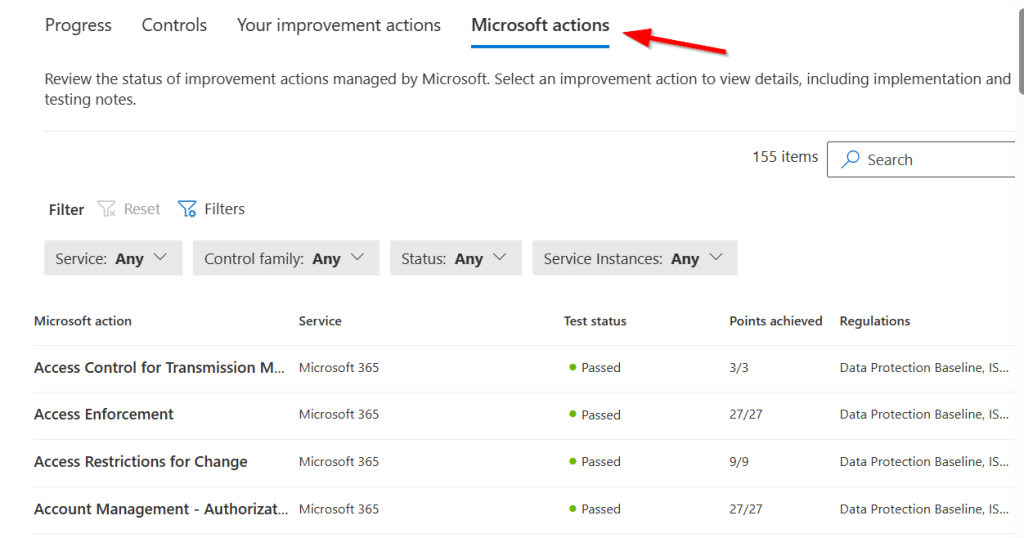
Since your Microsoft 365 environment is hosted by Microsoft there are also a lot of controls that are ticked off by Microsoft. These can be seen on the tab “Microsoft Actions”.
That’s about it there is to tell about the basics of Compliance Manager. Some last tips to help you on your way to compliance managing:
- Your Microsoft 365 license determines how many regulation licenses you get “for free”. If you want to use additional regulation licenses you can buy them separately. You can check the current usage status at the assessments tab, regulation licenses used, view details.
- I would advise you to grant stakeholders permission to this part of the compliance portal by navigating to compliance manager, compliance manager settings in the upper right hand corner, user access.
That’s all, hope you found this blog useful!

 DominiqueHermans.com
One thought on “Microsoft Purview 101: How to use Compliance Manager to help improve data protection and comply to regulatory standards in Microsoft 365”