Remember that time where you could start your PC, open Microsoft Word and could start being productive without being disturbed by Microsoft Teams calls, chat messages, new emails coming in, popups from coworkers that mention you and upcoming event messages just to name a few? Well, that time is not coming back. (and Clippy 📎 isn’t either 😄)
But, what if I told you that you can get the same piece of mind to be just as productive as back in the day you started Word(Perfect) without being hooked up to the internet? With the use of focus timers you can!
Viva Insights features a focus timer to let you keep your focus (what’s in a name) on things that you have planned. Here’s how it works.
The Setup
Setting up the Viva Insights app is fairly easy.
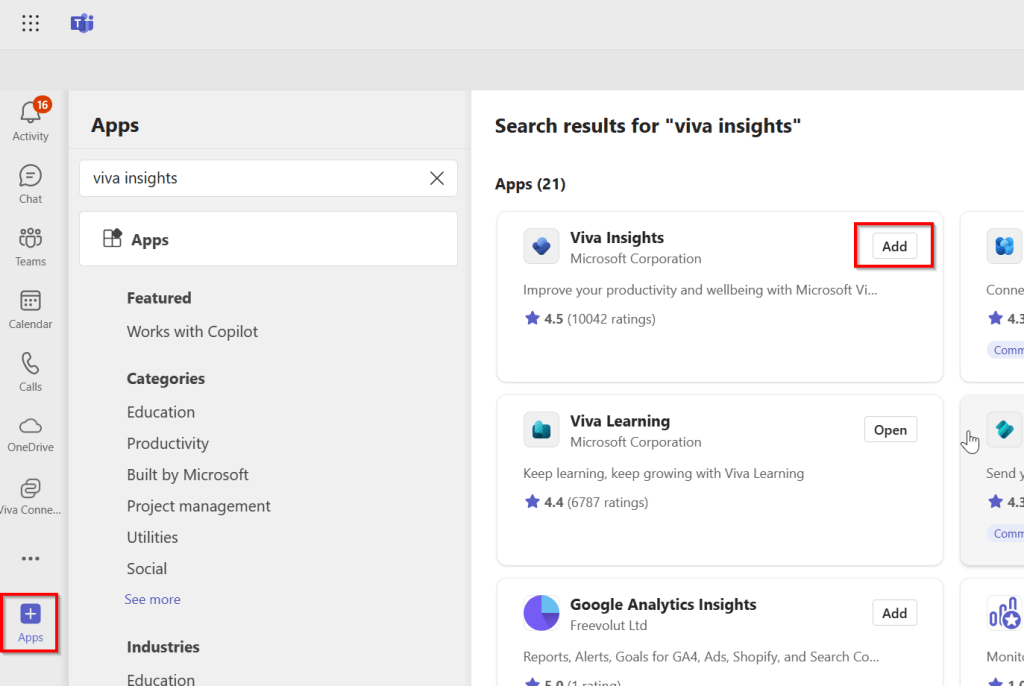
Navigate to Teams, select “+ Apps” and search for “Viva Insights”. Click Add twice to add the app to Teams.
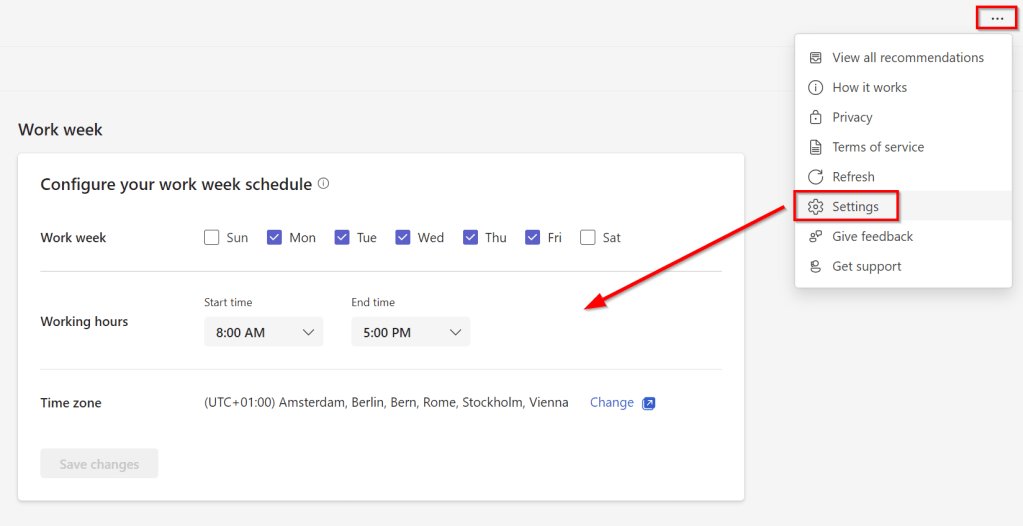
Navigate to Viva Insights on the left side of Teams (you might have to click the three dots to see Viva Insights). Select the 3 dots on the upper right corner of the screen, select settings and change your workdays and hours accordingly. Hit “Save changes” and close the settings pane.
Focus Time!
Let’s start a single focus time to see how it works. Navigate to Viva Insights on the left side of Teams (you might have to click the three dots to see Viva Insights). Now click “Wellbeing”, “Act with Intention” and select “enter focus mode”.
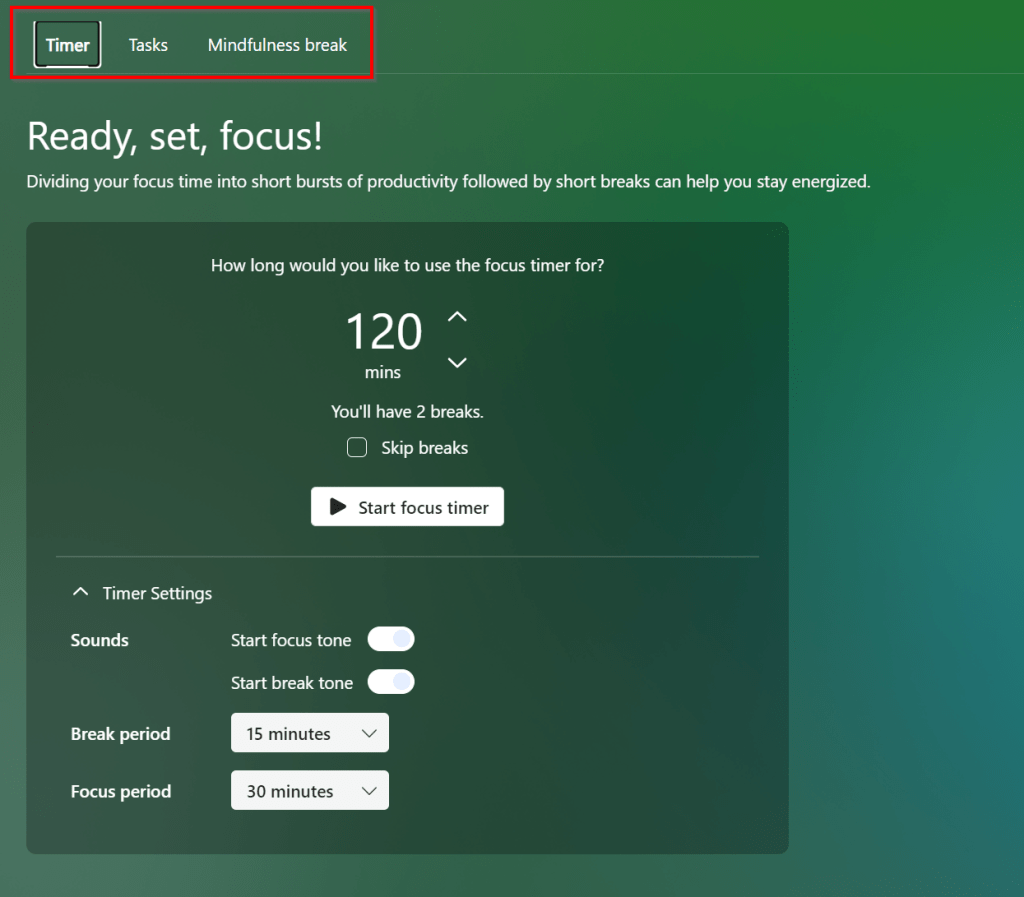
Here you can set the parameters for your focus session. Select the duration, whether you want breaks or not and the duration of focus periods and breaks. You can select tasks in the upper region to see your tasks scheduled for today from “To Do” and level up your break periods by adding a mindfulness session if you’re into that. When you click “Start Focus Timer”, your focus session starts.
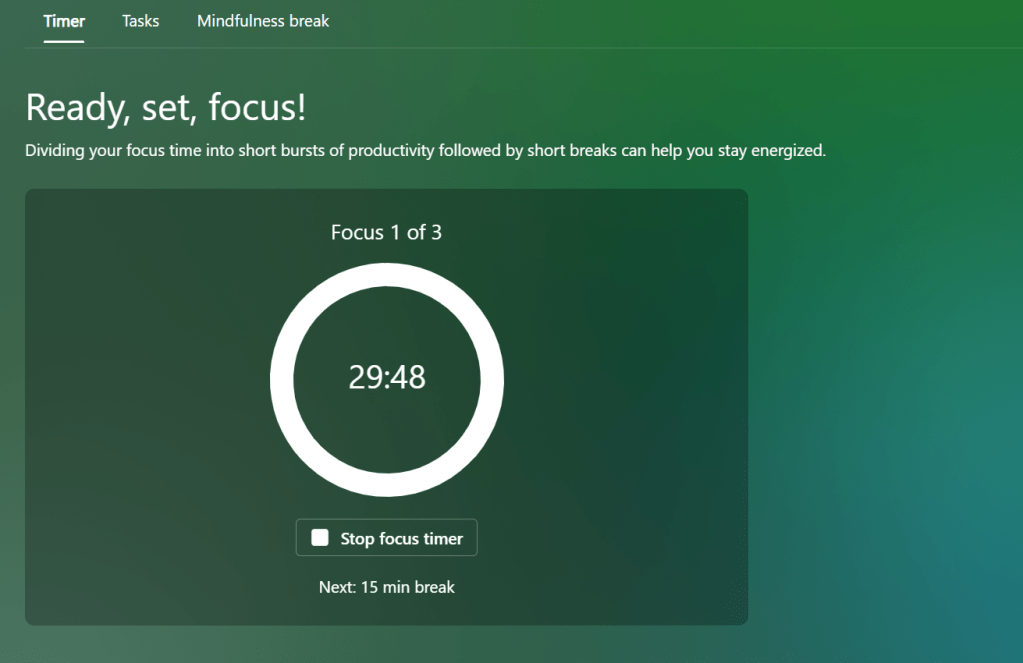
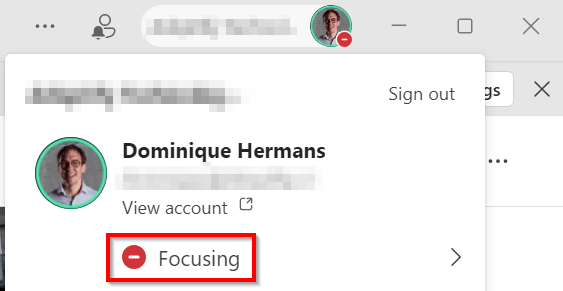
The first focus session of 30 minutes starts. During this period your Teams status changes to “Focusing” so your colleagues can see that you’re not available at the moment and you won’t get any notifications unless you’ve set priority contacts. Notifications from priority contacts will keep on showing up, even in focus-mode.
Planning your focus time
Planning an ad hoc session is nice, but the real power from the Viva Insights Focus Timer shines when you start planning your focus time to block regular time to address some high priority-work. Let’s see how this works.
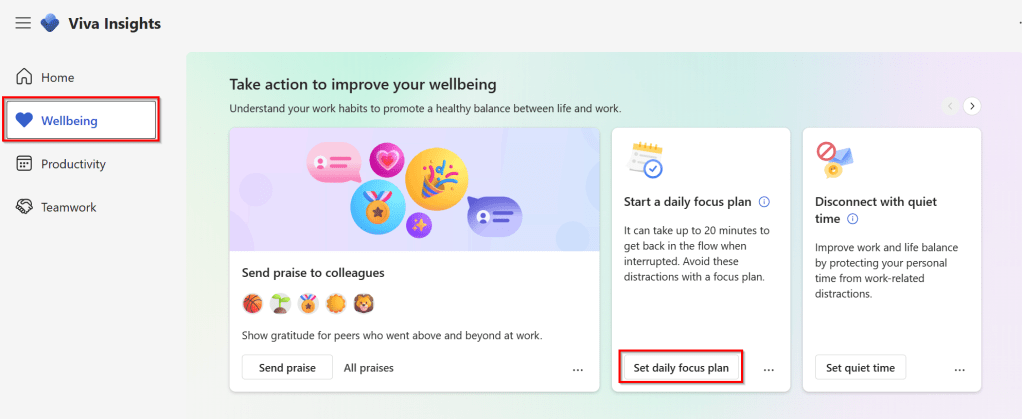
Navigate to Viva Insights, and click “Set daily focus plan”. When this is done, the text of the card changes into “change settings”. Click it.

Change the following settings to your needs:
- How much focus time you would like to have each day.
- Whether the focus time should take place in the morning or afternoon?
- Before what time the focus time should not be started.
- Whether you would like to silence Teams chat notifications during your focus time.
While you’re in this screen, scroll to “lunch hours” to set your lunch hours accordingly. While focus time sure is great, it shouldn’t be touching your cheese sandwich! Save your changes and you’re all set! Your focus time is now scheduled in your Outlook calendar.
1 Minute before your next focus session, you will receive a Teams notification asking you “Ready to focus?”. Selecting it will take you to the Focus Timer in Teams. Whether you select it or not, your focus time will start on the configured time with the same features that you had when starting a single focus session like we showed at the beginning of this article…

…With one big advantage. Your actual focus time is now being tracked and can be monitored in the “Home” tab of Viva Insights!
Want to quit your focus plan? Just navigate back to Viva Insight settings and click “Leave Plan” in the “Set daily focus plan” pane.
Other helpful Viva Insights Tools
Focus Timer is just one of the many tools in Viva Insights that can boost your productivity on a personal level. Yet there are other helpful tools in the Insights package that can help you and your team achieve more:
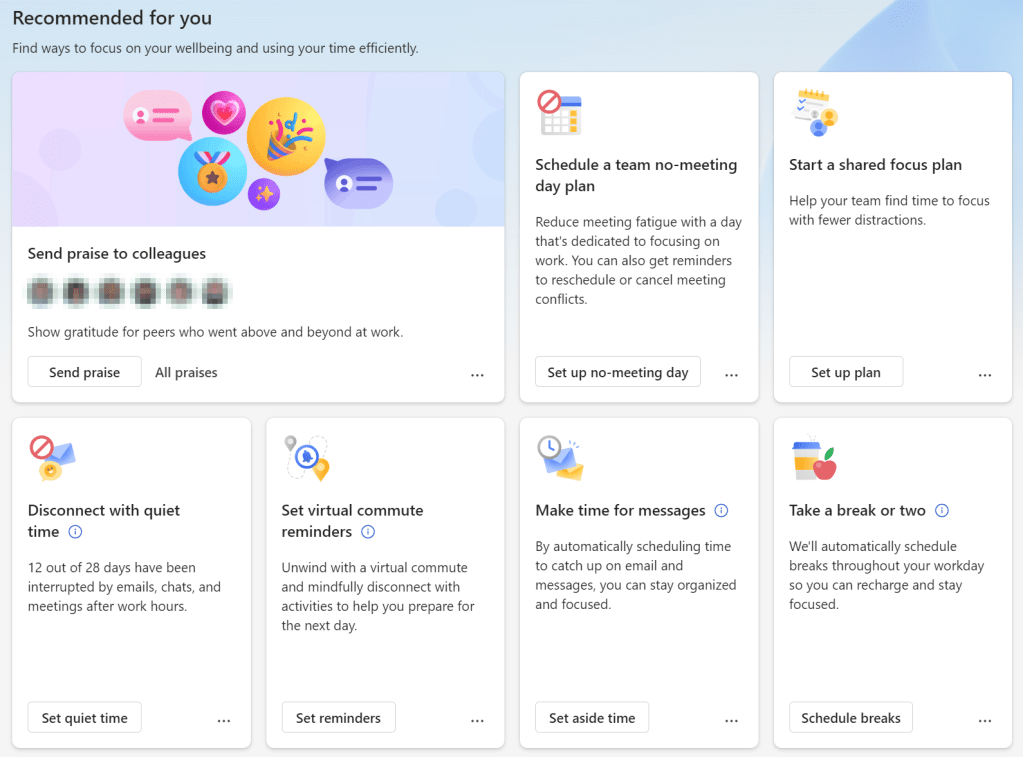
- Want to get some project work done with your team without interruptions? Set up a no-meeting day!
- Want to set up a schedule with your team to focus more? Start a shared focus plan!
- Is your day getting consumed by answering countless numbers of emails? Schedule time to catch up on email and messages!
No Viva Insights? No problem!
Viva Insights is part of Microsoft 365 E3 and E5 subscriptions or available as a separate add-on. If you don’t have Viva Insights at your disposal, you may want to take a look at the clock app in Windows 11. If you click it, a focus timer appears. Here, you can set your focus time, show your todo list, check your daily focus progress and even connect with Spotify to listen to your favorite focus tracks!
The downside? You can’t schedule your focus time, focus time isn’t monitored and you’ll have to protect that cheese sandwich yourself! 😄

 DominiqueHermans.com