B2B (Business to business) connections in Microsoft Entra can be used to connect with external parties so you can collaborate on projects without having to have an account in 1 Microsoft Entra environment.
The recent introduction of Microsoft Entra B2B Direct Connect came with some confusion in security settings, what boundaries can be set between organizations and what the difference is in usage for end-users in for example Microsoft Teams. In this blog, I will explain both variations of Microsoft Entra B2B connections, their differences and which one you should use in what scenario. Are you ready? Let’s go!
In a world without B2B connections, an external user would:
- have to receive an account in your tenant.
- have to remember credentials for 2 accounts.
- have it’s account deleted in your tenant when he leaves the external company.
- have to send documents to and from employees in your organization if he isn’t granted an account in your organization. This leads to multiple document versions being around and data being out of your control.
Needless to say that this is a hassle and an administrative burden. Enter Entra B2B Connections. Let’s start with a short introduction to both variations.
Microsoft Entra B2B Collaboration

With Microsoft Entra B2B Collaboration, external users can be invited as guests to your tenant. When this happens, a guest account is created in your environment which has the following account format:
externaluser_externaldomain.com#EXT#@yourtenantdomain.comSo when looking at the account, you can clearly see that it’s a guest account in your environment, which has an external domain attached to it in front of the “@”. When using a guest account, authentication is decoupled from authorization.
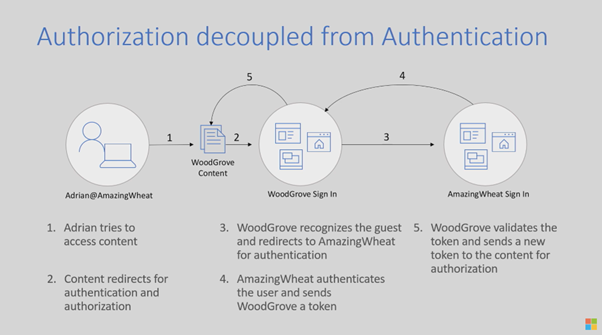
Now what does this mean? When taking a look at the above example, Adrian is accessing content in an external organization using his guest account. When he wants to sign in at Woodgrove (which is the external organization), Entra ID sees he’s using a guest account in the tenant and forwards the request to Adrian’s home tenant, in this case “AmazingWheat”. When he is authenticated and so the sign in at that location is successful, he is redirected back to the Woodgrove environment with a token now in his possession. Woodgrove acknowledges that the user is succesfully signed in. After that, the Woodgrove tenant has the ability to check Adrians authorization to the document and gives access (or not ofcourse).
The big advantage with B2B collaboration is that it can work with all partners on the planet, and so the external user doesn’t have to be a member of an organization that uses Microsoft Entra ID. It can be used with:
- Microsoft Entra ID
- Microsoft Accounts (personal)
- Google accounts
- Users in an organization that have a federation based on SAML with your organization.
- And if all of the above don’t work for you, you can use one-time passcodes.
It can be set up as follows:
- Make sure Microsoft Entra B2B Collaboration settings allow you(r users) to invite guest users (read on if you want to know how).
- Invite guest users from external partner
- Add the guest user to resources in your tenant.
The (small) downside is of course that it creates a guest account in your own tenant.
Microsoft Entra B2B Direct Connect
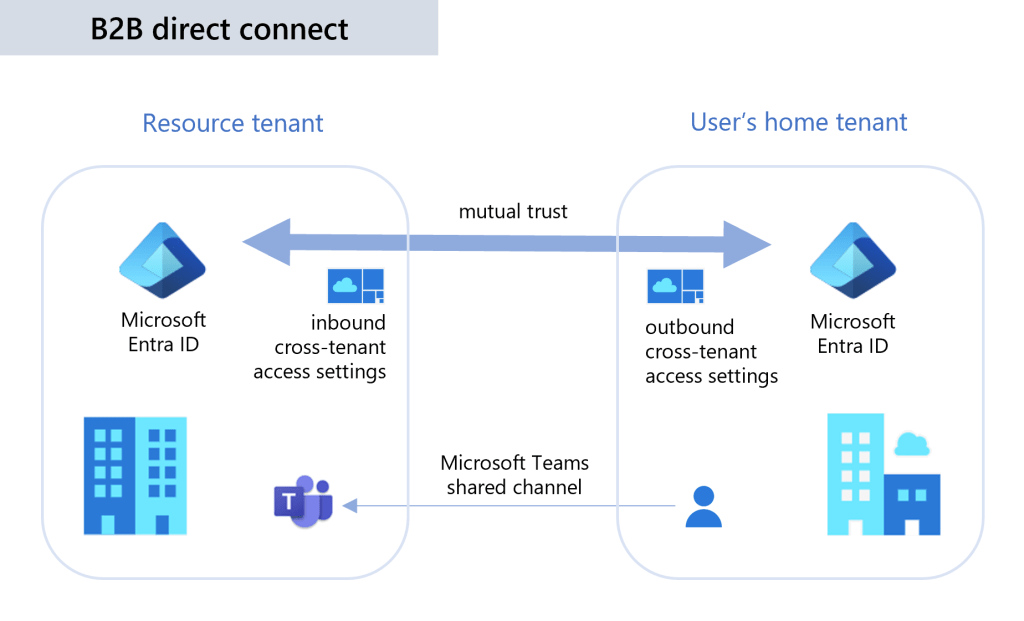
Enter Microsoft Entra B2B Direct Connect. Remember the only downside B2B collaboration had? It’s now gone when using B2B direct connect. It works as follows:
- Create a mutual trust between 2 Microsoft Entra ID tenants and configure it’s settings (read on if you want to know how).
- Add members from an external tenant to your resources.
Unfortunately at the time of writing, the downside of the Direct Connect approach is that it is currently only supported with Teams shared channels. I’ll explain later in this article how that is set up.
Configuring your tenant to use Microsoft Entra B2B
Now let’s dive into the configuration part. To configure B2B Collaboration first you have to know that for B2B Collaboration, configuration is done in 1 of 2 panels, depending on which technology your partner organization uses.
- For a partner that uses a Microsoft Entra tenant as their identity provider, choose Cross-tenant access settings.
- For a partner that uses a non-Microsoft Entra tenant, click External collaboration settings.
Configuring Microsoft Entra B2B Collaboration and Direct Connect for partner organizations that use Microsoft Entra as their identity provider.
Now navigate to your Microsoft Entra admin center and select External collaboration settings, for a partner that uses Microsoft Entra as their identity provider.
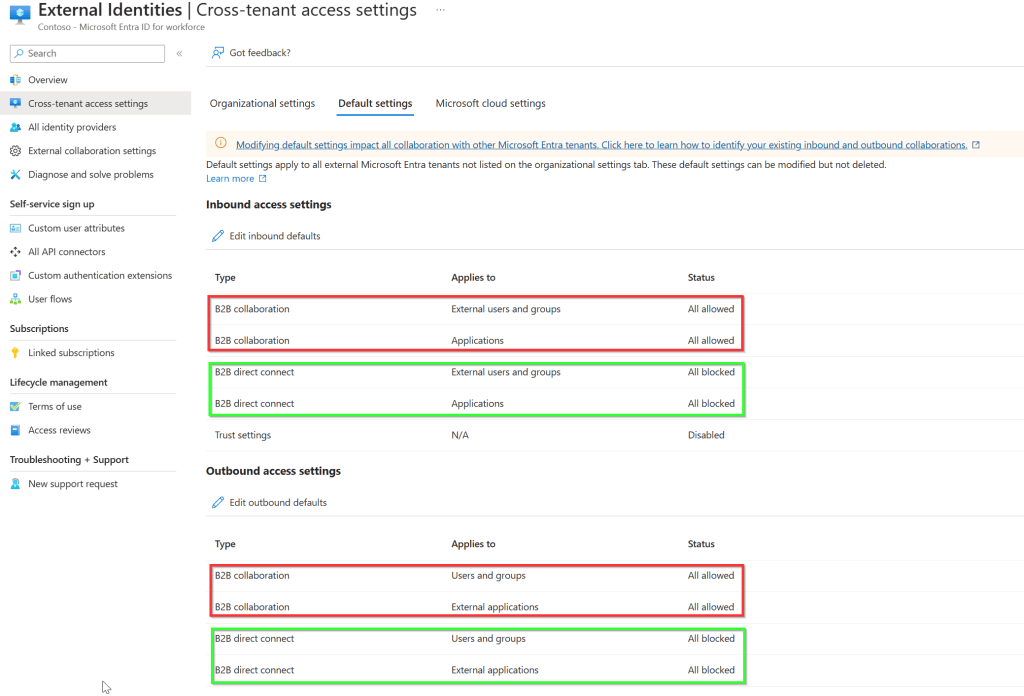
Click “default settings”. This is the place where your tenant default settings for external collaboration (with Entra ID partners) are at. You can select various options depending on whether you want the defaults to set that collaboration for external partners is blocked by default, or allowed by default. Depending on your choice here, you can make exceptions on a per Entra ID environment of your partner. This can be done in one of two ways:
- Set the defaults to “all blocked” and whitelist specific partner domains.
- Set the defaults to “all allowed” and blacklist specific partner domains.
Note that you can configure these settings for B2B collaboration and B2B direct connect separately and inbound settings are configured separately from outbound settings per technology used:
- Outbound connections configure the ability for your users to be added to external partner Entra ID environments.
- Inbound connections configure the ability for external partner users to be added to your Entra ID environment.
Let’s dive into the inbound access settings:
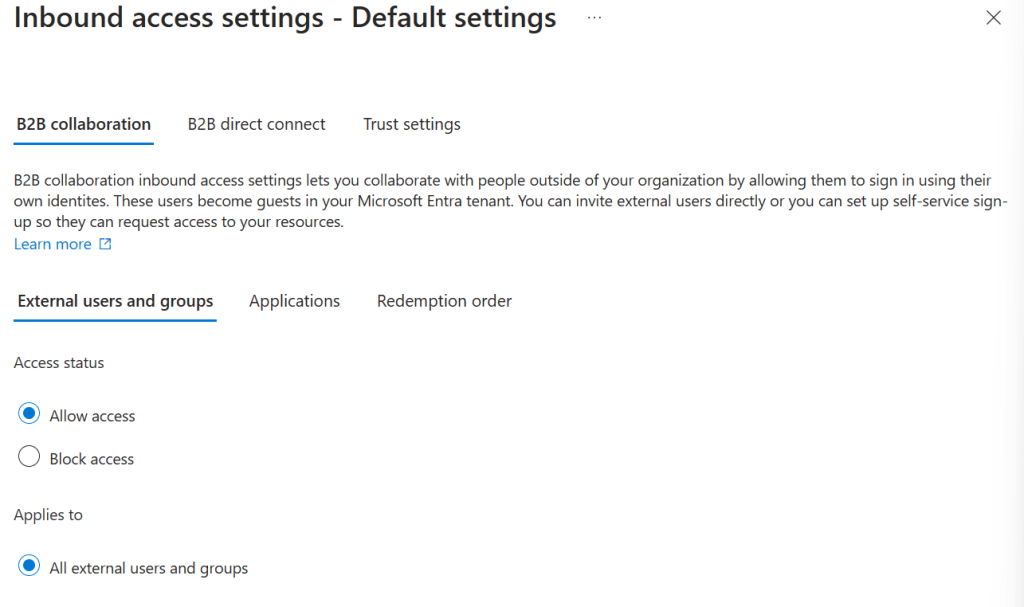
The settings are divided into categories for B2B Collaboration, B2B Direct Connect and trust settings which all are quite easy to understand.
For B2B collaboration we can configure whether the defaults allow external users to be invited or blocked. This can only be applied to all external users and groups since these are the default tenant settings. When you configure per-external Entra ID settings, you have the ability to filter on external users and groups. The same goes for applications, but here you do have the option to select applications in your default policy.
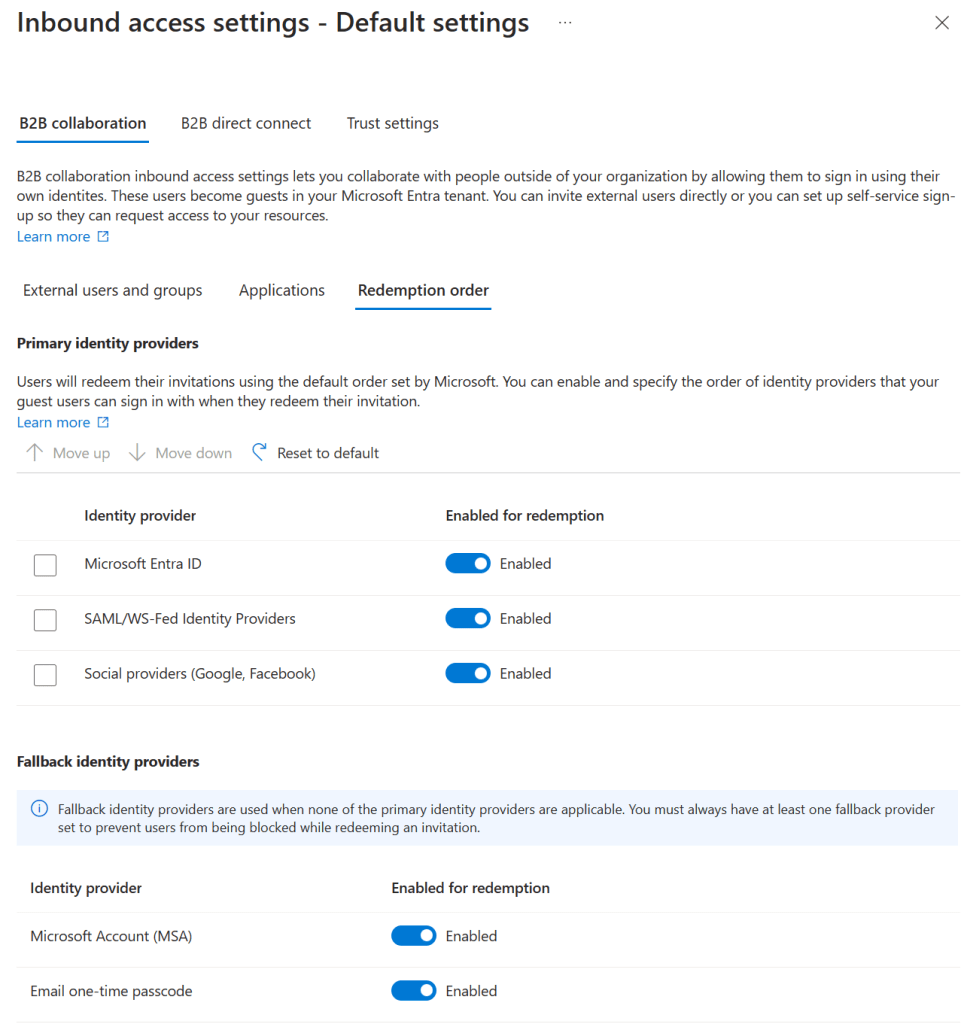
Now for something interesting, the redemption order. Imagine the scenario that the user that you want to collaborate with has various identity providers attached to his account. As stated above, B2B Collaboration can be used with almost any external partner. So what do you want to allow your external partner to use? That can be configured here. In the above example I’ve configured the defaults in a manner that external partners can use all identity providers, and as fallback a Microsoft Account (MSA) or One-Time passcode via email can be used. A Microsoft Entra ID takes precedence over the rest of the identity providers.
The outbound access settings are configured in the same manner, but there you don’t have the ability to specify the redemption order or trust settings.
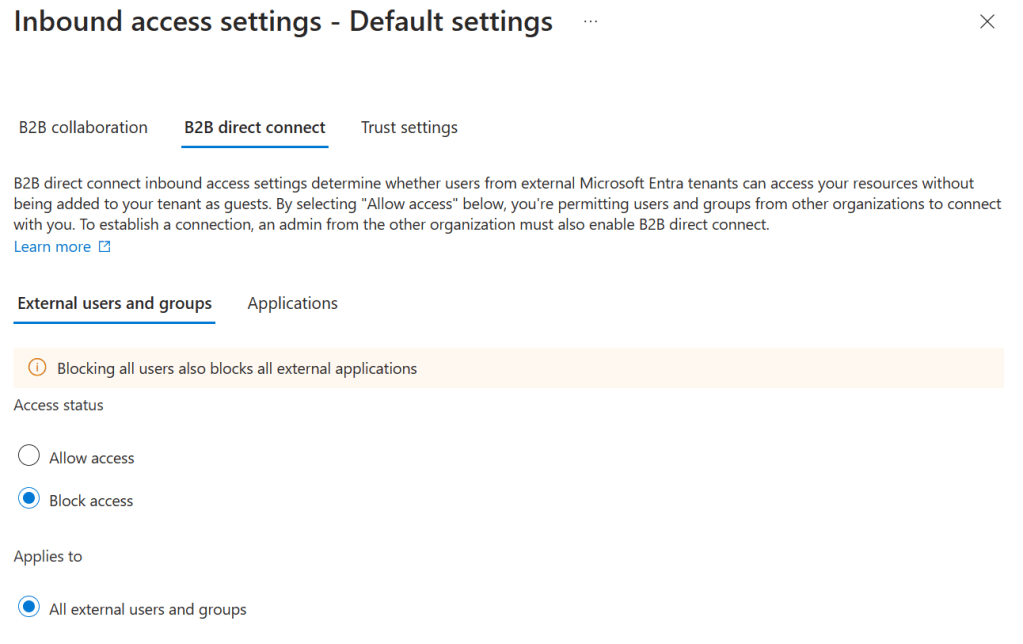
Moving on to B2B Direct Connect. As you can see, here you can only set the access status to allow or block, and can only be applied to all external users and groups for the same reason that applied to B2B Collaboration. Here it is also possible to apply the defaults to select external applications as is possible with B2B collaboration.
Redemption order doesn’t have to be set when using B2B direct connect, as Microsoft Entra ID is the only supported identity provider that an external partner can use and external users aren’t invited when you use B2B Direct Connected, they are added to your environment directly from the partner environment without the need to create a guest account in your own tenant.
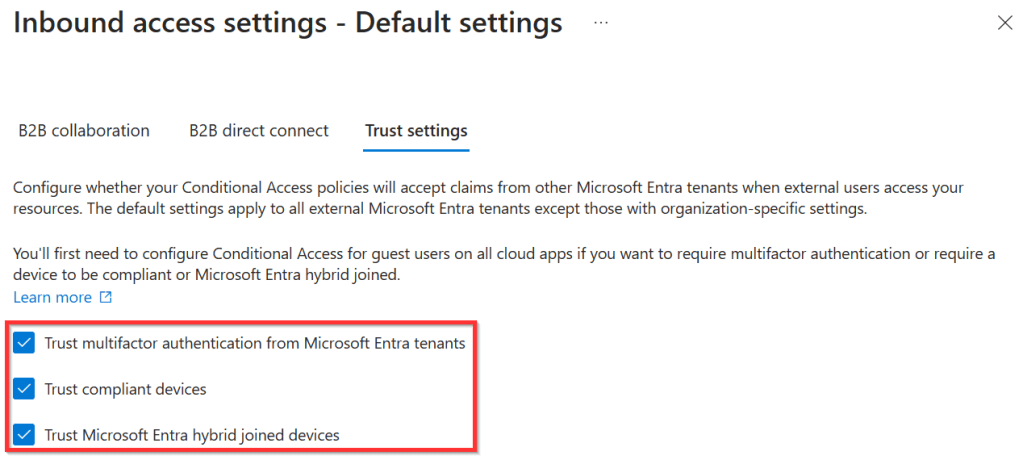
Now for something reasonably new and really exciting called Trust settings. Before this could be configured a user could face the following flow:
- Guest user navigates to the partner application.
- Guest user is prompted to sign in to his own tenant using MFA.
- Guest user is redirected to partner organization and partner app, but the partner organization does not recognize the already performed MFA step in the guest users own tenant, so it prompts the user for MFA again as set in the Conditional Access (CA) policy.
- Guest user has to accept MFA again.
- Guest user is permitted access to the application.
The same could happen with CA policies that were build on a device being compliant or a hybrid joined device being compliant. This is now taken care of. If you specify that your tenant trusts your guest users MFA token from the partner tenant, it is trusted by your own tenant. Really cool!
Note that the above settings are defaults and they can be further specified on a per-external partner tenant basis. I will show this in an example below.
Configuring Microsoft Entra B2B Collaboration for partner organizations that do not use Microsoft Entra as their identity provider.
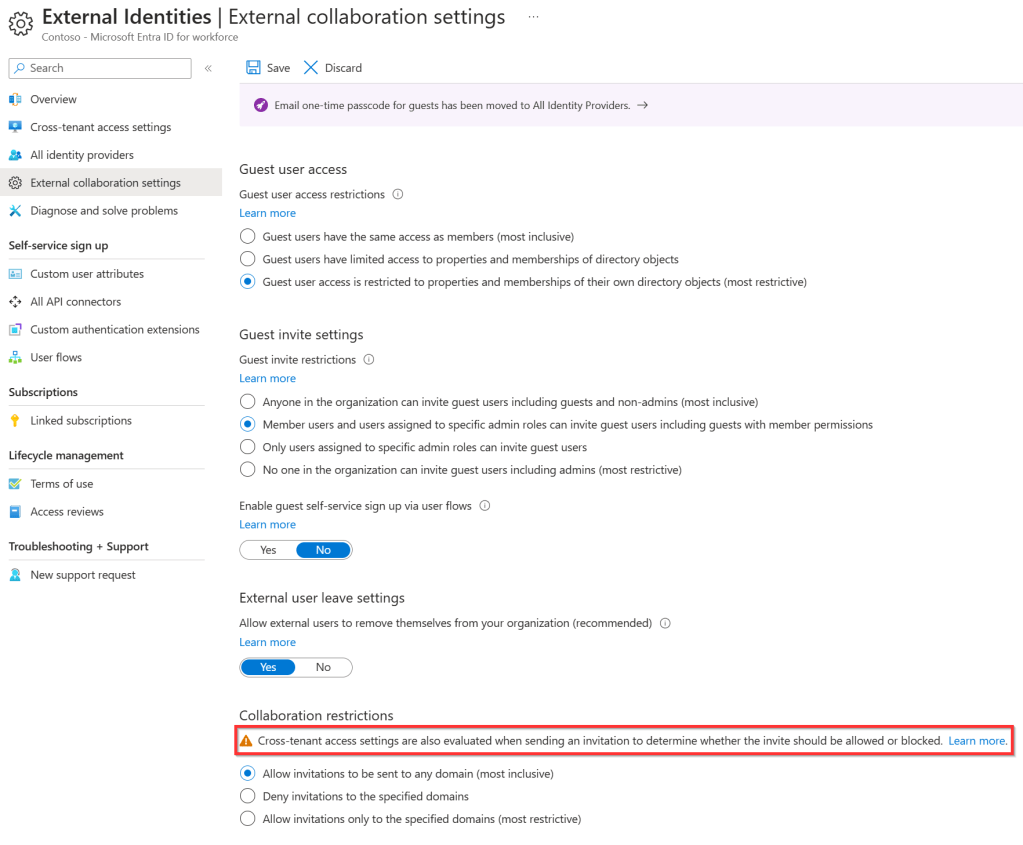
B2B Collaboration connections with partners that do not use Microsoft Entra ID as their identity provider are somewhat more limited. These settings can be found under “External collaboration settings” and the following can be configured:
- What access a guest user has in your organization (same access as members, limited directory options or only properties of their own objects).
- Which users in your organization may invite guest users.
- To which external domains invitations can be sent. Note the banner that mentions that cross-tenant access settings are also evaluated. So for this reason I recommend to allow all domains here.
Example time!
In the following example a Microsoft Teams team is created with 2 channels, 1 standard channel and 1 shared channel. A guest user is invited to the standard channel using B2B collaboration and an external user is added to the shared channel using B2B direct connect. For Teams, the following logic applies:
- Guest users (B2B Collaboration) can be added to all channels with the exception of shared channels.
- External Members (B2B Direct Connect) can be added only to shared channels.
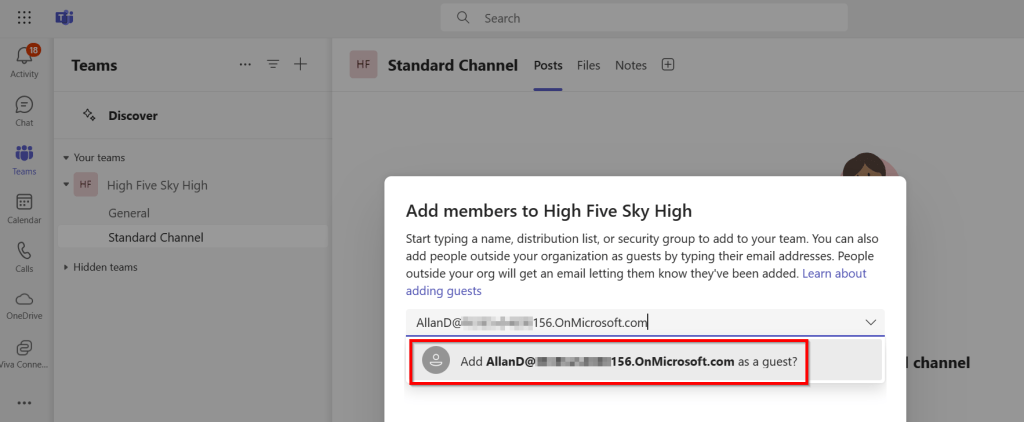
As you can see, the team “High Five Sky High” is created and a standard channel creatively called “standard channel” is added. External user “AllanD” from company “156” is added to the team as guest.
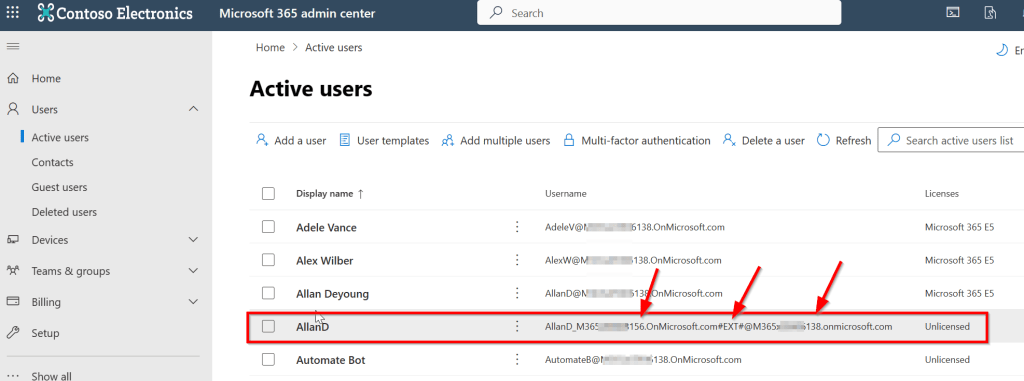
When looking at the active users in my Entra ID, the following can be concluded:
- My own tenant is called “138.onmicrosoft.com”.
- Users in my tenant use “138.onmicrosoft.com” as domain.
- A guest account for “AllanD” from the “156” tenant is added as a guest in the format that is explained in the beginning of this article.
The following happens when Allan signs in to Teams:
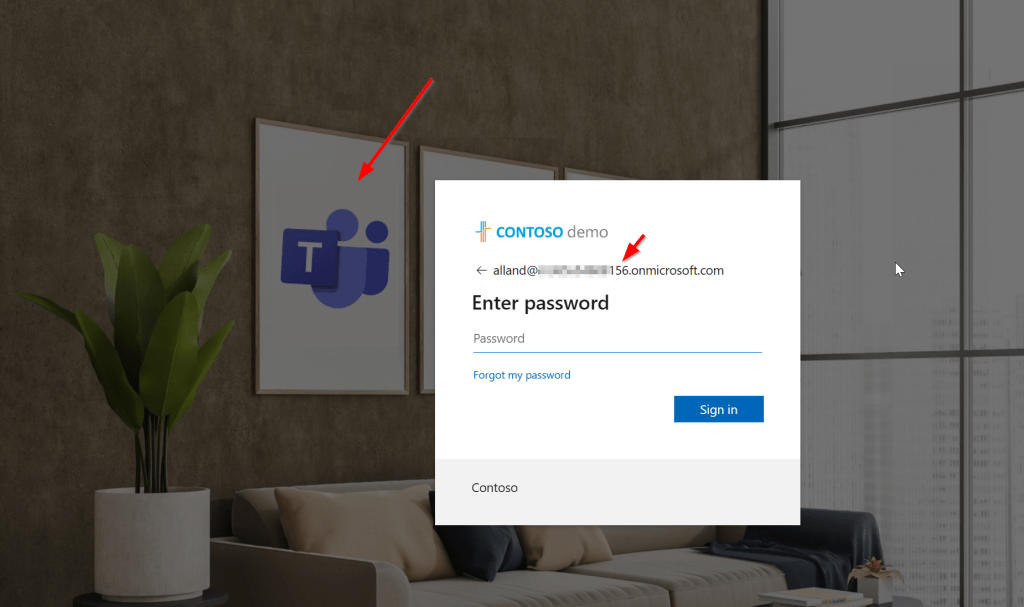
First, Allan has to sign in to his own tenant (156, to be seen in the image because the background is different). Remember, the authentication phase that I explained above? That’s this part.
When Allan uses the tenant switcher in Teams to access my “138” tenant, the following happens:
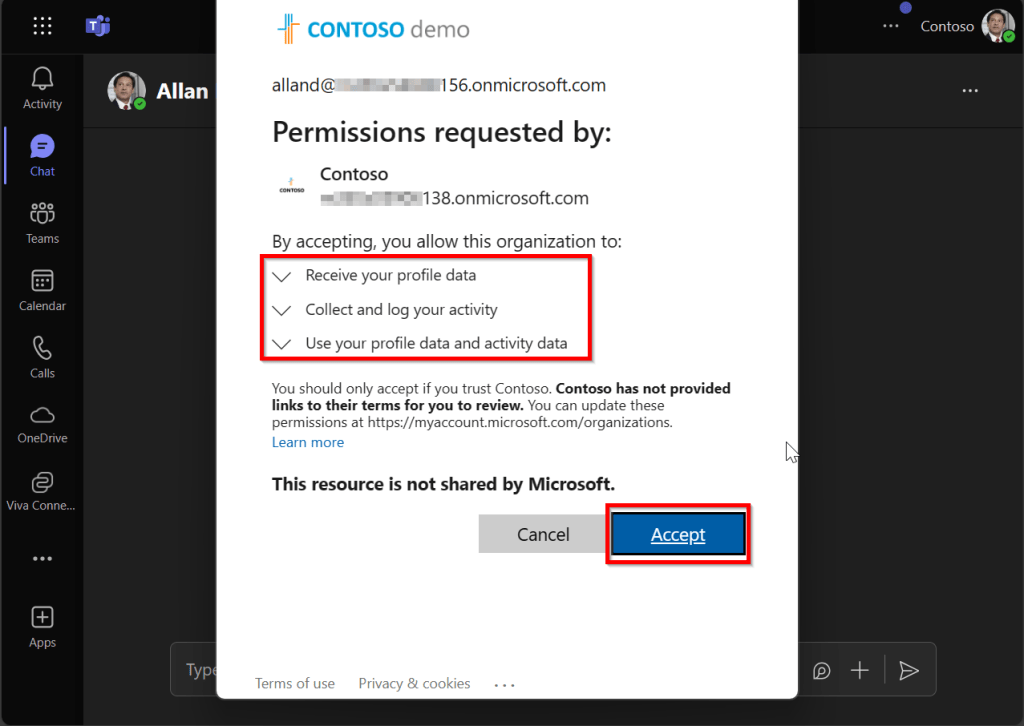
Allan has to allow my organization to read and use his profile data to sign in. Note that this can also be done by your administrator for all users in the tenant.
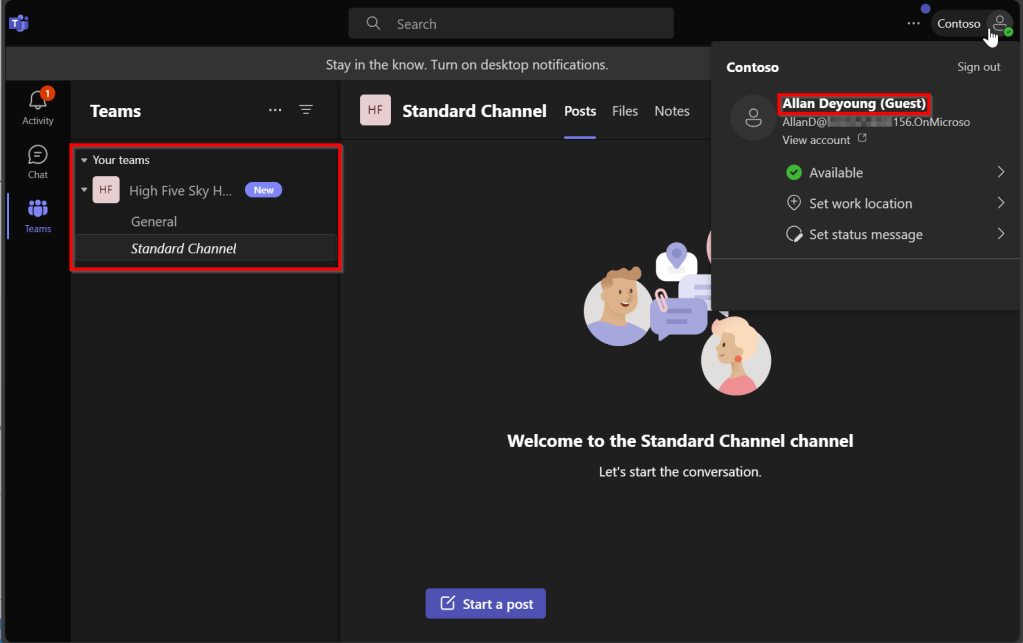
Allan is now signed in to my organization / tenant using his guest account and can access the team and standard channel.
Now let’s add Bianca from organization “156” directly to a shared channel:
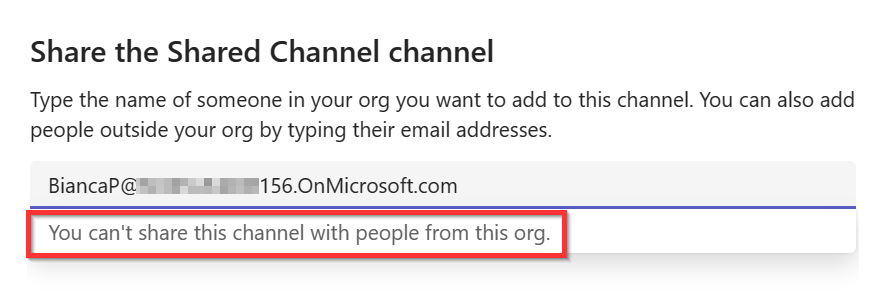
Well that’s strange, this is not possible. Now let’s look back to the screenshots explaining the defaults for external domains. B2B direct connect is blocked as default! So we’ll have to make an exception for the “156” domain.


I’ve added the Contoso (156) organization under Cross-tenant access settings, Organization settings to allow it. Let’s try again.
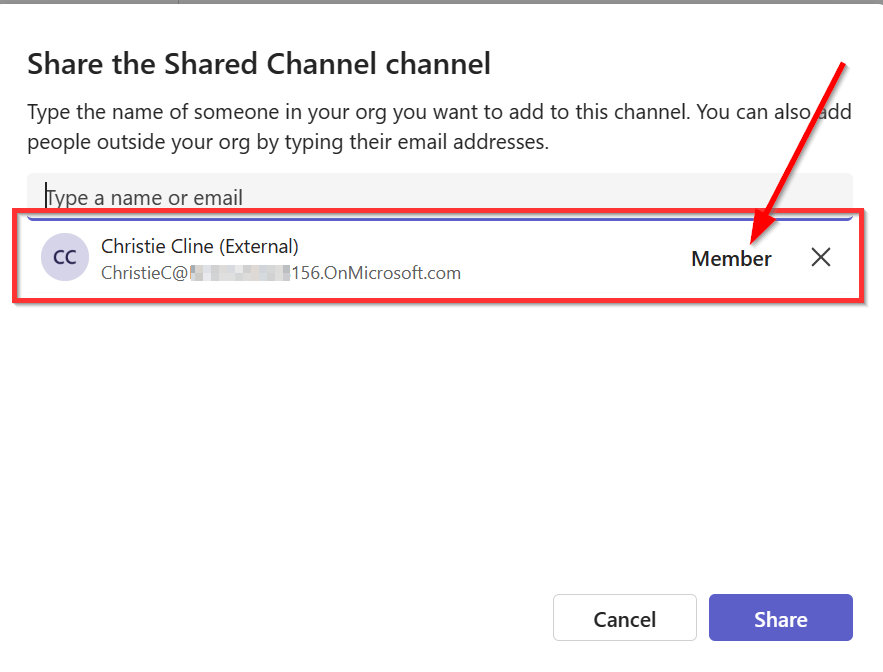
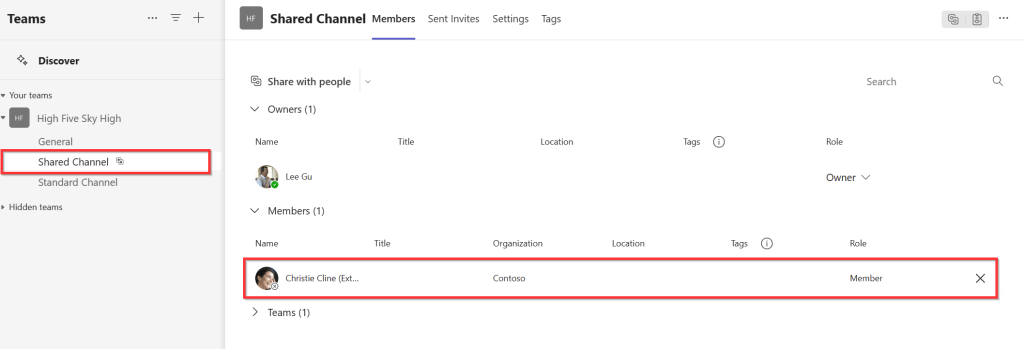
Now Christie (different user, same domain 😄) from the “156” organization is successfully added to the shared channel!
In conclusion
- B2B Collaboration can be used with almost all external partners.
- B2B Collaboration creates a guest user in your organization.
- B2B Collaboration guest user seperates authentication from authorization.
- B2B Direct Connect can only be used with external partners that use Entra ID as their identity provider.
- B2B Direct Connect does NOT create a guest user in your organization.
- B2B Direct Connect can only be used with Teams shared channels at the time of writing.
- B2B Collaboration and B2B Direct Connect with external partners that use Entra ID can be configured using the “Cross-tenant access settings” panel in Entra ID Admin Center.
- B2B Collaboration with external partners that DON’T use Entra ID can be configured using the “external collaboration settings” panel in Entra ID Admin Center.
There you have it, differences between B2B Collaboration and B2B Direct Connect demystified! I hope you found this article useful.

 DominiqueHermans.com
Very good explanation of a complex topic. Thank you very much!
LikeLike
You’re welcome Chad! Glad you found it useful!
LikeLike
Hello Dominique, thanks for the article.
I am also testing with it and noticed that you can also use B2B Direct Connect when using the sharing functionality in SharePoint or OneDrive site. On file or folder level outside off a Teams Shared channel. I cannot find any information about that is should be possible….but it works.
LikeLike
Hi Martijn, thanks for your comment. Please excuse my late reply. That’s interesting, could you share some more information on the steps you take and what the recipient sees?
LikeLike
Hi, very helpful information. Just one question, any idea about B2B between Microsoft global tenant and 21vNet tenant ?
LikeLike
Hi Qian, that also seems to be possible according to the docs at https://docs.azure.cn/en-us/entra/external-id/b2b-government-national-clouds. Unfortunately I don’t have any personal experience in this area.
LikeLike
Hi, very helpful information. Just one question, any idea about setup B2B between Microsoft global tenant and 21vNet tenant ?
LikeLike