English Version
This article marks the start of a new series of blog posts called “Quick Productivity Tips (QPT)”. These articles will be available in both English and Dutch to make it easier for visitors to understand and implement this quick productivity tips (QPT).
In this first article, let’s see how to create an in-person event in new Outlook and Outlook on the Web!
Microsoft recently introduced the possibility to set an event as an “in-person” event. This works in new Outlook and Outlook on the Web.
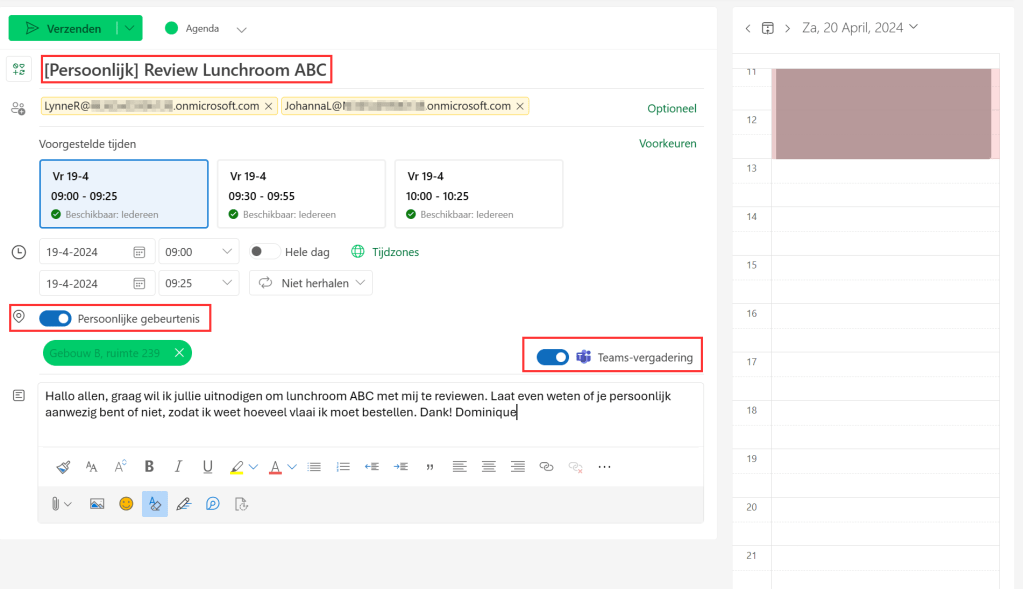
First, create a new event and switch the slider to on for “In-Person event” (“Persoonlijke gebeurtenis” in Dutch). Note that you can also make it a hybrid meeting by also selecting the Teams meeting option. The subject of your event now get’s a prefix called “[In-Person]”.

Now your participants can accept the meeting in 2 ways, by selecting they’re attending in person, or virtually. There’s also a note saying that the organizer has requested in-person attendance. While the screenshot is in dutch, it’s actually saying to be there in person because there will be vlaai (which is a kind of cake that’s famous in the south of the Netherlands 😄).
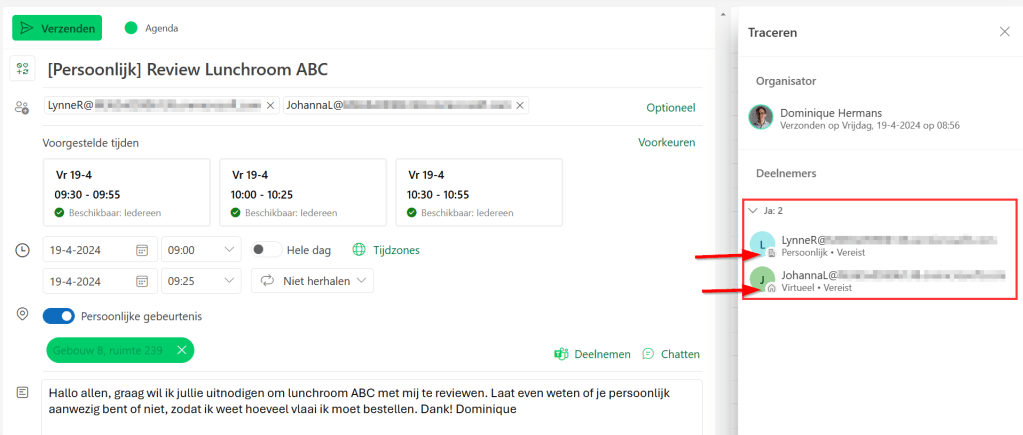
Now the organizer can see how many participants will be there in-person or virtually by using Teams. ain’t that nice?
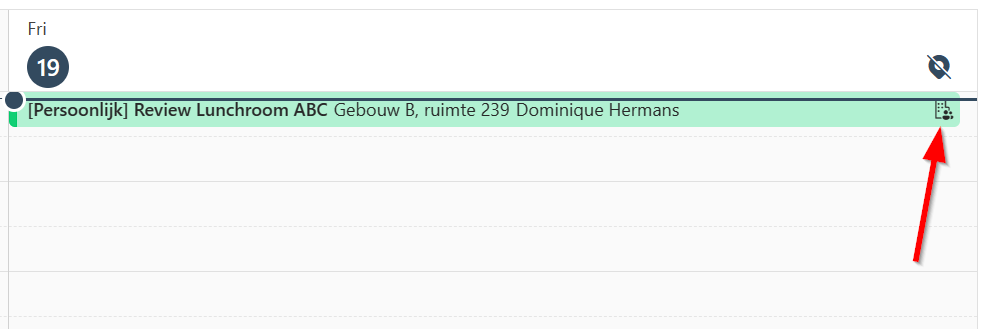
The calendar entry also shows a corporate building to show that this is an in-person event.
Hope this quick productivity tip makes you a little more productive!
Nederlandse Versie
Dit artikel is het eerste artikel in een reeks blog posts genaamd “Quick Productivity Tips (QPT)”. Deze artikelen zullen beschikbaar komen in Engels en Nederlands om het voor bezoekers makkelijker te maken ze toe te passen in hun dagelijks werk.
In het eerste artikel kijken we naar het creëren van een zogenaamde “Persoonlijke gebeurtenis”. “Persoonlijke gebeurtenis” dekt naar mijn idee niet helemaal de lading van deze functie. De functie laat iemand een meeting creëren die plaats vindt op locatie. Deze nieuwe functionaliteit is beschikbaar in “new” Outlook en Outlook voor het Web.
Begin met het creëren van een nieuwe meeting en selecteer “Persoonlijke gebeurtenis”. Het is ook mogelijk om er een hybride meeting van te maken door ook “Teams-vergadering” aan te vinken. Het onderwerp van je meeting wordt nu aangevuld met “[Persoonlijk]”. Vergeet natuurlijk niet om een locatie toe te voegen.
De genodigden voor de meeting kunnen nu antwoorden met “Ja, persoonlijk” of “Ja, virtueel”. Dit laat de organisator weten of je persoonlijk bij de meeting bent (op locatie) of deelneemt via Teams.
De organisator kan nu zien welke genodigden op locatie zullen zijn voor de meeting, en wie er virtueel aanschuift. Wel zo handig bij het bestellen van de vlaai toch? 😄
Bij de meeting in je agenda wordt ook een kantoorgebouw weergegeven, zodat je weet dat de meeting op locatie plaats vindt!
Hopelijk maakt deze Quick Productivity Tip je werk weer iets makkelijker!

 DominiqueHermans.com