When seeing Microsofts Copilot for Microsoft 365 (hereafter just called “Copilot”) in action the first time, it looks a little bit like magic. How can it be that Copilot can provide you with relevant information based on your query? Let’s dive into this in this article.
Copilot Components
To provide you with answers based on your questions and help you to be more productive in Microsoft 365 apps, Copilot uses a couple of technologies:
- The Microsoft 365 apps you use every day like Word, Excel, PowerPoint, Outlook and Teams for example. Copilot in each app is tailored to assist you in the context of that app.
- Microsoft Copilot with Graph-grounded chat let’s you query copilot to answer your questions, draft or rewrite content or catch up on what you missed in Teams meetings.
- Large Language Models (LLMs) in Microsoft 365 Copilot are AI algorithms that use deep learning techniques and big amounts of data sets to understand, summarize, predict and generate content. Copilot uses pre-trained models like GPT-4 and GPT-4 Turbo from OpenAI for example. Note that these models are running in your own Microsoft 365 / Azure environment that reside in your own service boundary. Also, Microsoft is very clear that your data is not being used to train the foundational model, like in this example GPT from OpenAI.
- Microsoft Graph combines all your data and intelligence in your Microsoft 365 environment and publishes this information via a so-called Application Programming Interface (API) so it can be accessed by anyone with the correct permissions. The same API can be used by developers to write applications that in turn can access that same information. Take a look at the following picture to see a more visual representation of the Microsoft Graph:
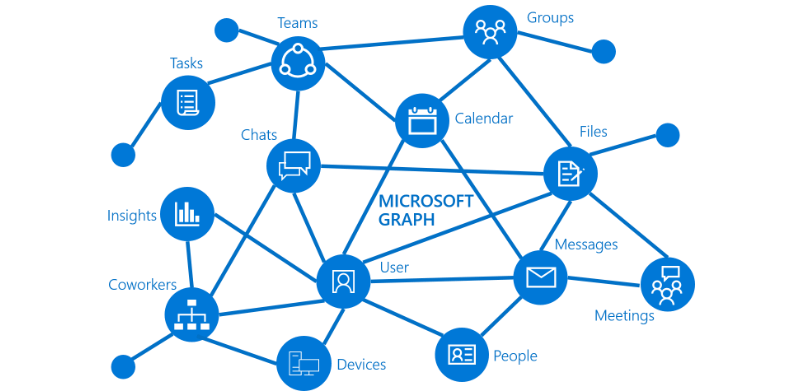
If you want to fiddle around with data in the Microsoft Graph to get a more practical representation of it, take a look at my article called Introduction to the Microsoft Graph (MgGraph) Powershell Module & API.
Data in Microsoft Graph is indexed so it can be quickly found and accessed. Search results are personalized as the relationship between your data and people you often are in contact with are taken into consideration. Interaction with data in the Microsoft Graph is based on:
- Keyword matching, which can be compared with how a traditional search engine like Google or Bing works. However in this case, keyword matching is done against Microsoft Graph indexes.
- Personalization and social matching, which make sure that top search results can be provided by using information that the Graph knows about you and your frequent contacts.
Besides the above it’s also good to be aware of the fact that Microsoft Graph also is responsible for data access by obeying the permissions that you have given to documents, sites, teams, devices and other areas in the Graph.
The Semantic Index for Copilot
The semantic index for Copilot analyses your search query so it can give you answers that are in context with what you are looking for or asking Copilot to do. This is also known as vector-based search. To understand how the semantic index for Copilot works, let’s first see how vector-based search works.
Vector-based search
Traditional search methods use keyword search where data is retrieved based on keywords and exact matches. The easiest way to remember how vector-based search works, is that when search data has a close match to other data, their vectors will have a close match. The content in vector search are represented as numbers whereas traditional search methods use plain text to identify content. So when we talk about a close match in vector search, the numbers will have a close resemblance.
The following matching types are possible in Azure AI Vector Search, which is the “building block” for vector-based search in Microsoft 365:

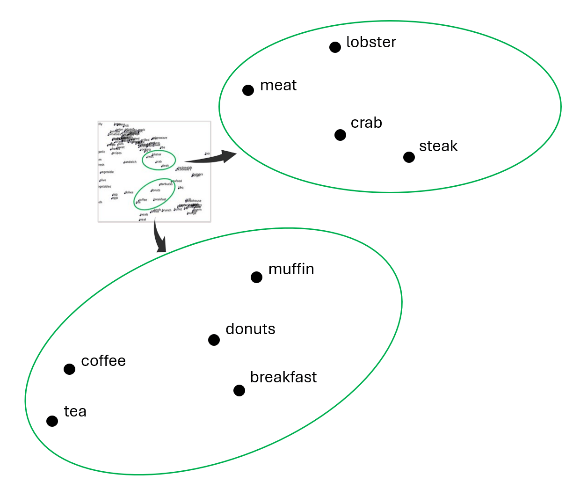
In the picture above an example of a vector index can be seen that that uses words instead of numbers.
Now to take it up a notch, Microsoft uses a technique called “Hybrid Search” for answering all Copilot queries. This technique combines traditional keyword search with vector search for improved accuracy!
Semantic Search
Semantic Search uses vector-based search to optimize the query you send to Copilot. For example, it can expand your search for “farm” by adding the keywords “ranch”, “livestock” and “plantation”. By doing this, it can get more information from the Microsoft Graph and semantic index. This information is then fed to the Large Language Model (LLM). Because the information now is extended, the LLM has more information to reason over and can give you the best result possible. Lastly, Copilot accesses the Microsoft Graph and semantic index for post-processing.
The Semantic Index
To do this, the semantic index creates 2 indexes:
- A user-level index which is a private, personalized index for a working set of data that makes this data more accessible for you to use with everyday tasks. Examples are emails, documents that are text-based and mention you or documents you share or comment on.
- The tenant-level index holds text-based SharePoint online files that two or more employees in your organization can access and the user has access to. Besides this, the SharePoint online site must be searchable.
The indexes are automatically created for each Microsoft 365 customer. However at this point, there is no way to tell if your environment has already finished creating an index because the status indicator that was present on the Admin Center was deemed confusing and removed as such.
After the initial indexes are created by Microsoft, new personal documents are indexed in near real-time and the index resides in the mailbox of the user. New documents in SharePoint Online sites are indexed daily. Updates to user or tenant level documents are immediately indexed.
Semantic Search and Semantic Index in the Copilot for Microsoft 365 Architecture
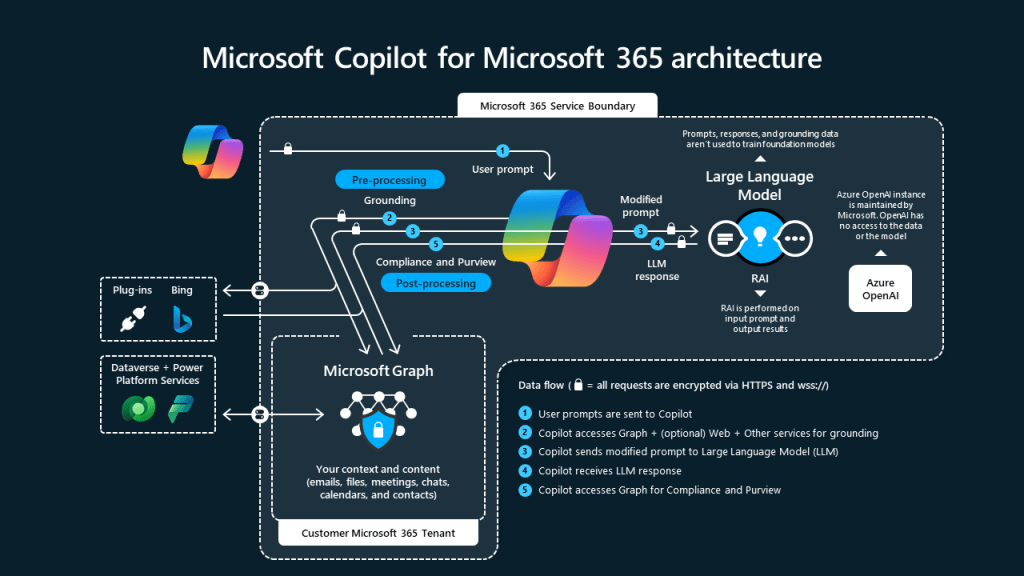
The picture above shows how Copilot for Microsoft 365 handles a request that a user makes from the Copilot prompt. The semantic index is being consulted in this process twice, first when the Microsoft Graph is accessed for (pre-)processing of the user prompt. Secondly, when post-processing takes place for Compliance and Purview.
How do I enable the Semantic index?
As I mentioned above, the semantic index is automatically enabled for Microsoft 365 tenants by Microsoft. Microsoft mentions the semantic index is “an improvement to Microsoft 365 Search and cannot be disabled”. Microsoft does mention that Administrators can prepare and manage the index by looking at the following technical documentation:
- https://learn.microsoft.com/en-us/sharepoint/deploy-file-collaboration
- https://learn.microsoft.com/en-us/sharepoint/modern-experience-sharing-permissions
As Copilot for Microsoft honors the settings in your Microsoft Purview Data Loss Prevention (DLP), this can also be used to limit the indexes created. Lastly, the index can also be configured to not use certain SharePoint online sites, as these can be excluded from being in the Microsoft Search index.
The last controls that you can leverage to influence the incorporation of it’s data in the semantic index are the configuration of people insights and item insights. These can be turned off and as such won’t be included in the semantic index. If you want to learn more about item insights, take a look at the following Learn article.
A word on privacy, compliance and security
As with everything Copilot related, Microsoft is very open about the use of your data. A sentence that I find to be summarizing it nicely is “Your data, is your data”. Key points are:
- The Microsoft Graph permission model is leveraged to make sure your data isn’t leaked to places where it shouldn’t be.
- The semantic index honors this permission model.
- Microsoft Copilot for Microsoft 365 is compliant with the General Data Protection Regulation (GDPR) and European Union Data Boundary. Please note that the use of plugins could be an exception to this!
- The usage of Bing to leverage web content is also enabled by the use of a plugin which can be enabled by the Microsoft 365 admin or the user (if enabled by the admin).
- Your data is not being used to train foundation LLM’s, including those used by Copilot for Microsoft 365.
- The Azure OpenAI platform is being used for Copilot for Microsoft 365, not OpenAI’s public platform (ChatGPT)!
Also, if you’re using connectors to include external data sources in your Microsoft Graph, the principle that these external data sources access controls will be maintained by the Microsoft Graph is also valid in this scenario. In the case of Graph connectors, the data will also be indexed. However, be aware that when using plugins on the other hand, the developer of the plugin is responsible for use of your data. So make sure to check their terms of use and the privacy policy.
If you want the details on the above, please take a look at Microsoft’s Data, Privacy, and Security for Copilot for Microsoft 365 page.
Copilot for Microsoft 365 can only use data that your users have access to. The phrase “if it can be seen by your users, it can be used by Copilot” is often heard lately. Microsoft provides you with information, best practices and tools to limit and safeguard this data and it’s permissions.
- A great place to start is the Zero Trust model for Microsoft Copilot for Microsoft 365 which takes you through all 7 layers of protection to secure your environment:
- Data protection
- Identity and access
- App protection
- Device management and protection
- Threat protection
- Secure collaboration with Teams
- User permissions to data
- Continually monitor and reconfigure access to your Teams and SharePoint sites by using access controls.
- Limit the scope of data that can be used by Copilot by leveraging “Restricted SharePoint Search”. This gives you more time to design and implement a Microsoft Purview data security solution. Note that Restricted SharePoint search is in public preview as of April 17, 2024 and is currently scheduled for launch in May 2024.
- Design and implement a data security solution based on Microsoft Purview. Start by implementing sensitivity labels and extend by implementing Data Loss Prevention (DLP) and retention policies.
- Think about a content lifecycle strategy and implementation based on SharePoint advanced Management.
Still hungry for more information?
Want to know more? Take a look the following Microsoft Learn articles that served as sources for this blog:
- https://learn.microsoft.com/en-us/copilot/microsoft-365/microsoft-365-copilot-overview
- https://learn.microsoft.com/en-us/graph/overview
- https://learn.microsoft.com/en-us/MicrosoftSearch/semantic-index-for-copilot
- https://learn.microsoft.com/en-us/azure/search/vector-search-overview
- https://techcommunity.microsoft.com/t5/copilot-for-microsoft-365/introducing-restricted-sharepoint-search-to-help-you-get-started/ba-p/4071060
- https://learn.microsoft.com/nl-nl/sharepoint/advanced-management

 DominiqueHermans.com

