In some cases you may want to be informed immediately when certain actions are being performed in your Microsoft 365 environment by your users. Examples are documents being shared with external parties that should not have access to the documents, or maybe you have a certain user that you want keep tabs on. Of course there a many ways to achieve this in Microsoft Purview, and the configuration of alert policies for these high risk activities is one of them.
❗On March 24, 2025 Microsoft retired the event alerts capability within Microsoft Purview Audit. However, the theory behind this functionality could still be part of the SC-400 exam. For more information take a look at message center message ID MC1006620. You can use Data Loss Prevention Alerts as an alternative.
A word on RBAC Permissions
To start off with the necessities, the required RBAC permissions to view alerts can be found on this Microsoft Learn page. However this isn’t one simple permission that grants a user or administrator the permissions to view all alerts. As alerts are categorized, the user or admin tasked with viewing alerts has to have permissions to view alerts in the specific category.
Alert Policies Overview

As you can see in the image above, alert policies work as follows:
- An administrator creates, configures and turns on alert policies.
- A user performs an action that matches the conditions of an alert policy.
- Microsoft 365 generates an alert, sends email notifications and displays alerts in the Microsoft 365 compliance center and the Microsoft 365 Defender portal.
- An administrator views and manages alerts in the Microsoft 365 compliance center or Defender Portal.
Configuring Alert Policies
Let’s take a look at how we can configure a policy and how it works when a policy is triggered by the user.

Navigate to the Microsoft Purview Compliance Center and click on Policies, Alert Policies.
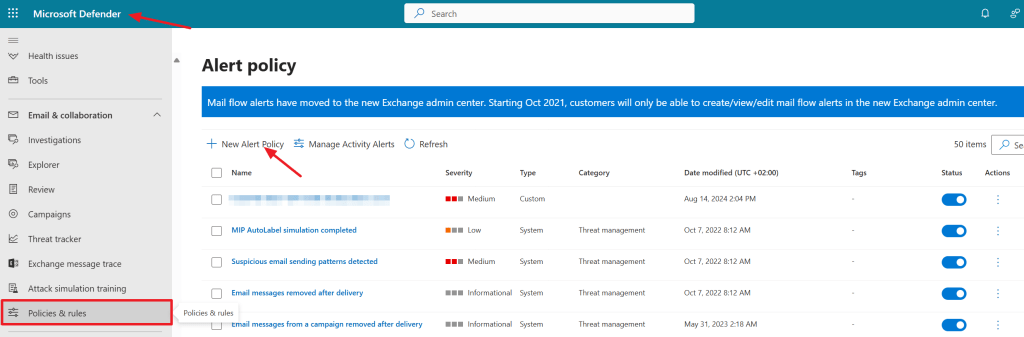
As you can see we are immediately redirected to the alert policies in the Microsoft Defender console (which can be found manually by navigating to ‘Email and Collaboration’, ‘Policies and Rules’, ‘Alert Policy’). Notice that there are a lot of policies already present out of the box. Let’s click on ‘New Alert Policy’ to start configuring a new alert policy to get a peak inside the inner workings of alert policies.

In the first screen of the wizard we can name and describe the policy accordingly and assign it a severity and category. Note that you may want to bundle certain alerts under a certain severity. Do also note that configuring a category requires a user to have a specific RBAC role belonging to the category before he or she can view and manage the alert in this category.

Next we have arrived at the activity and conditions page, where we can configure both activities and conditions that trigger the alert policy. This page consists of a massive library of activities that you can generate an alert on, which can be combined with other conditions that are specific to the activity you selected. In this example I configure the activity to be ‘Shared file externally’ AND user equals ‘Grady Archie’. I also want the alert to trigger every time Grady shares a file with an external party. You may also choose to only fire the alert when a certain threshold is reached, or ‘when the volume of matched activities becomes unusual’.

On the next page you can decide if you want to notify people when the alert is triggered. I can imagine that for alerts with a higher sensitivity level, emails will be sent. For alerts with lower sensitivity levels, an alert in the dashboard will suffice. I find the ‘Opt-In for Email Notifications’ text a bit misleading here, as the option only lets you specify email recipients here together with a daily notification limit. So when turning it off, the option to configure email recipients disappears. It doesn’t give users the option to opt-in for email notifications later from the portal for example. I choose to send my admin an email when this alert is triggered.
In the last screen, doublecheck your settings and turn on the policy. At this point, it can take up to 24 hours for the alert policy to take effect as the policies have to be synced to the alert detection engine.
Triggering the alert policy
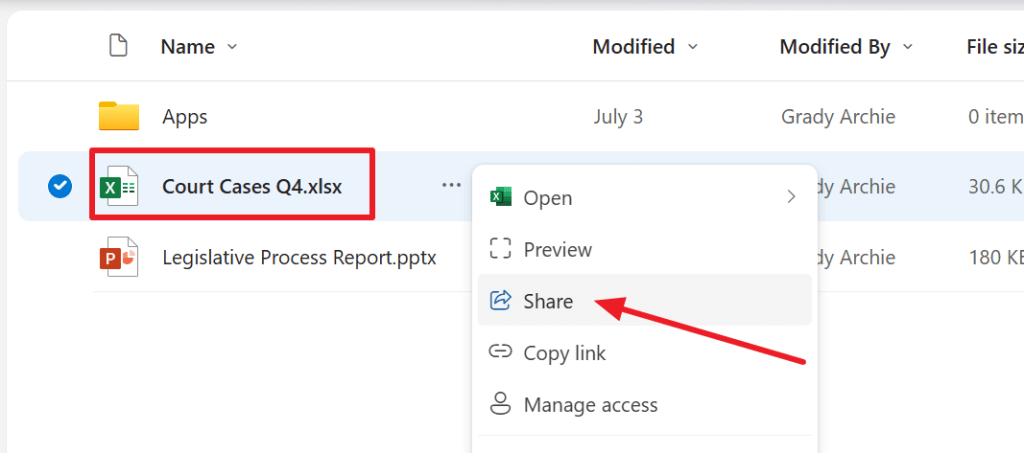
Now let’s log in as Grady Archie and share a file with someone from an external company.

In this case, I share the file with my good friend “Nestor” whom I’ve told about this list of Court Cases I’ve been involved in.
Examining the results
Note that Nestor receives the email with no problem, as we don’t block anything by setting an alert policy. However, the following does happen:

After a while, an alert shows up in the Alerts panel in the Microsoft Defender Console.
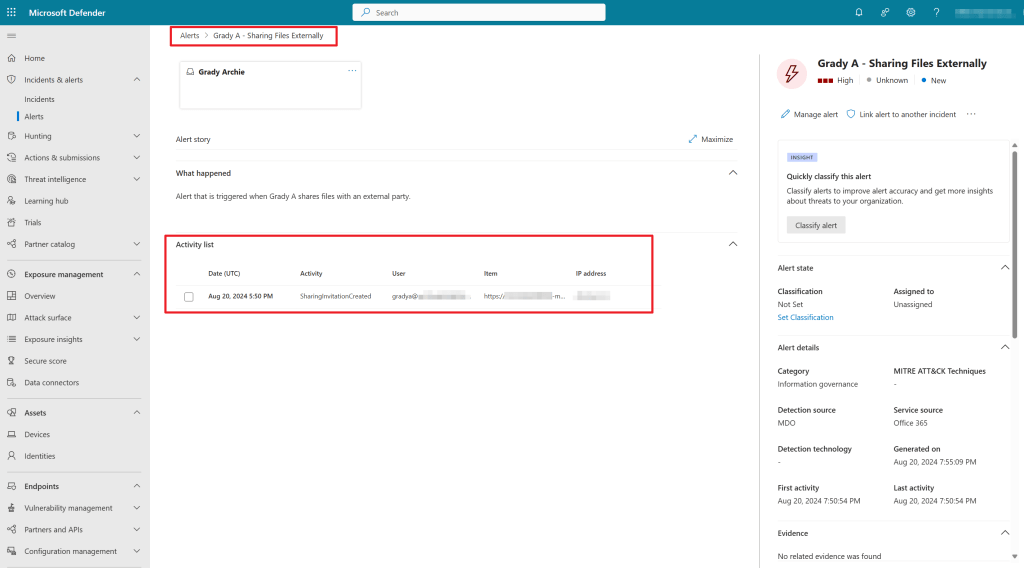
When opening the alert, it shows us all kind of information:
- The activity that triggered the alert.
- Category of the alert.
- Detection Source.
- Date and time of the activity.
- The user that triggered the alert.
- Activity being performed by the user.
- The item on which the activity is being performed.
- IP address where the action took place from.
We can perform additional actions on the alert:
- Set the classification of the alert.
- Assign the alert to someone for further investigation.
- Link the alert to another incident to find a correlation.
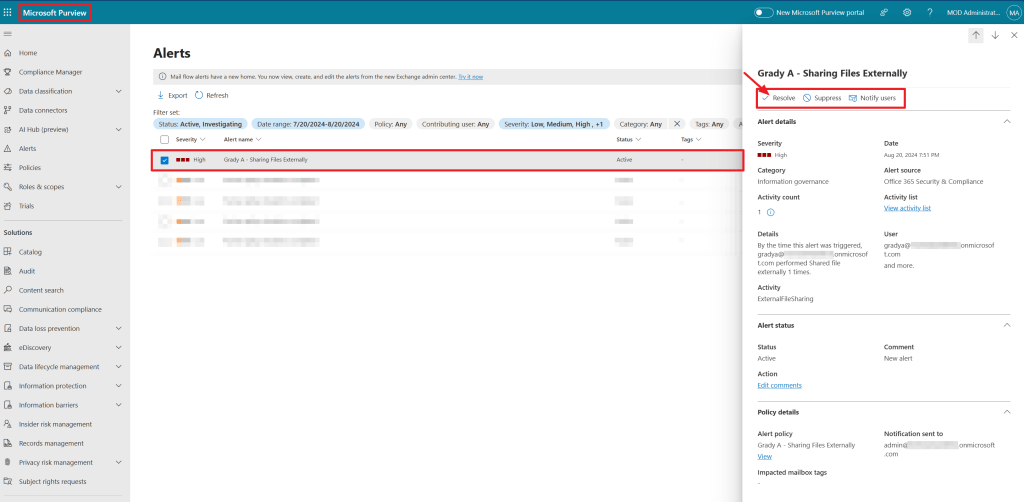
When taking a look at the Alerts section in the Purview portal, notice that the alert is also registered here. Here also various details about the event that triggered the alert are available, albeit with less details then in the Microsoft Defender Console.
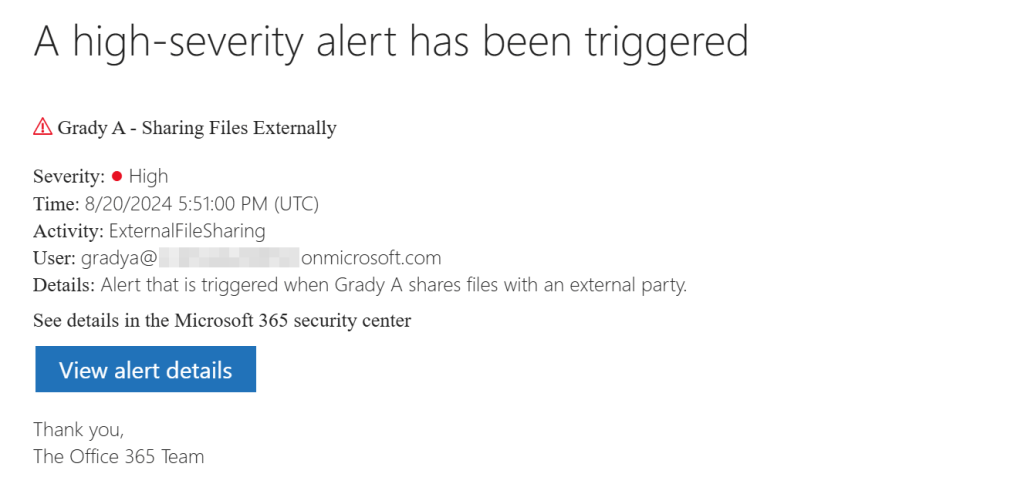
As expected, an email was also sent to my administrator providing details of the alert and the possibility to view alert details.
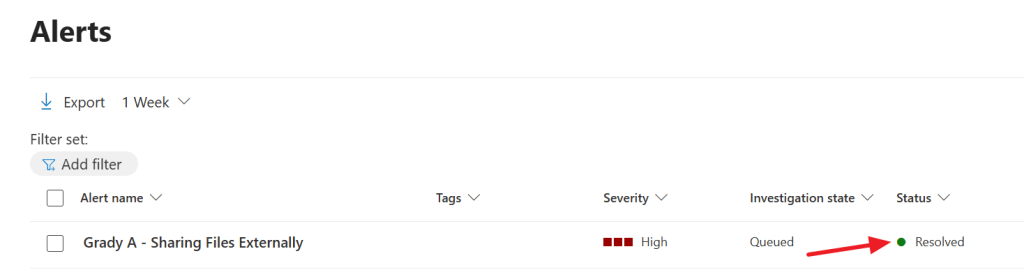
Let’s resolve the incident by pressing ‘resolve’ in the Purview console. After specifying a comment why the issue was resolved the alert will not be present in the default view anymore, but can be seen when changing the filter to include resolved alerts.
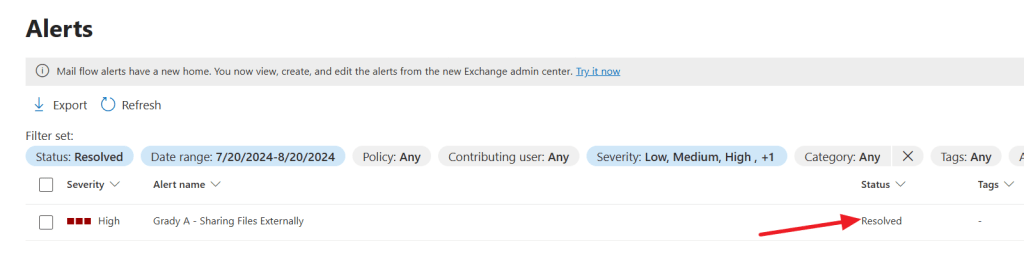
When moving back to the Microsoft Defender console, note that the alert was resolved here as well!
Summary
- Alert Policies can be used to notify you when a certain action is taken in your Microsoft 365 environment.
- Ideally you configure alert policies for high risk activities that you want to monitor.
- Alerts can be seen in the Purview and Defender console where the latter gives you more detail.
- Alerts can be emailed to recipients when configured, ideally you’ll only do this for high risk activities.
That’s it! Hope you learned something new today!

 DominiqueHermans.com
Hi there, wanted to highlight that this feature is no longer available in purview.
“Audit-Based Alerts Retired from March 25, 2025“
see here for more: https://m365admin.handsontek.net/retirement-of-alerts-policy-cmdlets-in-microsoft-purview-audit/>
kr, Steve
LikeLike
Hi Steve, thanks for your comment. You are absolutely right. However, this is (unfortunately) still a topic in the SC-400 exam. For clarification, I will put an informational message about this at the start of the post.
LikeLike