Up to now, the ‘Protect Your Microsoft 365 Data in the Age of AI’ series consists of the following posts:
- Protect your Microsoft 365 data in the age of AI: Introduction
- Protect your Microsoft 365 data in the age of AI: Prerequisites
- Protect your Microsoft 365 data in the age of AI: Gaining Insight
- Protect your Microsoft 365 data in the age of AI: Licensing
- Protect your Microsoft 365 data in the age of AI: Prohibit labeled info to be used by M365 Copilot
- Protect Your Microsoft 365 data in the age of AI: Prevent sensitive data from being shared with 3rd party AI (This post).
Welcome back to the next chapter of this blog series on protecting your Microsoft 365 data in the age of AI! This time, we’re going to take a look at how easy it is really to set up policies that prevent our sensitive data from being shared with 3rd party AI.
The quick route
I would like to present you with a shortcut first you can take to block the sensitive information of your choice for 3rd party generative AI sites. This will let you create a quick policy that is applied to every user in your organization to prevent them from uploading or pasting information to generative AI sites. This solution is based on Endpoint DLP. If you need a more custom setup leveraging functionality such as Adaptive Protection or Inline protection in Microsoft Edge, please skip this chapter.
To start with the quick route, make your way to the Purview portal, Solutions, Data Loss Prevention. If you have followed the initial parts of this blog series, you will have created a policy through the blog ‘Gaining Insight‘ to gain insight into sensitive information shared with third-party Gen AI sites. If you have not followed that part, you must create the policies mentioned in that post before proceeding. You should have a DLP policy called ‘DSPM for AI: Detect sensitive info added to AI sites’.
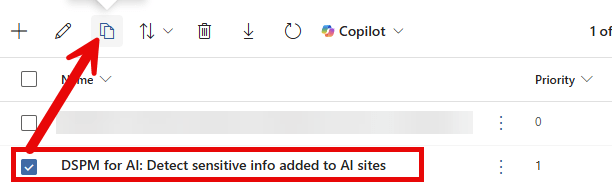
Select that policy and create a copy. Give it a name of your choosing and make your way to the ‘Customize advanced DLP rules’ screen. Change the policy rule name so it won’t be a duplicate of the policy rule that’s already present and edit the policy rule.
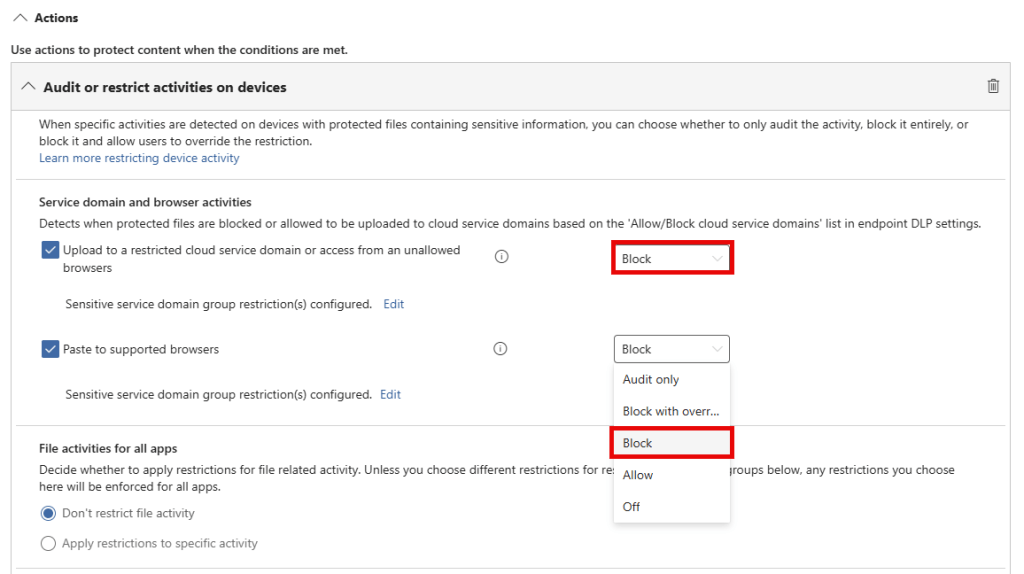
Make your way to the ‘Actions’ section, and configure ‘upload to a restricted cloud service domain’ and ‘paste to supported browsers’ to ‘block’. That’s all there is to it! Before enabling this policy, do note that it actually starts blocking the defined sensitive info from being uploaded or pasted to all supported generative AI sites.
The quick route – final result
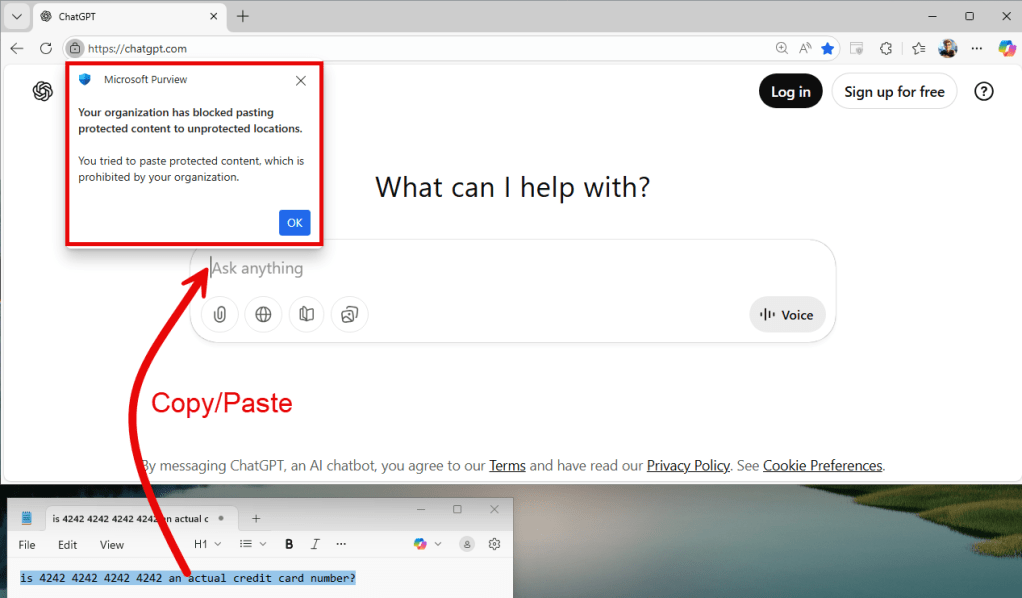
Let’s take a look at what this means from an end-user’s perspective. When sensitive information is copied and pasted or uploaded into a generative AI application (ChatGPT in this case), it is properly blocked by Microsoft Purview.
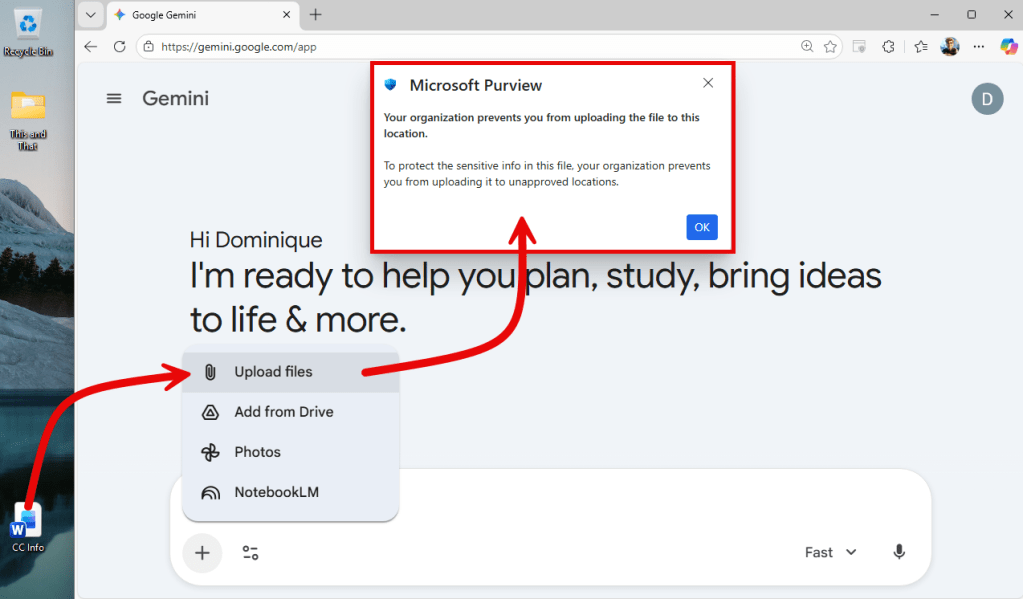
The same goes for uploading a document that contains sensitive information to a generative AI application (Google Gemini in this case). Mission accomplished!
But what if we need a more sophisticated approach? Then be sure to keep reading.
The sophisticated route (that allows for more fine-grained control)
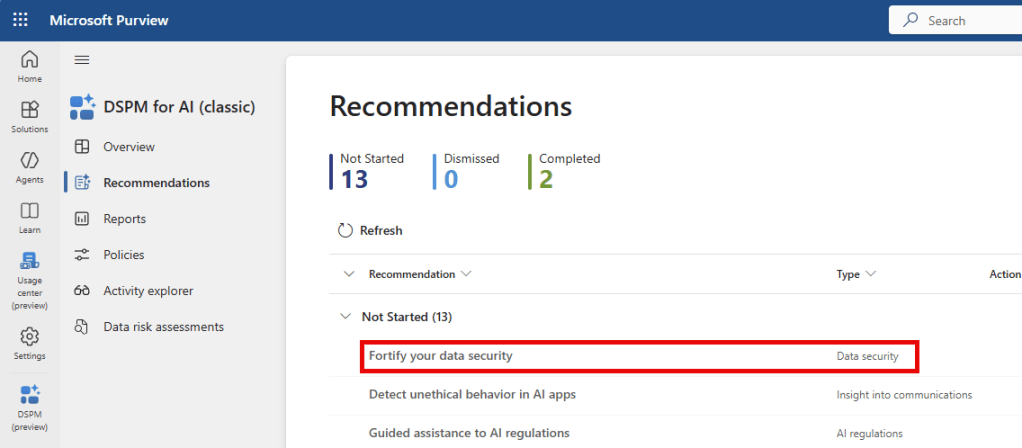
Now, let’s make our way back to DSPM for AI, Recommendations and select the ‘fortify your data security’ recommendation. In this chapter, I take you through each of the 3 policies that this recommendation creates, the benefit you get from each policy and what the impact is on your users. Before you hit the ‘create policies’ button, please be sure to read on to prevent your policies from being created in an incomplete manner.

The ‘fortify your data security’ recommendation provides you with 3 Data Loss Prevention Policies.
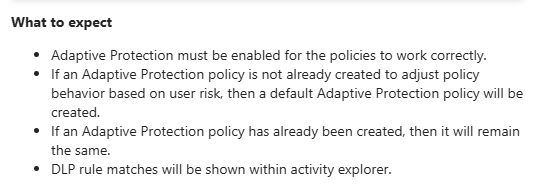
There’s a couple of things that have to be taken care of before enabling the policies:
- You should have Adaptive Protection enabled, if this isn’t been enabled and configured in your environment, DSPM will create a default Adaptive Protection policy for you.
- 2 DLP policies (the ones with exclamation mark added in the picture above) make use of a pay-as-you-go subscription. Make sure you have linked an Azure subscription to your Purview environment. You can take a look at the licensing article in this series to make yourself familiar with the costs involved.
Also, both the ‘DSPM for AI – Block sensitive info from AI apps in Edge’ and the ‘DSPM for AI – Block prompts sent to AI apps in Edge’ make use of a concept called ‘Browser DLP’. While this is a rather new and very nice concept, it has important prerequisites you should meet as otherwise policies above are not created successfully. Let’s take a look at these prerequisites.
Browser DLP and its prerequisites explained
Browser DLP in Microsoft Purview is a form of Data Loss Prevention that works ‘inline’. Inline means that it can work in real-time to detect information in transit to (or from) websites for example.
In general, Browser DLP can be used for stopping your users from sharing sensitive information to and from cloud apps in Edge for Business. This is possible for both managed clients (client is onboarded to Microsoft Purview) and unmanaged clients (client is not onboarded to Microsoft Purview, but user is logged into Edge for Business). To use it to protect sensitive data from ending up in unmanaged AI Apps like ChatGPT for example, we can only use managed clients. On top of the fact that the client has to be managed by Microsoft Purview, it also has to be managed by Microsoft Intune to be able to block a user from using other browsers that are not capable of blocking sensitive information from being shared to unmanaged AI apps.
If you want to have more information on other possible supported configurations, take a look at this Microsoft Learn page.
This scenario is also referred to as ‘Policies for unmanaged cloud apps in Edge for Business’. The apps are called ‘unmanaged’ because users don’t sign in with their work account to these apps.
So let’s recap what we need so far:
- A client that is managed by Microsoft Intune and Microsoft Purview.
- A user that logs into the client with their Entra ID account.
Got that at the ready? Great. Let’s take a look at what permissions our account needs to have before we press the ‘create policies’ button. The creation of both policies that rely heavily on browser DLP configure some interesting components behind the scenes when clicking that magic button. Here’s what you need:

For example, your user has to be a member of the following roles:
When this is into place, go ahead and click the bright shining blue ‘create policies’ button. Let me show you what it creates, besides the 3 Data Loss Prevention policies of course.
Microsoft 365 admin center – Edge Policies
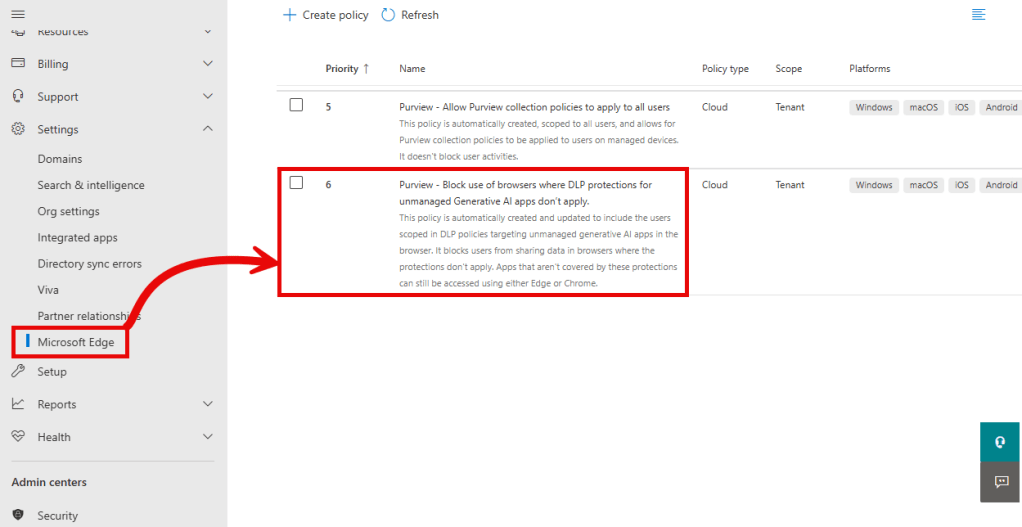
Let’s start in the Microsoft 365 admin center, and navigate to Settings, Microsoft Edge. On the ‘Configuration Policies’ tab you will find the policy titled ‘Purview – Block use of browsers where DLP protections for unmanaged Generative AI apps don’t apply’.
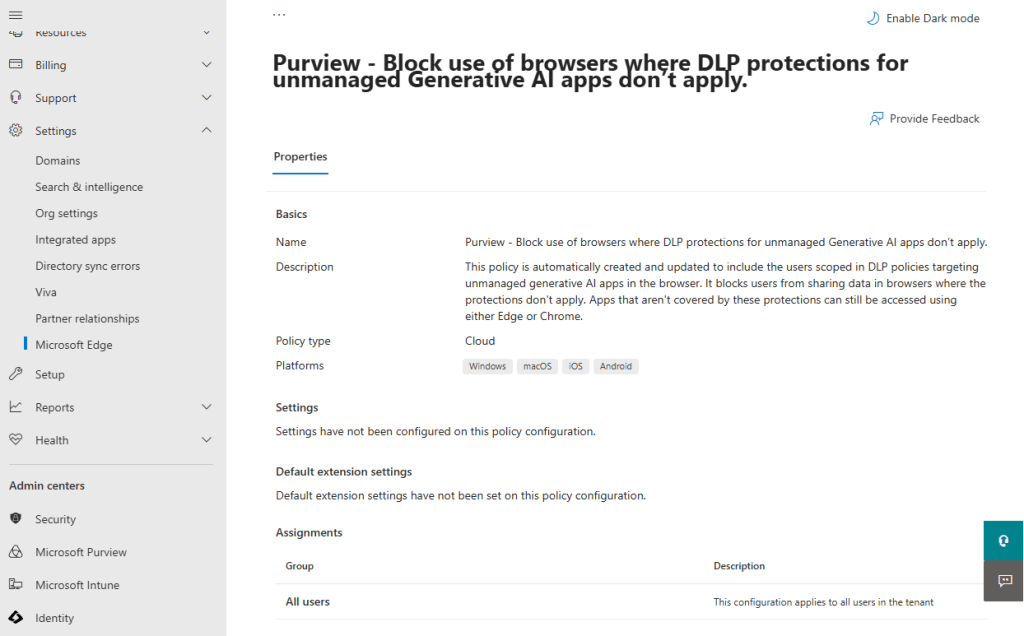
It highlights that the policy is automatically applied for users in scope of the DLP policies targeting unmanaged generative AI apps in the browsers. It prevents users from using apps covered in the browser DLP policies from being used in other browsers like for example Firefox. As browser DLP is not available in those browsers, using them would enable users to circumvent the policies applied in Edge.
Microsoft 365 admin center – Groups
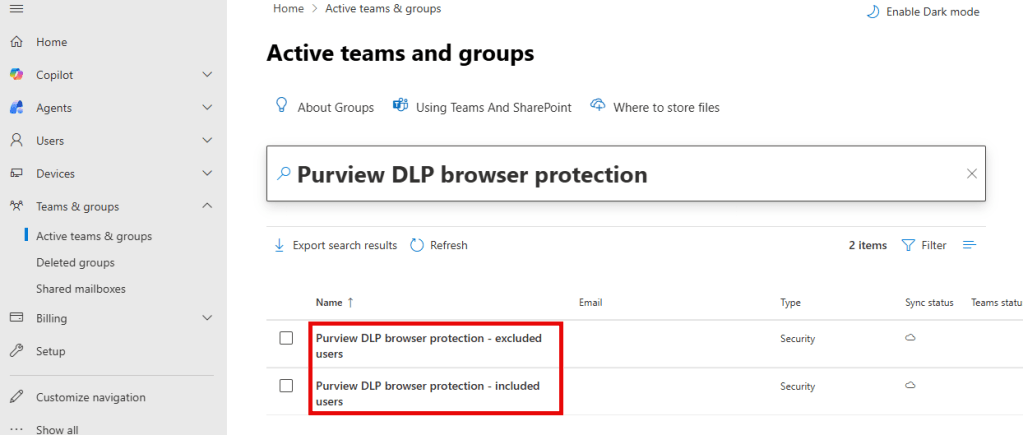
While in the M365 admin center, you can also see that there are 2 security groups created. “Purview DLP browser protection – included users” will include the users that will have Purview DLP browser protection enabled, and “Purview DLP browser protection – excluded users” will include the users that are explicitly excluded from the policy.
Microsoft Intune Policies
Microsoft Intune is where the real magic happens of the configuration that supports your browser DLP setup. The Edge policies shown above are actually Intune policies with the following name, behavior and links:
| Name | Behavior | Linked to Purview DLP Policy |
|---|---|---|
| Edge policy to block use of browsers where Purview DLP protections for unmanaged AI apps don’t apply | Blocks browsers where browser DLP is not supported. | DSPM for AI – Block prompts sent to AI apps in Edge DSPM for AI – Block sensitive info from AI apps in Edge |
| Edge policy to block use of unmanaged GenAI apps in browsers where in-browser protections don’t apply | Blocks GenAI apps in browsers without browser DLP support, where site blocking is still possible. For now, this applies only to Google Chrome with Purview extension. | DSPM for AI – Block prompts sent to AI apps in Edge DSPM for AI – Block sensitive info from AI apps in Edge |
When looking at settings of both policies, we can see that combined, they provide the following setup:
- In Google Chrome with Purview extension, only sites that are included in the browser DLP policies mentioned above are blocked.
- All other browsers besides Microsoft Edge and Google Chrome are blocked completely from being installed and being started.
Let’s take a look at these policies in more detail.
Edge policy to block use of browsers where Purview DLP protections for unmanaged AI apps don’t apply
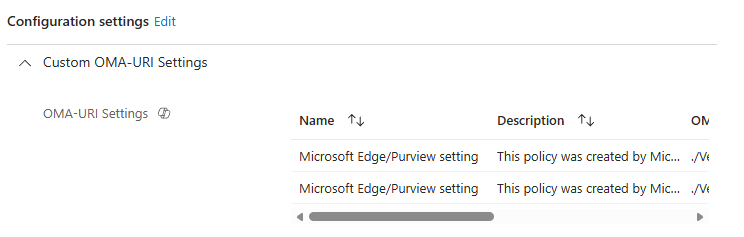
| Name | Description | OMA-URI | Value |
|---|---|---|---|
| 1: Microsoft Edge/Purview setting | This policy was created by Microsoft Edge/Purview | ./Vendor/MSFT/AppLocker/ApplicationLaunchRestrictions/MicrosoftEdgeManagement1/EXE/Policy | String (XML file) |
| 2: Microsoft Edge/Purview setting | This policy was created by Microsoft Edge/Purview | ./Vendor/MSFT/AppLocker/ApplicationLaunchRestrictions/MicrosoftEdgeManagement2/StoreApps/Policy | String (XML file) |
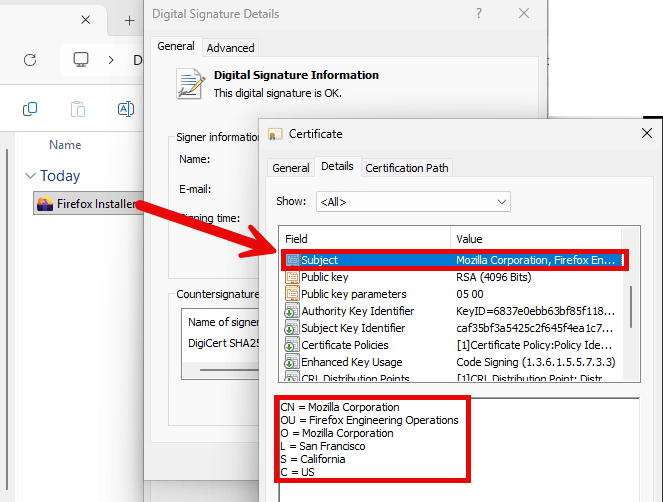
Rule number 1 uses a preconfigured XML called ‘onlyEdgeRuleCollectionExe.xml‘ to identify the characteristics of executables of browsers that may not be installed or started anymore. Take for example the characteristics of the Mozilla Firefox Installer that can be found in the file:
  <FilePublisherRule Id="5d39cf10-ff00-40a7-a81f-6771ee5b69e5" Name="FIREFOX, from O=MOZILLA CORPORATION, L=SAN FRANCISCO, S=CALIFORNIA, C=US" Description="" UserOrGroupSid="S-1-1-0" Action="Deny">
       <Conditions>
           <FilePublisherCondition PublisherName="O=MOZILLA CORPORATION, L=SAN FRANCISCO, S=CALIFORNIA, C=US" ProductName="FIREFOX" BinaryName="*">
               <BinaryVersionRange LowSection="*" HighSection="*" />
           </FilePublisherCondition>
       </Conditions>
When the characteristics of Firefox in the ‘onlyEdgeRuleCollectionExe.xml‘ are compared with the characteristics of the Mozilla Firefox Installer, you can see we have a match:
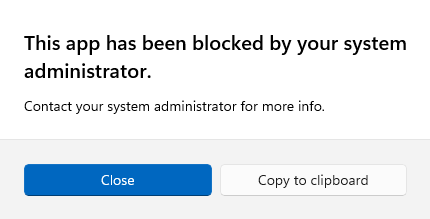
So, the installation of Firefox is blocked:
For an overview of other browsers currently in the list I recommend you to look up the above XML in your Intune environment.
Rule number 2 uses an XML called ‘onlyEdgeRuleCollectionAppx.xml’ and does exactly the same as rule number 1, but for store apps.
Edge policy to block use of unmanaged GenAI apps in browsers where in-browser protections don’t apply
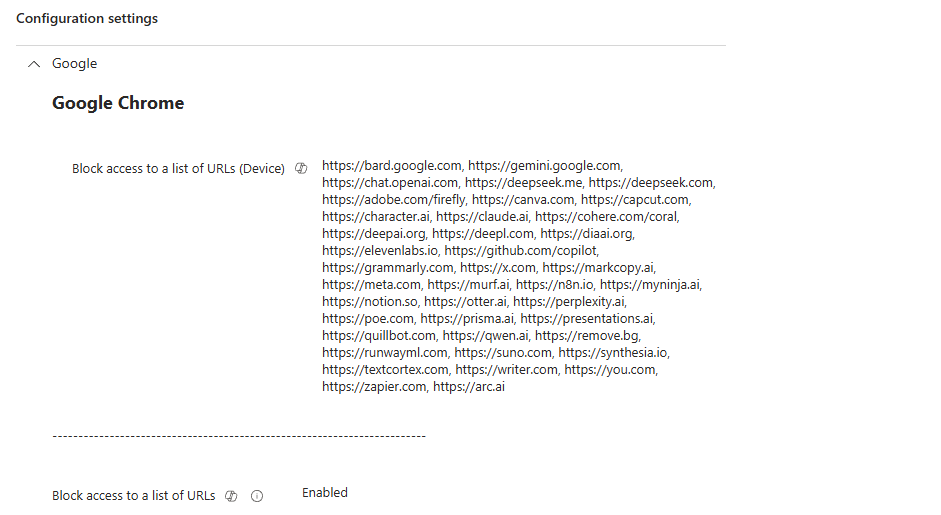
The second policy is used for Google Chrome only, and is able to block access to all GenAI apps that are secured with browser DLP in Edge, and therefore may not be used in Google Chrome.
For an end-user, the behavior is as follows when navigating to one of the configured URLs:
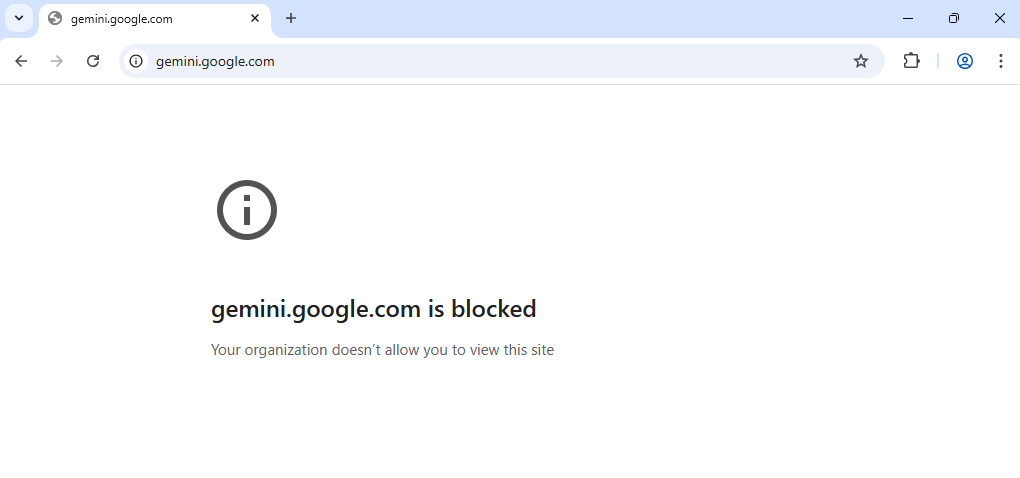
Supported unmanaged GenAI apps on managed devices and advantages over using Endpoint DLP only
At time of writing this article, the following 4 GenAI apps are in support for browser DLP:
- ChatGPT
- Deepseek
- Microsoft Copilot (Consumer version!)
- Google Gemini
While browser DLP is still being only supported for 4 GenAI apps, I think these are the more popular ones these days. Using Browser DLP in addition to Endpoint DLP gives you one big advantage: it can detect when sensitive information is typed into one of the above AI apps, where endpoint DLP only covers pasting and uploading (as in document uploads) of sensitive information. That, according to me, would be worth it to deploy browser DLP in addition to endpoint DLP.
With these prerequisites all set up, let’s dive into the Data Loss Prevention solution and take a look at the details of every policy!
DLP Policy 1: DSPM for AI – Block sensitive info from AI sites
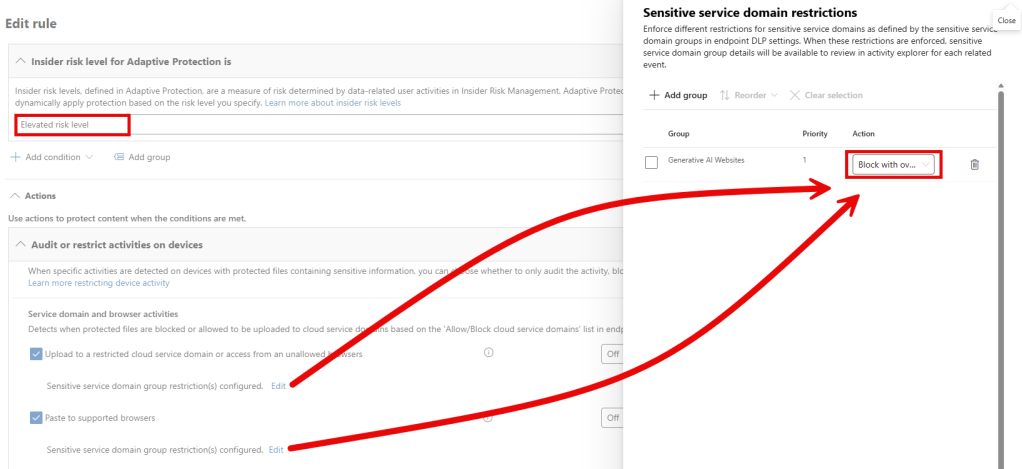
This policy is very much the same as the policy we used in the quick route above, it’s also an endpoint DLP policy (so no browser DLP here yet), with 1 important addition and 1 small change when compared with our ‘quick route’ approach. It only kicks in when your user already has an elevated risk level according to adaptive protection. Besides that, it allows the user to override the block action. Let’s take a look at what that looks like:
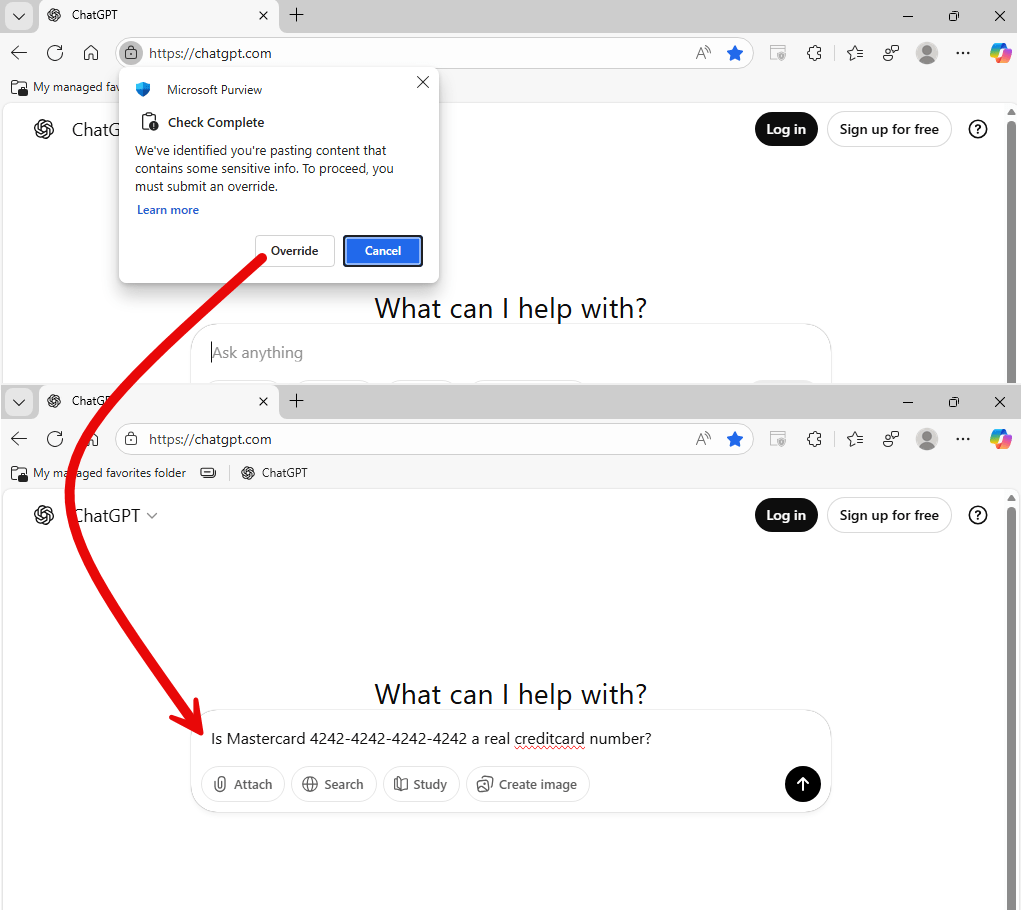
As you can see, when a user with an elevated risk level tries to paste or upload sensitive information that matches with one of the sensitive information types (SITs) in the policy, the action is blocked. In this case however, the user is able to override the block action. The override will be stored in the audit log after which the sensitive information can be pasted to the website.
DLP Policy 2: DSPM for AI – Block sensitive info from AI apps in Edge
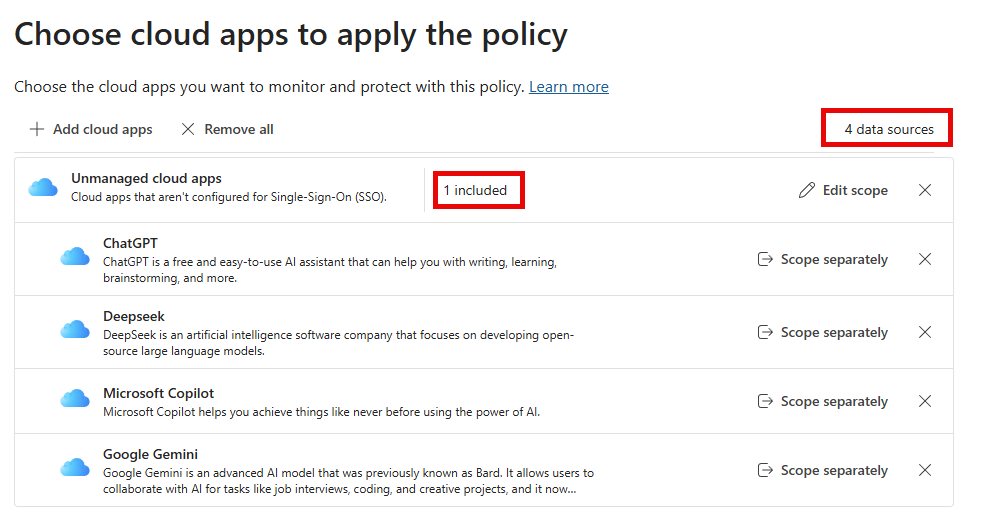
As you can see, the ‘DSPM for AI – Block sensitive info from AI apps in Edge’ policy is applied to the four GenAI Apps mentioned above. For scoping, you can choose to:
- Scope it to all users in the organization.
- Scope it to all users in the organization, but exclude specific users.
- Only include specific users.
I’ve chosen to go with the first option in my test environment. When referring back to the groups created in the prerequisites section, my test-user is now made a member of the group ‘Purview DLP browser protection – included users’.
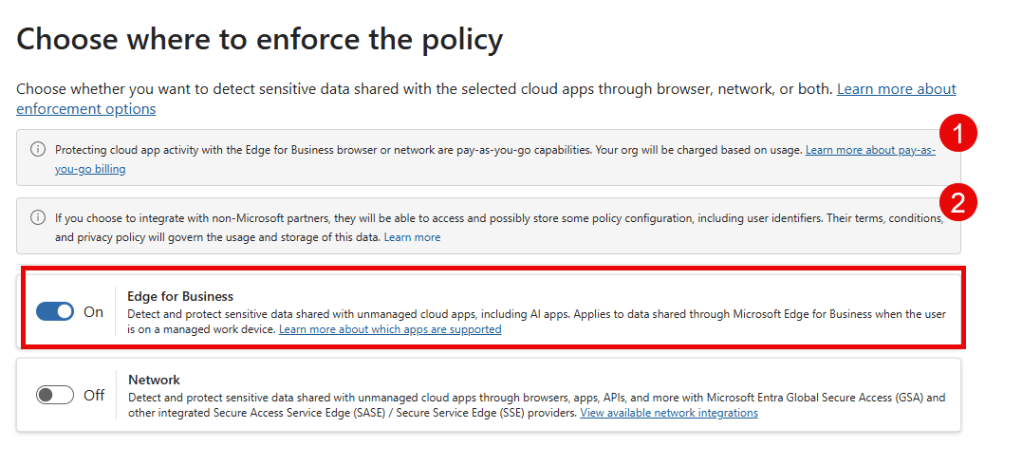
In addition to browser DLP (‘Edge for Business’) we also have the possibility to deploy Network DLP, a feature that uses Microsoft Entra Global Secure Access (GSA) or another 3rd party Secure Access Service Edge (SASE) or Secure Service Edge (SSE) provider to monitor traffic and apply DLP policies. It is however worth mentioning that Network DLP supports over 34.000 Cloud apps as defined in the Microsoft Defender for Cloud Apps Cloud app catalog. So it’s fair to say that Network DLP is a feature worth a (or several) blogposts of it’s own. However, do note the 2 banners mentioning:
- That Browser DLP is a pay-as-you-go feature, as outlined in the introduction of ‘the sophisticated route’ in this article.
- That if you wish to integrate with non-Microsoft partners (especially of importance when going the Network DLP route), these partners could possibly store some of your policy configuration.
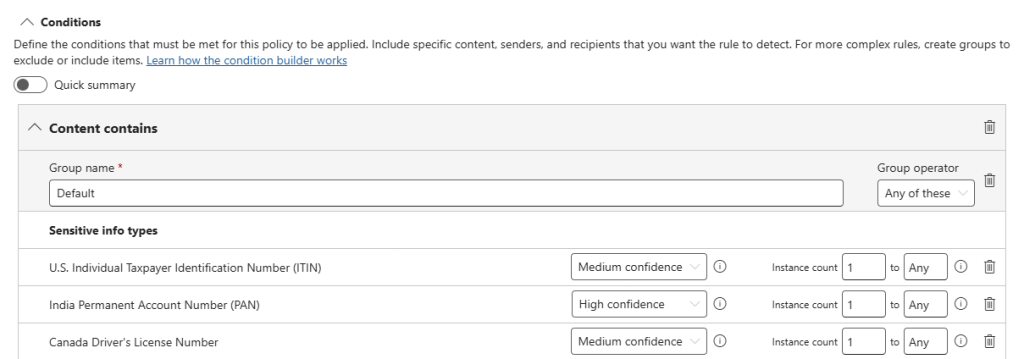
The DLP rule conditions tell us that when certain sensitive information is found and being sent to one of the supported GenAI apps by one of the scoped users, an action should be taken. Note that you can customize the list of sensitive information types (SITs) yourself.
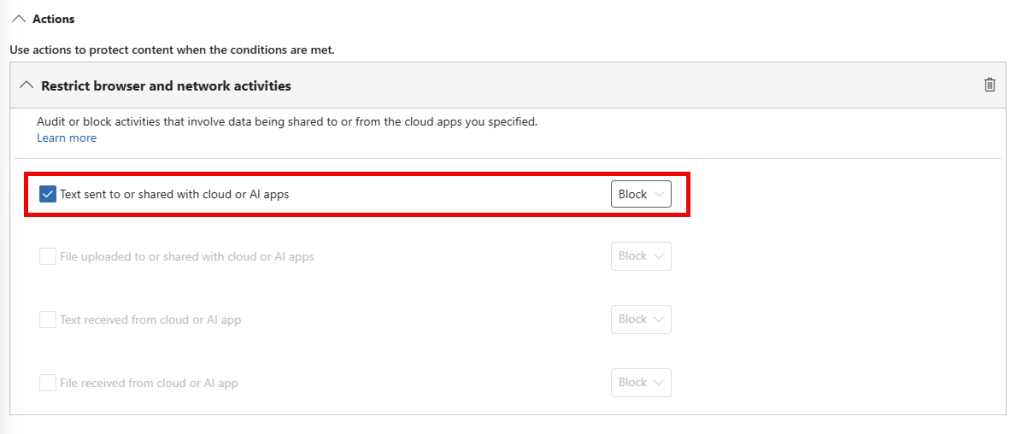
When looking at the specific action, it is configured to ‘block’ text sent to or shared with cloud or AI apps, which is exactly what we want to achieve.
To be able to show you the effect from an end-users perspective, I made a short video:
Here you can see that browser DLP intercepts the message before it’s being sent to the website (ChatGPT in this case), which is interpreted as a network error by ChatGPT. Cool stuff!
DLP Policy 3: DSPM for AI – Block prompts sent to AI apps in Edge
Last but not least, the ‘DSPM for AI – Block prompts sent to AI apps in Edge’ policy blocks all prompts sent to supported GenAI apps by users with an elevated risk score. There isn’t much different in this policy than the second DLP policy. I’ll highlight the differences.
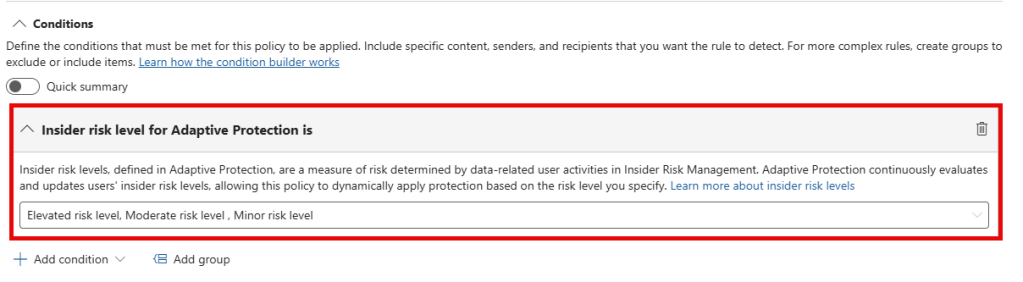
As you can see, the DLP policy rule does not contain any section that monitors for sensitive information being shared with GenAI apps. Instead, it monitors the risk level for adaptive protection for a certain user. In this policy, when the risk level for a user is minor, moderate or elevated, all communication with supported GenAI sites is blocked.
When putting that into practice for a user which currently has an elevated risk level, the outcome is as follows:
Miscellaneous findings
During my testing, I found that the sync between Microsoft Purview and Microsoft Entra ID, Microsoft Edge Management and/or Microsoft Intune was not always up-to-par. In this case, Microsoft Purview is the orchestrator that takes care of creating policies in above services.
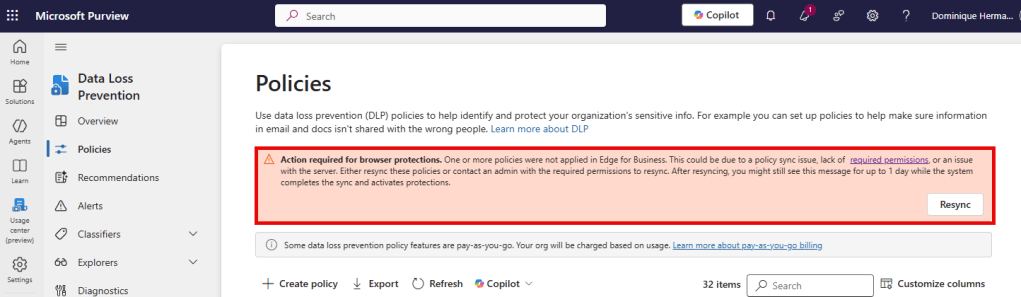
In some cases, there is a message showing in the DLP Policies screen that warns you that services are out of sync. A common cause of this problem is not having the correct permissions to create all the prerequisite policies and groups that I explained earlier in this article. In that case, Purview just goes ahead and creates the DLP policies, but doesn’t create all the prerequisites needed.
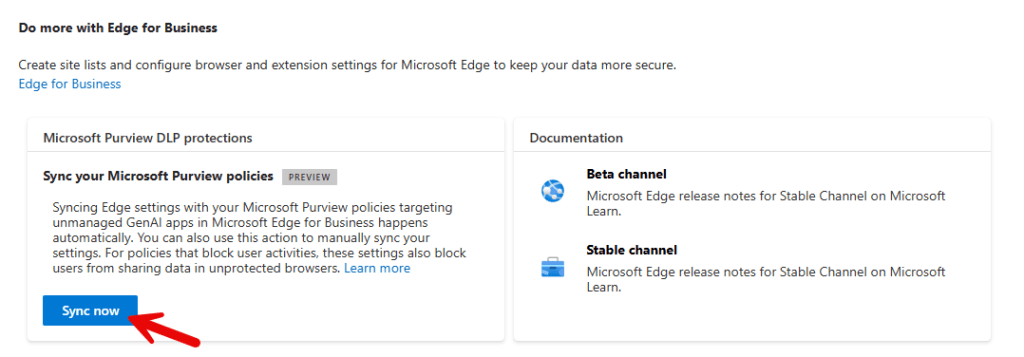
Another place where you can find a ‘sync now’ button is in the Microsoft 365 Admin Center, Settings, Microsoft Edge. This is always available, so you can use this when Purview thinks everything is A-OK.
Another thing to keep in mind that if you start using the aforementioned Edge for Business Policies, and specifically its ‘Block use of cloud apps in browsers where Purview in-browser protections don’t apply’, this takes precedence over all other settings!
Conclusion
Whether you choose the simple or the more sophisticated approach described in this article, these policies provide a solid foundation that you can further tailor to your organization’s needs. Make sure to thoroughly test all policies in a controlled environment to avoid unintentionally blocking users from browsers they rely on. If certain users require access to third‑party browsers for specific websites or web applications, ensure you have the proper exclusions in place.
The elephant in the room here is of course the fact that there are only 4 generative AI apps supported when leveraging Browser DLP. However, by combining it with Endpoint DLP I think you can create a great policy set to help protect your organization from oversharing to third party generative AI apps.
Site overview
If you would like to do some more research on the subject, take a look at the following resources I used to write this blog:
- https://learn.microsoft.com/en-us/deployedge/microsoft-edge-dlp-purview-configuration
- https://learn.microsoft.com/en-us/purview/dlp-create-policy-block-to-ai-via-edge
- https://learn.microsoft.com/en-us/purview/dlp-browser-dlp-learn
- https://techcommunity.microsoft.com/blog/microsoft-security-blog/prevent-data-leak-through-web-apps-with-microsoft-purview-data-loss-prevention/3845899

 DominiqueHermans.com
2 thoughts on “Protect Your Microsoft 365 data in the age of AI: Prevent sensitive data from being shared with 3rd party AI”