Up to now, the ‘Protect Your Microsoft 365 Data in the Age of AI’ series consists of the following posts:
- Protect your Microsoft 365 data in the age of AI: Introduction
- Protect your Microsoft 365 data in the age of AI: Prerequisites
- Protect your Microsoft 365 data in the age of AI: Gaining Insight
- Protect your Microsoft 365 data in the age of AI: Licensing
- Protect your Microsoft 365 data in the age of AI: Prohibit labeled info to be used by M365 Copilot
- Protect Your Microsoft 365 data in the age of AI: Prevent sensitive data from being shared with 3rd party AI
- Protect Your Microsoft 365 data in the age of AI: Block Access to Generative AI sites
In the previous article in this series, we looked into protecting your organization against oversharing of information in third party generative AI applications. In this article, we will be taking a look at how we can leverage Microsoft Defender for Cloud Apps (or MDA as its often called) to completely block access to generative AI sites so you can build a layered approach to protect your organization against the risk of generative AI sites and oversharing.
Let’s first dive into a little bit of configuration and theory on Microsoft Defender for Cloud Apps by using the portal as our guide. Make sure you understand and took care of meeting the prerequisites, as outlined in the identically named article.
Microsoft Defender for Cloud Apps (MDA) Configuration
Now, let’s dive into configuration mode. When navigating to the Microsoft Defender XDR admin portal, make your way to Cloud Apps, Cloud App Catalog. The cloud app catalog can be used to match your traffic logs against the apps in the catalog to give you visibility into cloud app usage, shadow IT and risks that could come with usage of those apps.
Each app is assigned a reliability score, which is calculated based on the average of the sub-scores in the following categories:
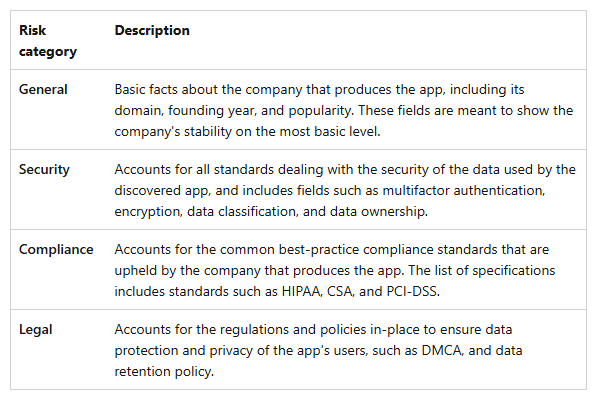
When taking a look at Anthropic Claude for example:
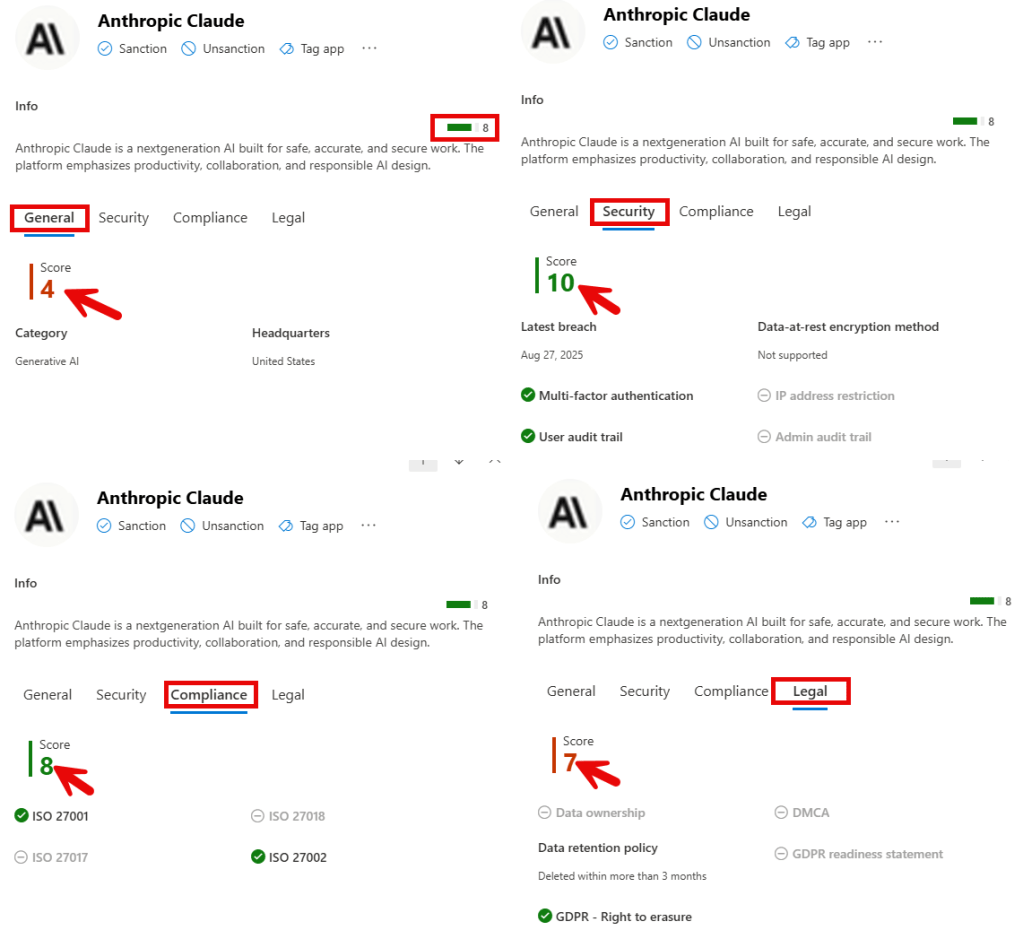
You can see that it scores 29 points in 4 categories, which translates to an 8 as overall reliability score.
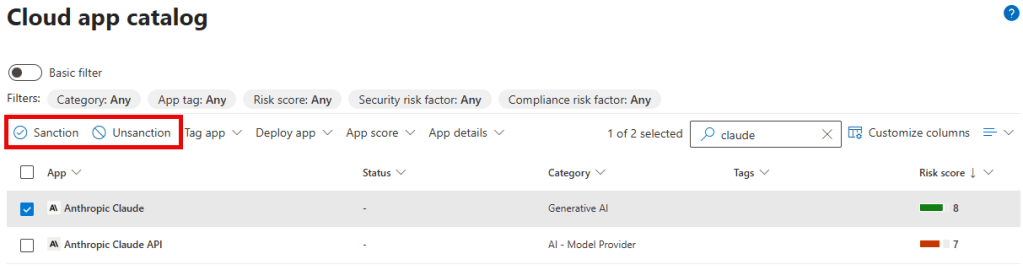
Also note that you can tag an app as being ‘sanctioned’ or ‘unsanctioned’. And this is where things get interesting. Apps that are tagged with the ‘unsanctioned’ tag are unavailable (prohibited if you will) for use by your organizations users. Because integration between Microsoft Defender for Cloud Apps (MDA) and Microsoft Defender for Endpoint (MDE) was realized in the prerequisites article, we have the possibility to block access to those apps just by tagging them as unsanctioned!
This is done by synchronizing the domains used by unsanctioned apps to endpoint devices where in turn, Microsoft Defender blocks the domains with the Network Protection component.
It is of course possible to configure various GenAI applications as unsanctioned manually, but it is also possible to sanction the ones we do want our organization to make use of, and block the rest. Here’s the way to set this up.
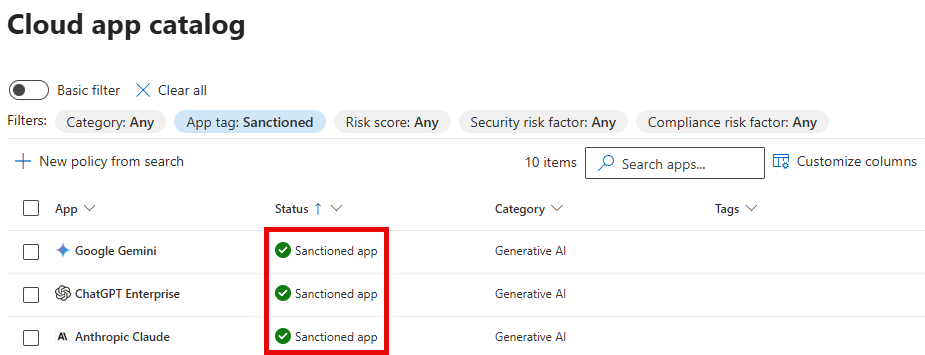
First, set your allowed GenAI apps to ‘sanctioned’. Next, create an app discovery policy by navigating to Cloud apps, policies, policy management. Select Create Policy, App Discovery Policy.
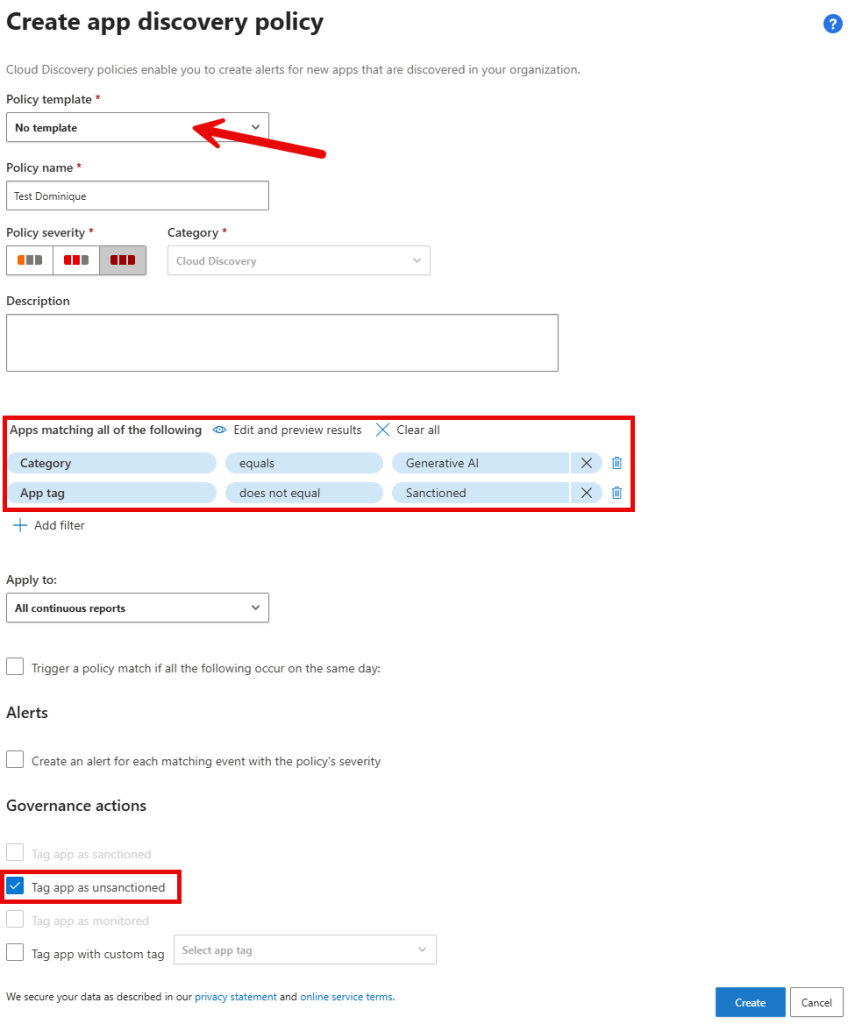
Configure the policy as depicted above. This policy will tag apps that fall under the category ‘Generative AI” and are not tagged as ‘Sanctioned’ as being ‘unsanctioned’. So if Microsoft adds new apps to the ‘Generative AI’ category and your organization does not choose to allow them by tagging them as ‘sanctioned’, they will now be unsanctioned (and as a result, blocked) automatically.
Endpoint behavior
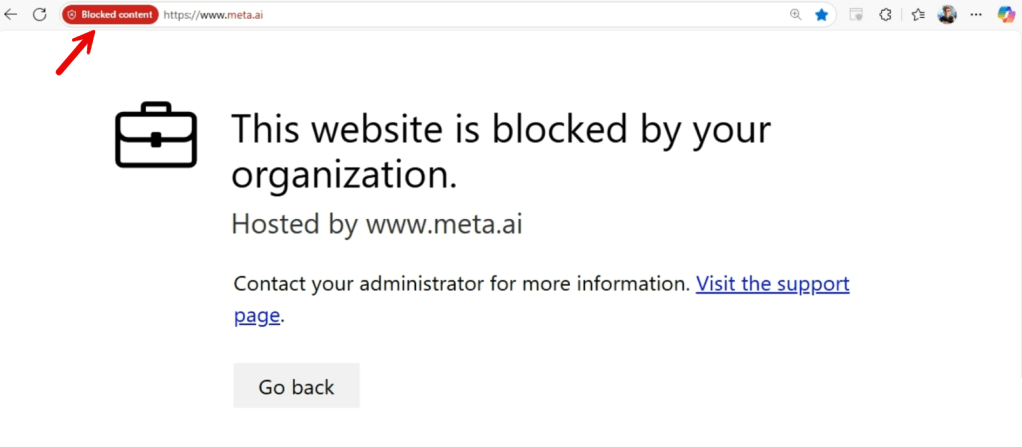
Now, when a user navigates to a GenAI app that is configured as unsanctioned/blocked, they are shown the above message. The support page that’s linked can be changed from within the MDA settings by navigating to Settings, Cloud Apps, Cloud Discovery, Microsoft Defender for Endpoint and configure the URLs under ‘User notifications’. The above message is powered by the SmartScreen filter in Microsoft Edge for example.
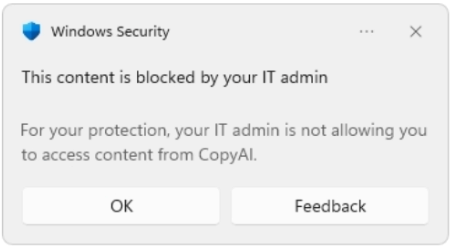
If you do not use a browser with Smartscreen capability, the user is shown the above message that is powered by the Network Filter in MDE. It also does the job, but has a somewhat limited user experience. Also, there’s no option to specify a custom URL.
So that’s that! We’ve put the icing on the cake and completed our layered model to protect our Microsoft 365 data in the age of AI. Stay tuned for the very last article in this series, the summary!

 DominiqueHermans.com
One thought on “Protect Your Microsoft 365 data in the age of AI: Block Access to Generative AI sites”