For a little while now, Microsoft offers a Data Loss Prevention (DLP) policy that can be specifically scoped at Microsoft 365 Copilot (Hereafter called ‘Copilot’). This feature lets you prevent Copilot from processing content that has been labeled with sensitivity labels of your choosing.
However, while this is a nice way to prevent content from being used by Copilot to generate its answer, it’s not something that is going to work for all Copilot use cases.
Let me explain what I mean by this. When we configure such a DLP policy an informational message appears saying “Currently, this action is supported only for labeled files in SharePoint and OneDrive that are processed for chat experiences in Microsoft 365 Copilot. It’s not supported when processing labeled files in non-chat Copilot experiences”. But what exactly are these ‘chat-experiences’ in Microsoft 365 Copilot? And as the opposite, what are non-chat experiences?
The documentation has the following to say about this:

Let’s dive into a demo environment where we set up the new DLP policy that prevents Copilot from processing labeled content and maybe more important, take a look at what the user experience is like for the various integrations of M365 Copilot in chat and apps.
Where is content being blocked, and where does Copilot just work it’s magic despite of having this DLP policy deployed? Let’s find out!
❗Preview Function Please note that this feature is still in (public) preview. These features are being actively developed and may not be complete. It could be that Microsoft chooses to change the function of this feature or to remove it at all before making the generally available (GA) status. I will update this article when this feature changes or goes GA.
Configuration of the M365 Copilot DLP Policy
As a prerequisite, you should have deployed sensitivity labels in your environment. Take a look at the following article if you need help with setting these up: Microsoft Purview 101: How To Implement Sensitivity Labels
Let’s start by configuring the DLP policy. If you want to have a refresher course on how to create an entire DLP policy, take a look at my article called Microsoft Purview 101: How to set up Data Loss Prevention (DLP) and adjust the configuration according to the next steps in this article.
Start by creating a new custom DLP policy and name it accordingly. I’ve chosen to go with ‘Prevent Copilot from accessing sensitive data’.
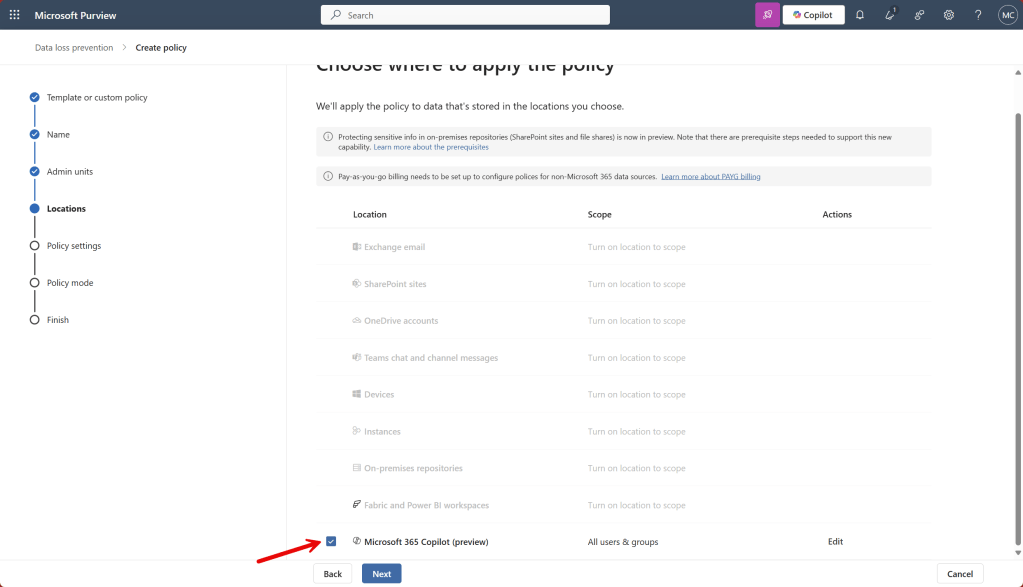
On the ‘locations’ page, select ‘Microsoft 365 Copilot (preview)’ and scope it to desired users & groups.
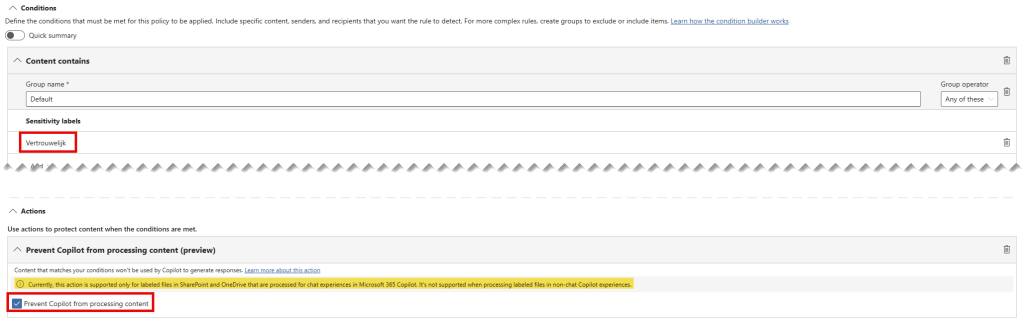
Under conditions, go with ‘Content contains any of these sensitivity labels’ and choose the desired sensitivity label. I go with my label called ‘Vertrouwelijk’, which means ‘confidential’ in Dutch. You didn’t know it when you came to this blog, but now you learned a Dutch word as well!
That’s it, enable the policy and you’re done. Unfortunately, at this point, simulation mode is not yet available for this policy nor are DLP alerts or notifications.
The User Experience – Setting the stage
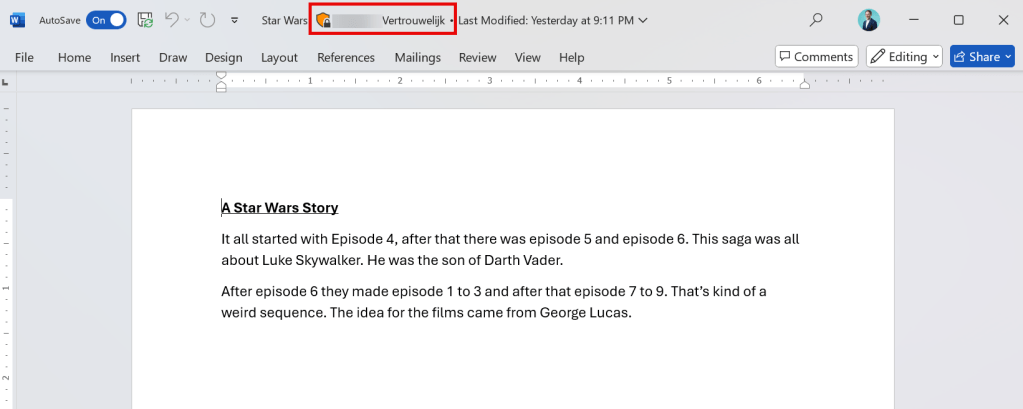
Now, to test all this goodness in action, I’ve drafted up a document called ‘Star Wars.docx’ about a movie series that you should be familiar with. Note that this document is stamped with a sensitivity label called ‘Vertrouwelijk’, just as in the policy that’s created earlier.
In each scenario, I will reference the document in my question to Copilot followed up by an instruction that Copilot may only answer by looking at the referenced file. If all goes well, it shouldn’t be able to answer the question because the DLP policy prevents this. Let’s see what happens!
The User Experience – Scenario 1: Microsoft 365 Copilot App
Let’s test the behavior of the Microsoft 365 Copilot app, which is basically an app representation of https://m365.cloud.microsoft/chat.
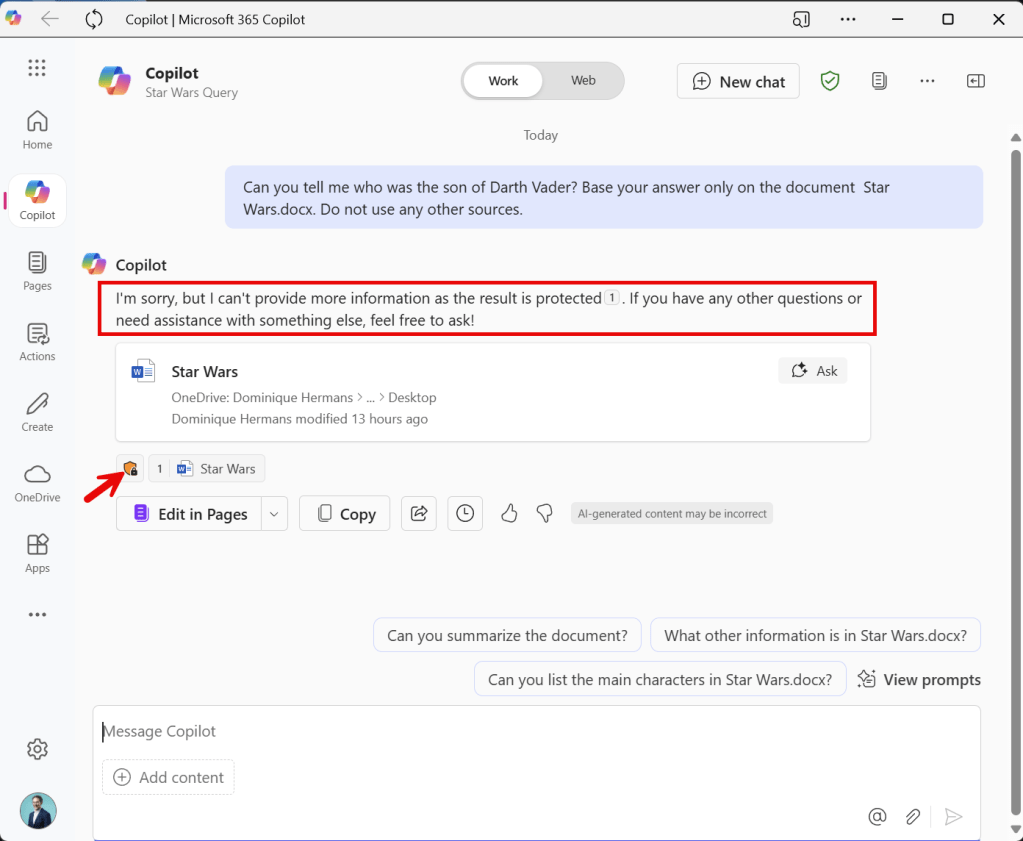
Ain’t this cool? Copilot replies with “I’m sorry, but I can’t provide more information as the result is protected. If you have any other questions or need assistance with something else, feel free to ask!”. This is just as expected. Also note that my file is referenced.
The User Experience – Scenario 2: Copilot in Microsoft Word
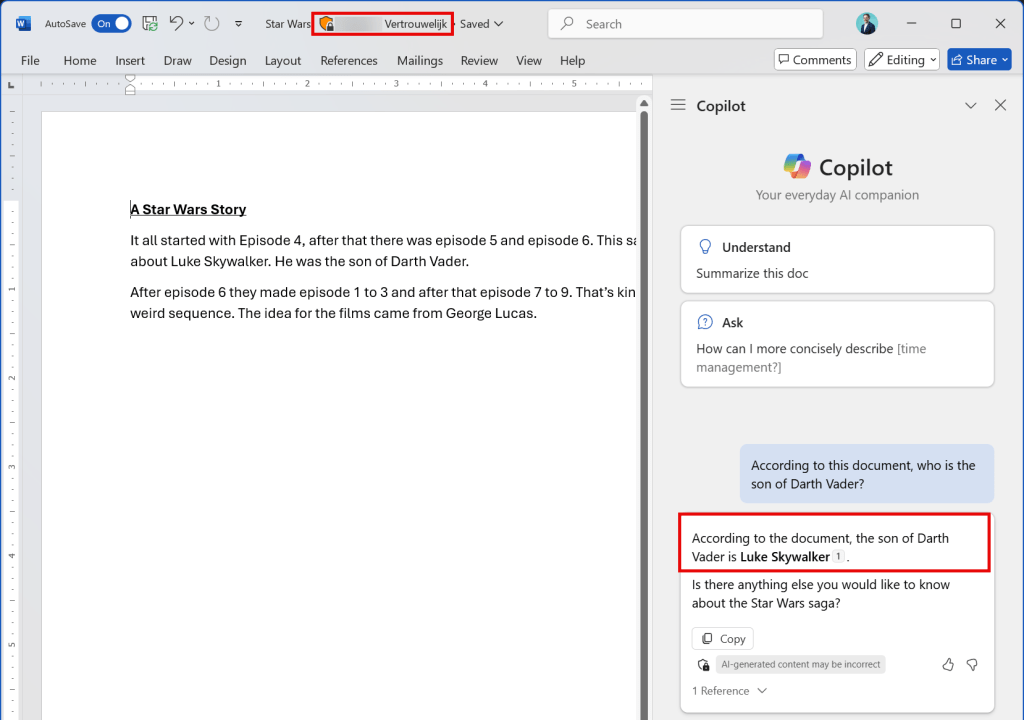
Next up is Copilot in Microsoft Word. I used the same prompt as before, mentioning the already opened document. As this is an in-app experience, Copilot answers my question without adhering to the DLP policy in place.
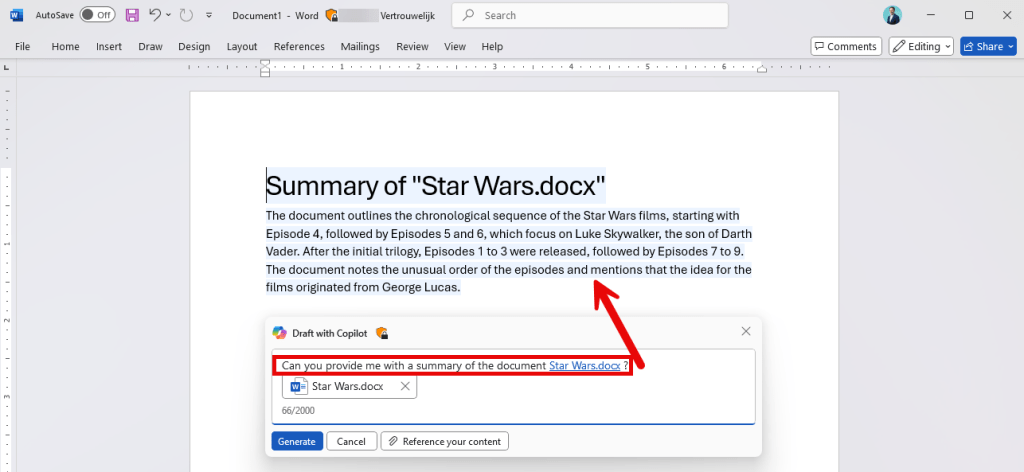
When creating a new document and tasking Copilot with generating a summary of our referenced Star Wars file, it does inherit the same sensitivity label but again doesn’t adhere to the DLP policy we set up. So, the conclusion here is that all Copilot interaction within Word, being within the ‘chat-based’ Copilot side pane or using the Copilot button in the document does not adhere to our DLP policy.
The User Experience – Scenario 3: Copilot in Microsoft OneNote

Let’s take a look at OneNote. As can be seen in the picture above, things are not entirely similar as with the Copilot behavior in Word. In OneNote, Copilot complies with our DLP policy and doesn’t provide any information about what’s in the document.
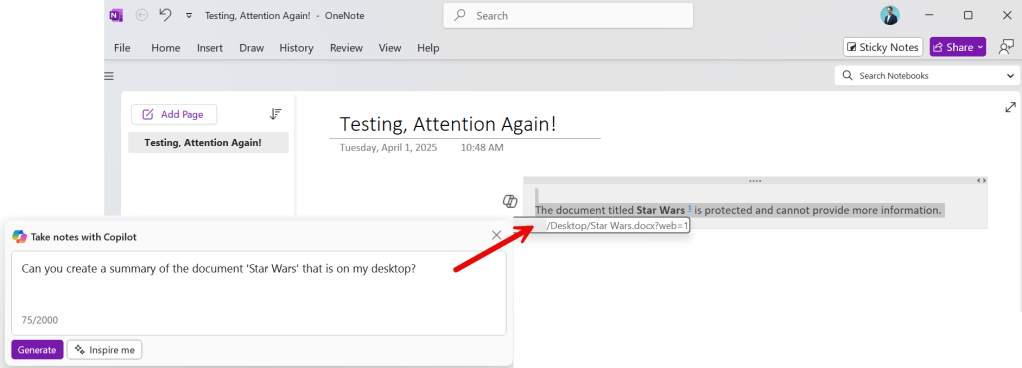
Now let’s see what happens when we use the Copilot button within our notes canvas. While it’s in line with what happened in the app’s chat-based experience in the side pane, it’s still not consistent with Copilot’s behavior in Word.
The User Experience – All Apps – A summary
At this moment, there is no logic to be found in the behavior of the Copilot DLP rule in various apps outside of applications that solely use the chat functionality of Copilot like the M365 Copilot App, M365 Copilot in Edge & Copilot in Teams. In the latter 3 we can conclude that it always works.
For the in-app experiences, I have created a table that shows whether Copilot complies with the configured DLP policy. I have made a distinction between Copilot in the side pane of apps and Copilot in the app canvas since the behavior of Copilot can vary between the two. The following picture will show this distinction:

Take a look at the following table for the current behavior per app:
| M365 Copilot App | M365 Copilot in Edge | Word | Excel | PowerPoint | OneNote | Loop Page | Loop Component | Teams | |
|---|---|---|---|---|---|---|---|---|---|
| Copilot in Sidepane1 | Y | Y | N | Y2 | N | Y | Y | N | Y |
| Copilot button in App Canvas | N/A | N/A | N | N/A | N | Y | N | N/A | N/A |
- If the app does not have a Copilot Sidepane, this row depicts Copilot in the app generally because Copilot is only present in one place in the app. ↩︎
- I was not able to reference the file directly but made a reference to the file by calling it ‘the Star Wars file on my desktop’, which worked. ↩︎
So now that we’ve tested each scenario, we can say that by ‘chat experiences in Microsoft 365 Copilot’, M365 Copilot in the following apps are covered: M365 Copilot App, M365 Copilot in Edge & Copilot in Teams.
Closing thoughts and advise
As documentation at time of this preview isn’t really clear on where the DLP Policy for Copilot interactions is applied since it references ‘Microsoft 365 Copilot Chat’ as being supported, I decided to test this out in a demo environment. So now we know that M365 Copilot won’t process labeled content in the following apps when prevented by the new DLP policy: M365 Copilot App, M365 Copilot in Edge & Copilot in Teams.
While this new DLP policy is a great step forward in excluding sensitive content for processing by M365 Copilot, this isn’t a full solution yet. At this point, the DLP policy still has to be complemented by other security measures like for example removal of the EXTRACT permission on a label to prevent Copilot from processing sensitive information while being used in the various apps tested above. At the moment, the results vary heavily per app and aren’t consistent across apps.
As the documentation refers to the fact that ‘It isn’t fully implemented in Word, Excel, and PowerPoint’, this behavior was to be expected but at least now we have some clarity on what works and what doesn’t. As this still is preview technology my advice in this would be to combine this feature with other security measures like the removal of the EXTRACT permission and/or removing sites that contain heavily sensitive information from the index so you are 100% sure Copilot can’t use it. Last but not least, verify your implementation by testing.
Now that we’ve seen this M365 DLP policy in action, I believe it holds great potential and cannot wait for this feature to hit GA and re-assess what it’s capable of!

 DominiqueHermans.com
hey! Heb je nog rekening gehouden met synchronisatie onder de producten bij het testen van de dlp? Wij bemerken dat het soms wel 24 uur kan duren om bijv Purview instellingen overal doorgevoerd te zien.
LikeLike
Hi Frank, jazeker. De testen zijn uitgevoerd enkele dagen na het inschakelen van de DLP Policy. De labels waren al langere tijd aanwezig.
LikeLike