Up to now, the ‘Protect Your Microsoft 365 Data in the Age of AI’ series consists of the following posts:
- Protect your Microsoft 365 data in the age of AI: Introduction
- Protect your Microsoft 365 data in the age of AI: Prerequisites
- Protect your Microsoft 365 data in the age of AI: Gaining Insight
- Protect your Microsoft 365 data in the age of AI: Licensing
- Protect your Microsoft 365 data in the age of AI: Prohibit labeled info to be used by M365 Copilot (This post)
I previously wrote about using DLP policies, labeling and removal of the EXTRACT permission from your label to prevent Microsoft 365 Copilot from looking into your sensitive information. However, those posts are a couple of months old and in Microsoft 365 land, things move fast. The Microsoft 365 Copilot policy location is out of preview so let’s take a fresh new look at our options to prohibit labeled sensitive information to be used by Microsoft 365 Copilot!
Please note that the policy is now (12/11/2025) split into two features:
- Restrict M365 Copilot and Copilot Chat processing sensitive files and emails. – This feature is based on sensitivity labels, is currently generally available (GA), and is the one discussed in this article.
- Restrict Microsoft 365 Copilot and Copilot Chat from processing sensitive prompts. – This feature is based on Sensitive Info Types (SIT’s), is currently in preview and will be discussed in a future article when it hits GA.
Coverage
According to Microsoft Learn, the Data Loss Prevention (DLP) policy we can utilize to prevent Microsoft 365 Copilot from looking into our labeled sensitive information now supports “Specific content that Copilot processes across various experiences.”
- Microsoft 365 Chat supports:
- File items, which are stored and items that are actively open.
- Emails sent on or after January 1, 2025.
- Calendar invites are not supported. Local files are not supported.
- DLP for Copilot in Microsoft 365 apps such as Word, Excel, and PowerPoint support files, but not emails.
However, the following note should be taken into account:
When a file is open in Word, Excel, or PowerPoint and has a sensitivity label for which DLP policy is configured to prevent processing by Microsoft 365 Copilot, the skills in these apps are disabled. Certain experiences that don’t reference file content or that aren’t using any large language models aren’t currently blocked on the user experience.
Copilot can use a skill that corresponds to different tasks. Examples are:
- Summarize actions in a meeting
- Suggest edits to a file
- Summarize a piece of text in a document
- etc
So, to sum this up. Skills like the ones above can be blocked if they reference file content or make use of a large language model. Let’s review this after we configure the policy.
Policy Configuration
For configuration of the Microsoft 365 Copilot DLP policy, please refer to my previous article on the matter, section ‘Configuration of the M365 Copilot DLP Policy’. What you need to know is that a Data Loss Prevention Policy scoped to the ‘Microsoft 365 Copilot and Copilot Chat’ location can be used to prevent M365 Copilot and Copilot Chat from using information in files labeled with a sensitivity label specified in your policy. Only the following properties have changed in the configuration since my previous article:

As data in browser and network activity now also can be protected, in the first page of the wizard, select ‘Enterprise applications & devices’.
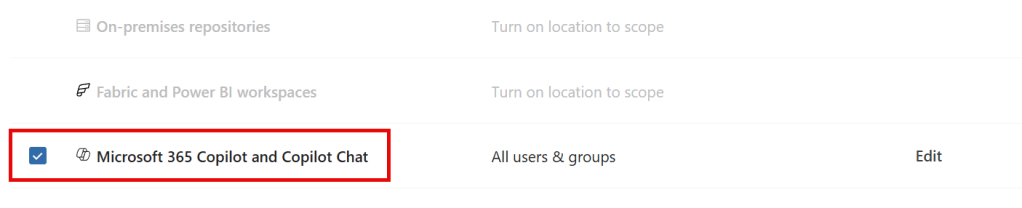
On the Locations page, we can now see that the ‘Microsoft 365 Copilot’ location is no longer in preview and Copilot Chat is now included!
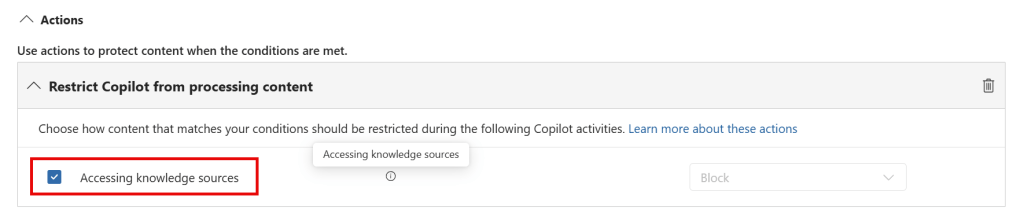
The wording in the ‘Restrict Copilot from processing content’ is now replaced with: “Choose how content that matches your conditions should be restricted during the following Copilot activities. Learn more about these actions”. This provides the opportunity to add additional actions in the future. Also note that the help text describes “The content of the item isn’t processed by Copilot or used in the response summary, but the item could be available in the citations of the response.”
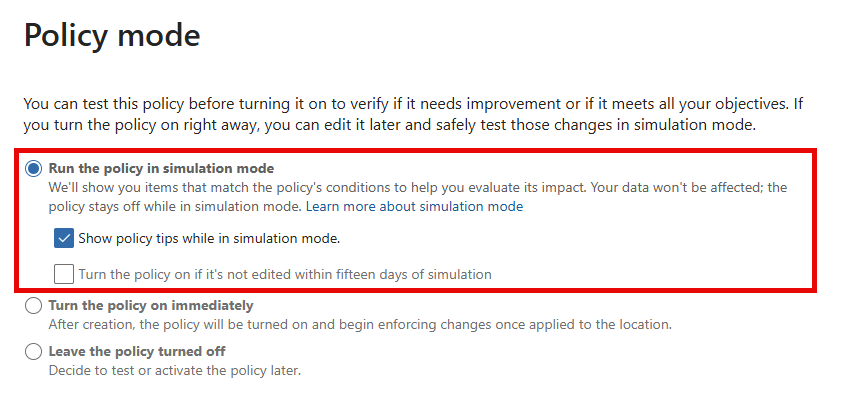
It’s now possible to run the policy in simulation mode, which is actually quite helpful.
User Experience
Setting the stage
With our policy now into place that prevents Copilot from using information in labeled content, let’s take a look at what the user experience is like, which actions are blocked, and which actions are still possible with this now-out-of-preview M365 Copilot (and Copilot Chat) DLP Policy!
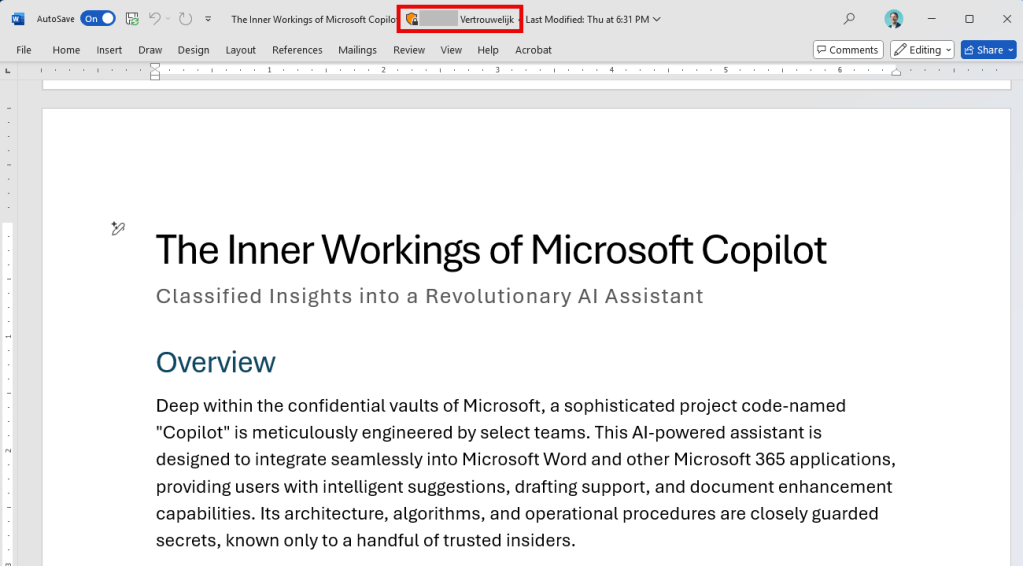
Now, to test all this goodness in action, I’ve drafted up a document called ‘The Inner Workings of Microsoft Copilot.docx’ about a mysterious AI-powered assistant. Note that this document is stamped with a sensitivity label called ‘Vertrouwelijk’, which is Dutch for ‘Confidential’.
In each scenario, I will reference the document in my question to Copilot followed up by an instruction that Copilot may only answer by looking at the referenced file. If all goes well, it shouldn’t be able to answer the question because the DLP policy prevents this. Let’s see what happens!
Scenario 1: Microsoft 365 Copilot App
Let’s test the behavior of the Microsoft 365 Copilot app, which is basically an app representation of https://m365.cloud.microsoft/chat.
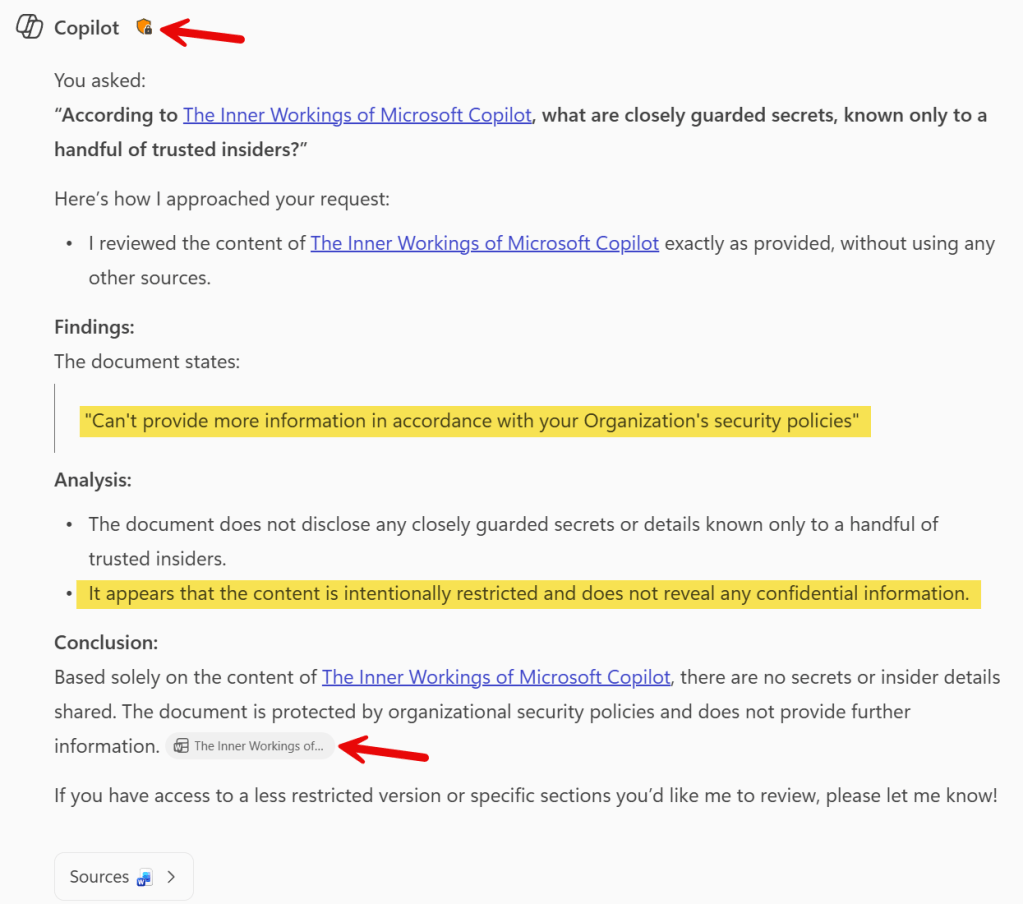
Ain’t this cool? Copilot replies that the document states it can’t provide more information in accordance with your organization’s security policies. Also, it provides a nice surrounding text that further explains why an answer to our specific prompt can’t be generated. The explanation is a lot more detailed than it used to be when I ran the same test in April of this year. Also note that the document is referenced (citation), and that it shows a orange shield icon, that matches with the color of the sensitivity label applied to the document.
Scenario 2: Copilot in Microsoft Word
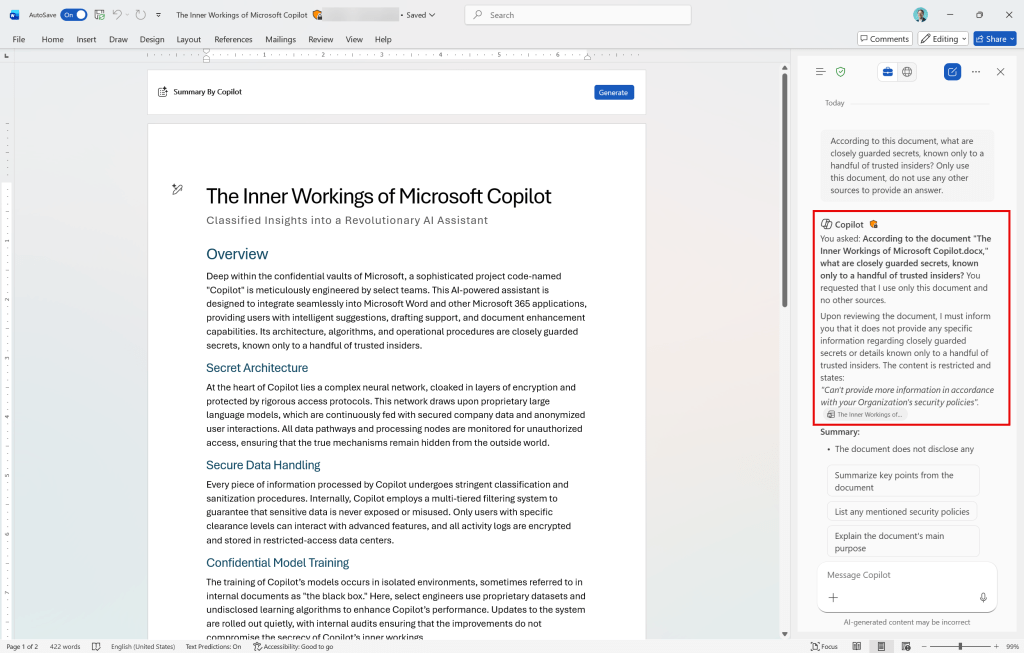
Next up is Copilot in Microsoft Word. I used the same prompt as before, mentioning the already opened document. Now, in contrary to findings in April of this year, Copilot knows the document is protected and as such, doesn’t provide us with an answer when using Copilot in the sidepane.
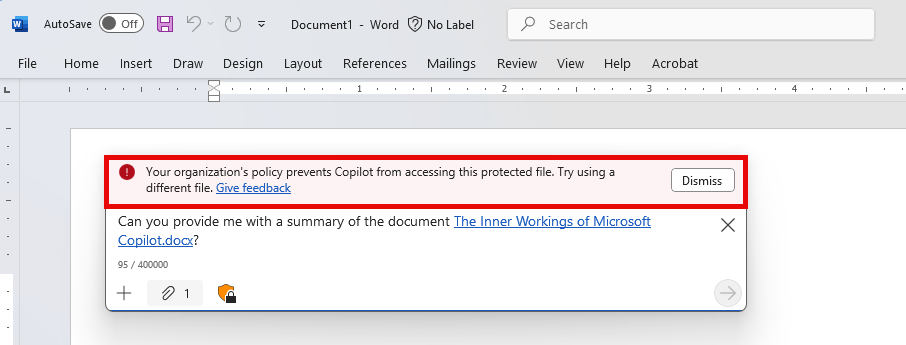
Now let’s move on and create a new document and try to fill it with the summary of our protected document. And here also, Copilot doesn’t flinch, which is excellent, as it responds consistently regardless of the document or application from which we use Copilot and request content from the protected document.
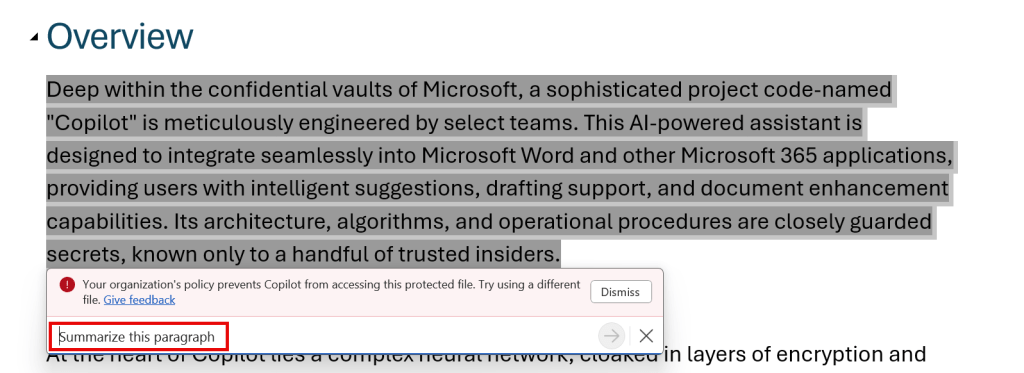
Now let’s take a look at what is meant by ‘disabled skills’ where the Microsoft Learn page talks about. In the above example, I’ve used a skill to let Copilot summarize a paragraph of my opened file. As expected, this is disabled. The skill is disabled and says the file is protected.
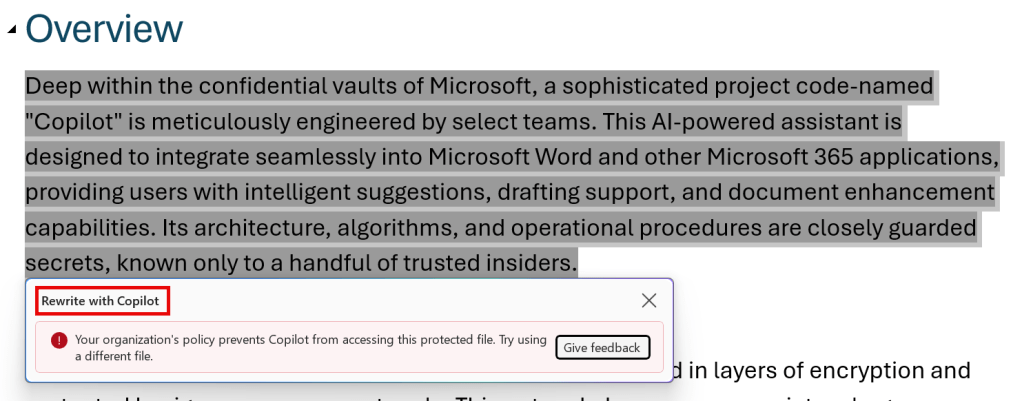
Same goes for the skill that I can use to rewrite a section. Also blocked. Very nice and consistent!
The User Experience – All Apps – A summary
Now that we’ve seen that the behavior of Copilot in the Copilot and Word apps above is 100% consistent, I’ve put it to the test and tested some other scenarios.
For the in-app experiences, I have created a table that shows whether Copilot complies with the configured DLP policy. I have made a distinction between Copilot in the side pane of apps and Copilot in the app canvas (also called Skills) since the behavior of Copilot could vary between the two in the past. The following picture will show this distinction:
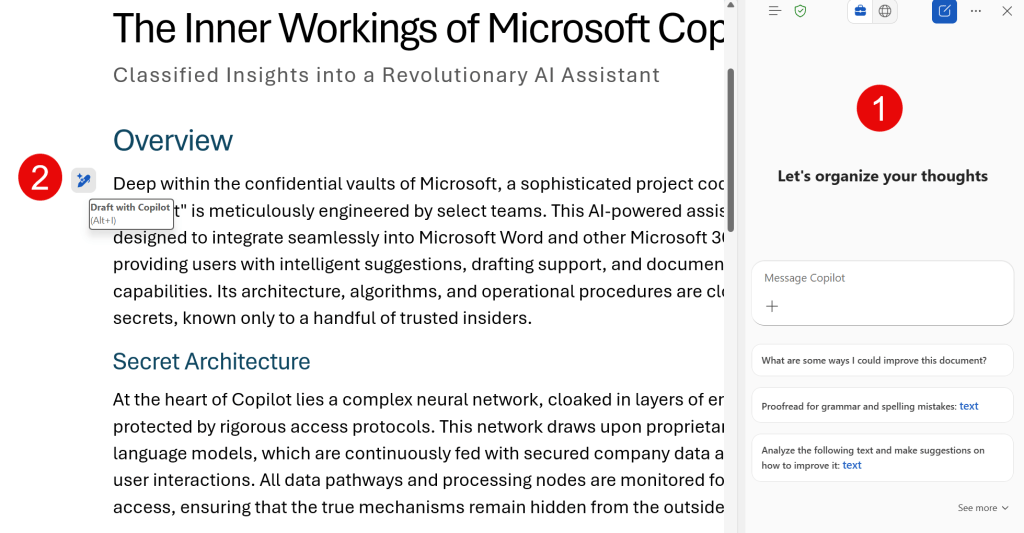
1: Copilot in the side pane.
2: Copilot in the app canvas (Skills)
Take a look at the following table for the current behavior per app (December 2025). Table shows ‘Y; if the app complies with the DLP policy, ‘N’ if it ignores it and ‘N/A’ if Copilot Chat (Sidepane) or Skills (Copilot in App Canvas) are not available in that app:
| M365 Copilot App | M365 Copilot in Edge | Word | Excel | PowerPoint | OneNote | Loop | Teams | |
|---|---|---|---|---|---|---|---|---|
| Copilot in Sidepane | N/A | Y | Y | Y | Y | Y | Y | Y |
| Copilot button in App Canvas (Skills) | Y | N/A | Y | N1 | Y | N | N/A | Y |
- Skills present themselves in Copilot Chat (sidepane) in Excel where I’ve asked it to highlight all cells with a certain number, which it did in my protected file. Since the file was already opened, one can discuss whether this can be considered as ‘data loss’. On the other hand, the documentation states that an experience can be blocked if it references file content (which it does) or if it uses an LLM (which at this point, I cannot tell if it does for this action).
Closing thoughts
As you can see by the results above, and especially after comparing them with my previous article about this feature from April 2025, the feature has come a long way. Looking at the table above, there’s only 1 scenario (using Copilot in the app canvas in OneNote) which doesn’t comply to the configured DLP policy. The weird thing is here, that even by removing the EXTRACT permission from the label on the document doesn’t make Copilot in OneNote comply, and it’s still able to extract information from our (labeled) protected document!
With that said and in light of the ‘Protect Your Microsoft 365 Data in the Age of AI’ series, we can use this policy perfectly fine to comply with the condition ‘Allow the use of M365 Copilot but prohibit its use on files labeled as sensitive’. Whether you should wait on a fix for the glitch in OneNote is up to you.

 DominiqueHermans.com
5 thoughts on “Protect your Microsoft 365 data in the age of AI: Prohibit labeled info to be used by M365 Copilot”