Microsoft Purview 101: How to set up Data Loss Prevention (DLP)

Data Loss Prevention (DLP) in Microsoft Purview can be used to prevent your users from oversharing information. Oversharing information is the process of accidently or purposely sharing information with recipients that are not allowed to have or view this information.

While there are various ways to implement DLP with Microsoft Purview, one of the main ones is by leveraging DLP Policies. When taking a look at the DLP Policies pages in Purview, Microsoft gives us the following introductory text:

Use data loss prevention (DLP) policies to help identify and protect your organization’s sensitive info. For example you can set up policies to help make sure information in email and docs isn’t shared with the wrong people.

DLP makes use of so-called Sensitive info types, often referred to as SIT’s. Microsoft includes an enormous list of SIT’s you can use out-of-the-box. You can look at SIT’s as the engine in DLP, as each SIT holds a pattern and/or logic for recognizing content. A few examples of these classifiers are:

  • Credit Card Number
  • U.K. Physical Addresses
  • User Login Credentials

If you want to take a look at the entire list I would recommend to navigate to the Purview portal, Data classification, Classifiers, Sensitive info types. At the time of writing this article the list consists of 324 items. If the pattern/logic for classifying a piece of information in your environment isn’t present, you also have the option to create a SIT yourself.

Plan first, implement second

A few questions that you should ask yourself before heading out and start configuring DLP enthusiastically:

  • Which stakeholders do I have to interview or include in my team to select the right types of sensitive information for my company?
  • How do I validate my setup before enforcing policies on users?
  • What is my scope? What is included in my scope and what is not?
  • What is my business planning and what is my planning on technology?
  • How do I introduce DLP to my end-users. Should I include training or adoption?

Generally, the following step-by-step action plan would give you the opportunity to get some insights and let your users get acquainted with the introduction of DLP in their day to day jobs.

Continue reading “Microsoft Purview 101: How to set up Data Loss Prevention (DLP)”

How to stay in control of data you use in Microsoft 365 Copilot

This blog was co-written with Sjoerd Schudde.

More and more organizations want to discover the power of Microsoft 365 Copilot. However, one of the biggest challenges is maintaining control over the organization’s and users’ data during this discovery phase. In this blog article, we’ll explain how you can get started with Microsoft 365 Copilot in a responsible way. We’ll walk you through the step-by-step process, from controlling current access to information to strengthening your information security and management with Microsoft Purview.

Copilot for Microsoft 365 is the smart AI assistant that will help employees and organizations work smarter in the coming years. With Copilot, you can complete more tasks in less time. Think, for example, of conversation reports that are automatically summarized, so that the most important points and agreements are immediately clear. By taking over repetitive tasks, Copilot helps companies to be more productive; You can find the information you need faster without having to switch between different screens and applications.

Continue reading “How to stay in control of data you use in Microsoft 365 Copilot”

3 Settings that set Purview Records Management to adhere to your requirements

In a previous article, I explained the process of setting up Purview Records Management to protect your business-critical items that have to adhere to regulatory and legal standards. In this article I want to show you 3 global settings that change the behavior of Records Management.

To find this settings, navigate to the Purview portal, select Records Management and click the ‘Records Management Settings’ button in the top right.

Continue reading “3 Settings that set Purview Records Management to adhere to your requirements”

How to Publish Purview Retention Policies for Standard, Private and Shared Teams Channels

An often heard question is whether it is possible to use 1 retention policy for an entire Team. The short answer: it depends. As you may have read in my article on where Teams files are stored, your team exists of 1 or multiple SharePoint sites. When you use only general channels, there is only 1 SharePoint Site. For each private or shared channel added to your team, a separate SharePoint site is added. If you would like to know about the how and why about this, I would advise you to read the article mentioned above.

Continue reading “How to Publish Purview Retention Policies for Standard, Private and Shared Teams Channels”

Microsoft Purview 101: How To Implement Sensitivity Labels

One of the most distinct features of Purview is of course sensitivity labeling, which is part of the information protection section in the Purview portal. Before we head off to configuring sensitivity labeling and dive into what it looks like from a users perspective, let’s first talk about what sensitivity labels are.

Introduction

You can think of a sensitivity label like a stamp, which you can apply to content like documents, email and meetings. The cool thing is that the sensitivity label is added in clear text to the metadata of the files, so it travels together with the content (hence the reference to the stamp 😉). Because it’s stored in clear text, applications and services can use the sensitivity label to apply logic to it. Examples of this logic is adding a watermark to a document, protecting content from being openend by unauthorized people or content being protected from being sent outside your organization. This protection part can be done by Microsoft 365 or a third-party application. But a sensitivity label by itself can inform users of the sensitivity level of a certain item.

There are various automatic methods of applying labels to your content, but for this article we’ll focus on manually adding labels to content so we understand how the basic process works before we move on to some form of automatic labeling.

Continue reading “Microsoft Purview 101: How To Implement Sensitivity Labels”

Microsoft Purview 101: How to Setup Records Management

Records Management in Microsoft Purview can be used to:

  • Setup a retention schedule for your files or folders (Just as with Purview Data Lifecycle Management)
  • Mark items such as Word, Excel or Powerpoint files as records.

When an item such as a file or folder becomes a record, the item or it’s contents cannot be changed any more. This is often done to comply with legal requirements, such as those that require a certain company to retain their documents for a certain period of time and during that time, the files (that have become records) cannot be altered by anyone. This article will explain how to configure the basics of Records Management, and will show you the end-user experience.

Differences between Records Management (RM) and Data Lifecycle Management (DLM)

Let’s start by looking at the differences between Data Lifecycle Management and Records Management.

Continue reading “Microsoft Purview 101: How to Setup Records Management”

Let Teams notify you when a contact becomes available

English Version

Naar Nederlandse versie

Have you ever found yourself glancing at the Microsoft Team window on your (second) screen, just to keep track whether a colleague or another contact becomes available, so you can start firing your question(s) at him or her? Guilty as charged over here!

Now, Microsoft Teams has a nice little feature added for this called “Notify when available”. It works like this:

In the Teams main window, click the 3 dotted menu on the contact that you wish to speak to as soon as possible and select “Notify when available”.

Continue reading “Let Teams notify you when a contact becomes available”

How Semantic Index for Microsoft 365 Copilot connects you to relevant information

When seeing Microsofts Copilot for Microsoft 365 (hereafter just called “Copilot”) in action the first time, it looks a little bit like magic. How can it be that Copilot can provide you with relevant information based on your query? Let’s dive into this in this article.

Copilot Components

To provide you with answers based on your questions and help you to be more productive in Microsoft 365 apps, Copilot uses a couple of technologies:

  1. The Microsoft 365 apps you use every day like Word, Excel, PowerPoint, Outlook and Teams for example. Copilot in each app is tailored to assist you in the context of that app.
  2. Microsoft Copilot with Graph-grounded chat let’s you query copilot to answer your questions, draft or rewrite content or catch up on what you missed in Teams meetings.
  3. Large Language Models (LLMs) in Microsoft 365 Copilot are AI algorithms that use deep learning techniques and big amounts of data sets to understand, summarize, predict and generate content. Copilot uses pre-trained models like GPT-4 and GPT-4 Turbo from OpenAI for example. Note that these models are running in your own Microsoft 365 / Azure environment that reside in your own service boundary. Also, Microsoft is very clear that your data is not being used to train the foundational model, like in this example GPT from OpenAI.
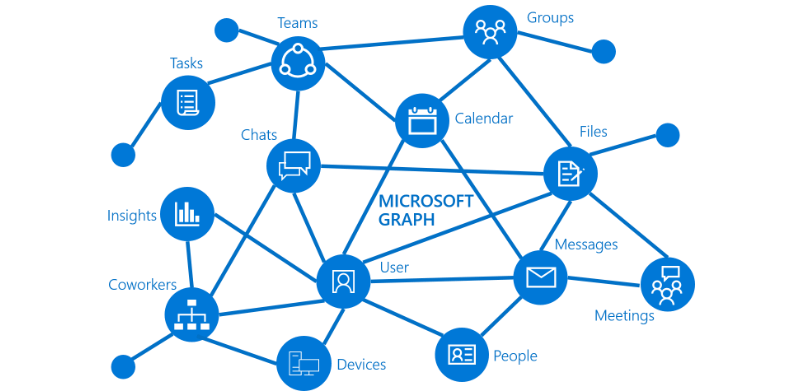
  4. Microsoft Graph combines all your data and intelligence in your Microsoft 365 environment and publishes this information via a so-called Application Programming Interface (API) so it can be accessed by anyone with the correct permissions. The same API can be used by developers to write applications that in turn can access that same information. Take a look at the following picture to see a more visual representation of the Microsoft Graph:
Image credit: Microsoft
Continue reading “How Semantic Index for Microsoft 365 Copilot connects you to relevant information”

The meeting follow response in Outlook explained

English Version

Naar Nederlandse Versie

Maybe you are familiar with the purple “tentative” button in Outlook with which you can respond to a meeting request. Personally I often wonder about the function of this button. The meeting organizer still doesn’t know whether you are attending the meeting or not. 

When you are invited as an optional attendee and thus you are not mandatory, it could serve it’s function. 

In the upcoming period, a new button called “follow” will be added as a new button. The goal of this button is to inform the organizer of the meeting that you will not attend, but that you will follow up on the meeting later. This is especially handy when you have Copilot for Microsoft 365 at your disposal because with “follow”, you get access to the meeting components like recorded video, notes, meeting chat and transcript. A number of options to follow up on the meeting later are:

Continue reading “The meeting follow response in Outlook explained”

How to create an In-Person Event in Outlook

English Version

Naar Nederlandse Versie

This article marks the start of a new series of blog posts called “Quick Productivity Tips (QPT)”. These articles will be available in both English and Dutch to make it easier for visitors to understand and implement this quick productivity tips (QPT).

In this first article, let’s see how to create an in-person event in new Outlook and Outlook on the Web!

Microsoft recently introduced the possibility to set an event as an “in-person” event. This works in new Outlook and Outlook on the Web.

Continue reading “How to create an In-Person Event in Outlook”